
Windows 11 slowing down, crashing constantly, or riddled with software conflicts you can't untangle? A factory reset wipes the slate clean and reinstalls the OS from scratch. It's one of the most reliable fixes for performance problems, but it's also irreversible if you skip the backup step.
Knowing how to factory reset Windows 11 means understanding which reset method to use, what gets deleted, and how to avoid losing important files in the process. We'll walk through the backup checklist, explain the difference between a cloud download and a local reinstall, and cover three reset paths: from Settings when everything works, from the sign-in screen when you're locked out, and from recovery media when the system won't boot at all.
When you should factory reset Windows 11 (and when you shouldn't)
A factory reset makes sense when Windows is broken at the system level: persistent malware that survives antivirus scans, catastrophic performance issues after a failed feature update, or corrupted system files that SFC /scannow and DISM can't repair. It's also the standard preparation step before selling or donating a PC, since the process wipes your personal files and accounts.
What doesn't require a reset: general slowdowns, high CPU usage, or update download problems. These almost always have faster fixes. If Windows feels sluggish but still functions, try the fixes in our speed-up guide first. For update errors and stuck downloads, the update troubleshooting guide covers targeted solutions that don't erase your programs.
The reason to exhaust simpler options is cost. A factory reset removes all installed programs, most settings, and requires hours of reinstallation work. Use it when the operating system itself is compromised, not when a specific program misbehaves.
What to back up before you reset
Windows assumes everything important lives in your user folder and that you sync to OneDrive. That's rarely true. Start with the Desktop, Downloads, and Documents if OneDrive sync is off. Then check anywhere you've stashed files outside the standard structure: D:\ drives, custom project folders, anything in C:\Program Files you edited directly.
Browser data survives only if you sync to a browser account. Without that, export bookmarks manually and grab your password vault if you use a standalone manager. Extensions reinstall from the store, but custom settings don't.
License keys disappear with the apps. Dig them out now: product keys for Office or Adobe tools, activation files for audio plugins, exported config files from code editors. Most software emails you a key at purchase; search your inbox if you don't have a records file.
Game saves for older or DRM-free titles often live in Documents\My Games or AppData\Local. Cloud saves through Steam or Xbox cover new releases, but nothing else.
Cloud download vs. local reinstall: which reset method to choose
Windows 11 offers two reset methods during the factory reset process. Cloud download pulls a fresh Windows image directly from Microsoft's servers. The download is typically 3-4 GB and requires a stable internet connection throughout the process. It takes longer than the alternative but guarantees you're working from a clean, untampered baseline since the files come directly from Microsoft rather than your existing installation.
Local reinstall rebuilds Windows using the system files already stored on your PC. It's faster, works without internet access, and completes the reset in less time. The tradeoff: if your local Windows files are corrupted or compromised, those problems can carry over into the reset installation.
Choose cloud download if you suspect malware, have corrupted system files, or want maximum assurance of a clean slate. Choose local reinstall when you know your Windows installation is intact and you need the reset completed quickly, or if you're working without reliable internet access.
Keep my files vs. remove everything: what each option does
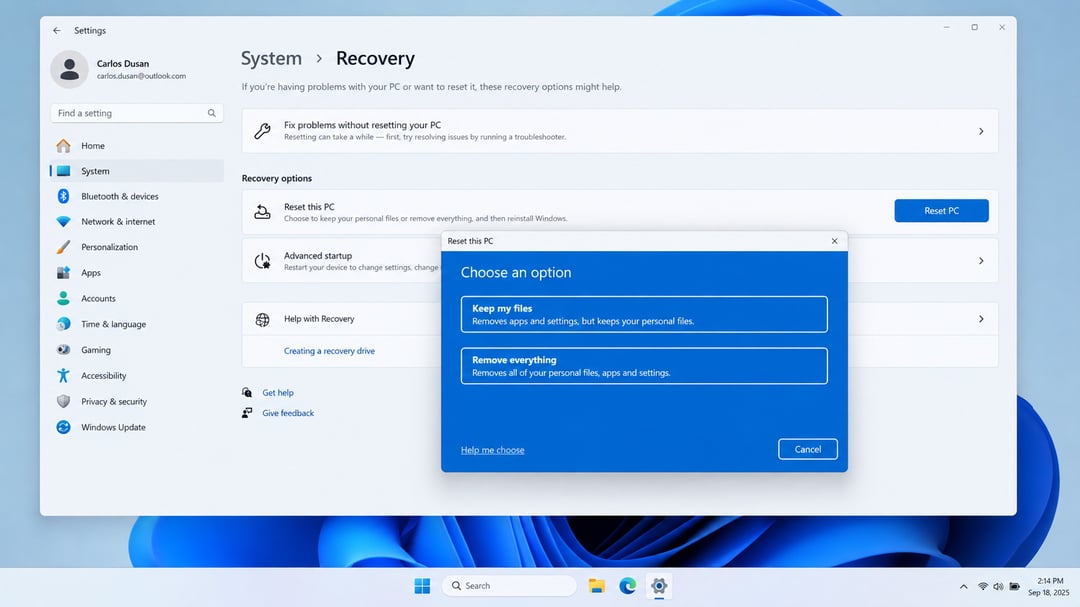
"Keep my files" preserves personal files stored in Documents, Pictures, Videos, Desktop, and Downloads, but removes all installed applications, third-party drivers, and most settings. Windows itself gets reinstalled. The option sounds safer, but it's not a backup substitute. The reset process can fail mid-operation, corrupting files, and anything stored outside those standard folders disappears. Custom app data, game saves in alternate directories, and files buried in Program Files won't survive.
"Remove everything" wipes the entire drive: files, apps, settings, user accounts. The PC returns to the state it was in when first powered on. This is the correct choice when selling or donating hardware, or when you need a completely clean slate to troubleshoot a deep system problem. This option includes an additional secure-erase pass that overwrites data multiple times, making recovery significantly harder. The trade-off is time: the secure wipe can take hours depending on drive size.
How to factory reset Windows 11 from Settings
Open Settings (Windows key + I), navigate to System, then Recovery. Click the "Reset this PC" button next to "Reset this PC," then click "Get started" in the dialog that appears.
Choose "Keep my files" if you're troubleshooting and want to preserve personal data, or "Remove everything" if you're selling the PC or need a completely clean slate. Next, select "Cloud download" for the freshest Windows image (requires stable internet and downloads about 4GB) or "Local reinstall" to rebuild from files already on your PC.
Windows shows a summary screen listing what will be removed: apps, settings, and drivers that didn't come with Windows. Review this carefully. If you backed up everything you need, click "Reset" to begin.
The process takes 20 minutes to over an hour depending on your choice (cloud downloads take longer on slow connections), drive speed, and how much data Windows needs to process. Your PC will restart multiple times. Don't interrupt it.
How to factory reset Windows 11 from the sign-in screen
Use this method when Windows boots but you cannot log in—whether you've forgotten your password, encounter a corrupted user profile, or Settings won't open after login.
From the sign-in screen, hold Shift and click the power icon in the bottom-right corner. While still holding Shift, click Restart. Windows will reboot into the Windows Recovery Environment (WinRE) instead of loading normally.
Once WinRE appears, navigate to Troubleshoot > Reset this PC. You'll see the same options as the Settings method: Cloud download or Local reinstall, and whether to keep your personal files or remove everything. The reset process runs identically—the only difference is your entry point.
This path is particularly useful when malware or a bad driver prevents normal access. You skip the compromised user session entirely and trigger the reset from a minimal recovery environment that loads before Windows proper starts.
How to factory reset Windows 11 when the PC won't boot
Windows enters recovery mode automatically after two or three consecutive boot failures. If that doesn't happen, you can force it: hold the power button during the Windows logo screen to cut power, wait a few seconds, then power on again. Repeat this two or three times. Windows interprets the interrupted boots as a serious problem and loads the Windows Recovery Environment.
Once WinRE appears, navigate to Troubleshoot > Reset this PC. You'll see the same options covered earlier: keep files or remove everything, cloud download or local reinstall. The reset process works identically whether you start from Windows or from recovery mode.
If WinRE itself is corrupted or missing, the screen will show an error or loop back to a black screen instead of loading recovery options. At that point, you'll need to create Windows 11 installation media on another PC and boot from the USB drive to either repair or clean install the system.
What happens after the reset (and what to do next)
The PC reboots into the Windows 11 setup experience, which walks you through region selection, keyboard layout, and Microsoft account sign-in. If you're setting up a local account instead, look for the "Sign-in options" link during account creation and choose "Offline account."
Once you reach the desktop, Windows Update runs automatically. This initial update pass often takes 30 minutes or longer, especially if the recovery partition installed an older build. Let it finish completely before installing other software. Interrupting it creates the exact instability you just reset to escape.
Reinstall applications from their official sites or trusted sources like the Microsoft Store, not from third-party bundle sites that package unwanted extras. Restore your backed-up files manually, checking that documents, browser bookmarks, and other critical data have returned intact.
For post-reset optimization, see our guide on how to speed up Windows 11, which covers startup program management, storage sense configuration, and performance tweaks that keep a fresh install running smoothly.
Factory reset checklist: back up first, choose the right method
A factory reset solves serious problems like persistent malware, corrupted system files, or catastrophic performance issues, but it's overkill for minor slowdowns. Before you reset, back up anything outside your standard user folders and verify that browser data, license keys, and game saves are safely stored or synced. Choose cloud download for the cleanest result and local reinstall when speed matters more. If you're keeping the PC, "Keep my files" preserves your personal data; if you're selling it, "Remove everything" wipes the drive. Once the reset finishes, let Windows Update complete before reinstalling your apps, and restore your backups manually to confirm nothing was missed.
Frequently asked questions
Will a factory reset remove viruses and malware from Windows 11?
A factory reset with the 'remove everything' option will delete most malware, but sophisticated rootkits or firmware-level infections may survive. If you suspect serious malware, consider using Windows Defender Offline or a bootable antivirus tool before resetting, and enable 'Clean data' during the reset to perform a more thorough wipe.
How long does a Windows 11 factory reset take?
A typical factory reset takes 30 minutes to 2 hours depending on your hardware speed, the reset method you choose, and whether you enable data cleaning. Cloud download resets usually take longer due to the 4+ GB download. Older hard drives or enabling the secure erase option can extend the process to 3-4 hours.
Can I cancel a factory reset once it's started?
No. Once the reset process begins, interrupting it by forcing a shutdown or removing power will likely corrupt Windows and leave your PC unbootable. If you realize you started a reset by mistake, let it complete, then restore from your backup or reinstall your programs manually.
Will a factory reset fix blue screen errors and crashes?
A reset fixes software-related blue screens caused by corrupt system files, bad drivers, or conflicting programs. It won't fix hardware failures like failing RAM, a dying hard drive, or overheating components. If blue screens persist after a clean reset, run hardware diagnostics to rule out physical defects.
Do I need a Windows 11 product key after a factory reset?
No. If Windows 11 was already activated on your PC before the reset, the digital license is tied to your hardware or Microsoft account and will reactivate automatically after the reset completes and you connect to the internet. You only need a product key if you're installing Windows on new hardware.