
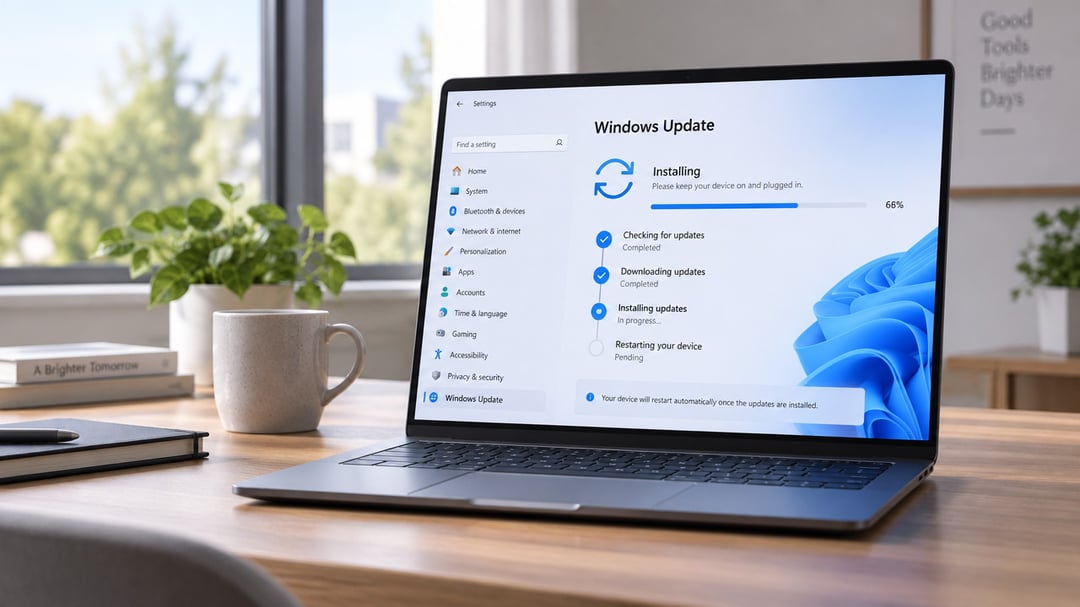
The restart prompt has been sitting on the taskbar for three days. You keep clicking later because a file is open, a call is running, or the laptop is on 12% battery. Then a patch fails, and the whole thing feels more complicated than it is.
Installing Windows 11 updates in 2026 is still a short sequence: check, download, restart, confirm. The friction is almost always around timing, disk space, or a version that has quietly left support.
Why It's Important to Update Windows
Windows Update is not optional busywork. Monthly quality updates close security holes and repair bugs. Feature updates arrive about once a year and move the PC to a newer version, such as 25H2.
That yearly jump matters right now. Windows 11 version 24H2 Home and Pro stop getting updates on October 13, 2026. If you stay on 24H2 after that date, new monthly patches stop arriving. The PC still boots. It just stops receiving the fixes everyone else gets.
Microsoft documents the process in its Windows Update FAQ. The short version: stay on a supported build, install what Windows offers, and restart when it asks.
What you need before you install Windows 11 updates
A few checks prevent most failed installs.
- A normal, unmetered connection. Metered Wi-Fi often blocks automatic downloads.
- Several gigabytes free on the C: drive. Feature updates need more room than a small security patch.
- Power. Plug a laptop in. A shutdown mid-restart can leave the install unfinished.
- Time for a reboot. Windows tries to restart when you are idle, but you should still save work first.
Close apps with unsaved documents. Games, video editors, and large downloads do not recover well from a forced reboot.
How to check for Windows 11 updates
- Press Windows + I, or open Start > Settings.
- Select Windows Update in the left sidebar.
- Click Check for updates.
Windows contacts Microsoft’s servers and reports what is waiting. Common statuses are “You’re up to date,” “Downloading updates,” “Restart required,” or an error code.
Give the scan a minute. A slow connection can sit on “Checking for updates” longer than it looks like it should.
To see what already landed, open Windows Update > Update history. Keep that page in mind if something breaks after a restart.
You can also confirm the current version anytime: press Windows + R, type winver, and press Enter.
How to install Windows 11 updates without extra delays
Required updates usually download on their own after you check. When the download finishes, choose Restart now or Schedule the restart. Pick a time you will not be in the middle of work.
Set active hours on the same Windows Update page if Windows keeps rebooting while you are using the PC. Automatic restarts then wait until outside that window. Microsoft’s notes on active hours cover the details.
Optional updates sit one level deeper: Windows Update > Advanced options > Optional updates. These are often drivers or extra quality packages. Install a driver update if a device is misbehaving. Leave it if the PC already works.
You cannot turn Windows Update off permanently. You can pause it for a limited stretch from the Windows Update page. When the pause ends, the latest updates have to install before you can pause again.
On a hotspot or other metered connection, some updates wait. Switch to regular Wi-Fi or Ethernet when you want the full set.
What to do when Windows 11 updates get stuck or fail
A progress bar frozen at a fixed percentage is common. So is a restart that fails with a code and rolls back.
Work through this order:
- Restart the PC, then run Check for updates again.
- Go to Settings > System > Troubleshoot > Other troubleshooters, run Windows Update, reboot, and retry.
- Free disk space if Windows says it does not have enough room.
- Check
winveragainst Microsoft’s servicing dates. A version that has left support will not take new monthly patches, no matter how many times you retry.
If those steps fail, use Microsoft’s Windows Update troubleshooting guide. Repeated corruption is a different problem. At that point a Windows 11 clean install is the more reliable reset.
After you install Windows 11 updates
When the desktop returns, do three quick checks.
Open Settings > System > About, or run winver, and confirm the version and OS build changed. Open Update history and make sure the newest item shows as successfully installed. Then test the things you actually use: Wi-Fi, audio, an external display, a printer.
If a feature update leaves a device feeling off, restart once more. Some driver work finishes on the second boot.
Keep future Windows 11 updates smoother
Do not let “Restart required” sit for a week. Pending updates stack, and the next install gets larger and more brittle.
Once a month, glance at Optional updates for driver packages. Leave Windows Update unpaused unless you have a real reason, such as travel on limited data.
That is the whole routine. Check for updates, let them install, restart on purpose, and confirm the build. Do it on a regular cadence and Windows 11 stays current without turning into a weekend project.