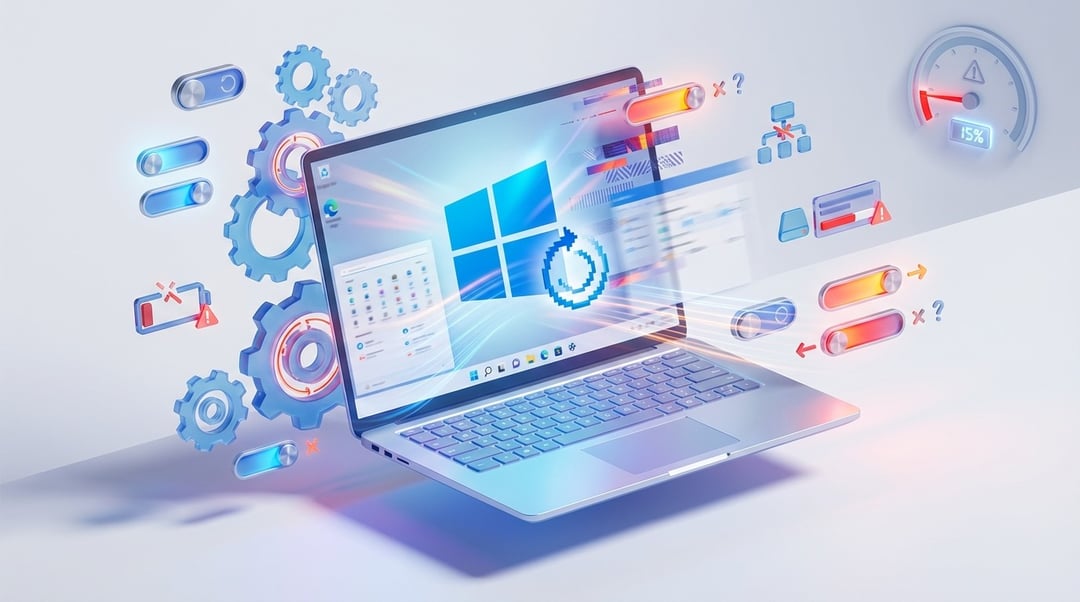
You click something. Wait. Click again. That spinning circle mocks you. Your PC isn't broken—it's just buried under features you never asked for. Windows 11 arrives with dozens of settings designed to look pretty and "help" you work. Most of them quietly drain your system resources in the background. The good news? You can fix this in minutes. Here are 10 Windows 11 settings that slow down your PC and exactly how to disable each one.
Why Your Windows 11 PC Feels Slower Than It Should
Windows 11 prioritizes aesthetics over performance by default. Translucent windows, background syncing, and constant notifications all consume RAM, CPU cycles, and GPU power. Microsoft's own support documentation admits that visual effects "can use additional system resources and can slow down your PC." You're not imagining the sluggishness. It's real. It's common. And it's completely reversible.
1. Startup Apps That Launch Without Permission
Every app wants to launch when Windows boots. Spotify, Steam, Microsoft Teams, printer software, antivirus suites—they all fight for a slice of your RAM before your desktop even appears. The result? Longer boot times and unnecessary background processes stealing resources from what you actually want to do.
The fix: Press Ctrl + Shift + Esc to open Task Manager. Click the Startup apps tab and examine the "Startup impact" column. Right-click any app you don't need immediately and select Disable. Leave your antivirus and audio drivers enabled. Everything else can wait until you actually open it.
2. Visual Effects and Animations
Those smooth animations and translucent window borders look sleek. But your GPU pays the price—especially if you're running integrated graphics or older hardware. Microsoft explicitly lists visual effects as a performance drain on their support pages.
The fix: Press Win + R, type sysdm.cpl, and hit Enter. Navigate to the Advanced tab and click Settings under Performance. Select Adjust for best performance to disable all visual effects at once. You'll lose some aesthetic polish but gain noticeably snappier window switching and app launches.
3. Background Apps Running Unnecessarily
Windows 11 lets apps run in the background even when you're not actively using them. They check for updates, sync data, and push notifications—all while consuming memory and CPU cycles. This creates a constant resource drain that slows down your foreground tasks.
The fix: Go to Settings > Apps > Installed apps. Click the three dots next to any app, select Advanced options, then set "Background app permissions" to Never. Be selective. Keep email or messaging apps running if you need real-time alerts. Disable everything else.
4. Power Mode Set to Balanced
Windows 11 defaults to "Balanced" power mode, which throttles your CPU to conserve energy. That's fine for laptops on battery. But if you're plugged in or using a desktop, you're leaving performance on the table.
The fix: Navigate to Settings > System > Power & battery. Under "Power mode," select Best performance. Your CPU will scale up more aggressively under load, delivering faster response times. Switch back to "Balanced" or "Best power efficiency" when you need extended battery life on the go.
5. Tips, Tricks, and Suggestions Notifications
Windows 11 constantly nudges you with setup suggestions and "helpful" tips. These notifications interrupt your workflow and keep background processes running to generate them. Beyond being annoying, they consume system resources.
The fix: Go to Settings > System > Notifications. Scroll to Additional settings and uncheck both "Show the Windows welcome experience" and "Get tips and suggestions when using Windows." For extra cleanup, visit Settings > Personalization > Device usage and toggle off any suggestions you don't need.
6. Delivery Optimization (Peer-to-Peer Updates)
Here's one most people don't know about. Windows 11's Delivery Optimization lets your PC share updates with other computers—potentially across the internet. You become a mini update server for Microsoft, uploading files to strangers while your own downloads slow down.
The fix: Go to Settings > Windows Update > Advanced options > Delivery Optimization. Toggle Allow downloads from other PCs to Off. If you manage multiple Windows devices at home, you can restrict sharing to "PCs on my local network" instead of disabling it entirely.
7. Activity History Tracking
Windows 11 tracks your app usage, files opened, and websites visited to build an "activity history." This data gets stored locally and previously synced to Microsoft's servers. The tracking service runs continuously in the background, logging your actions and consuming resources.
The fix: Navigate to Settings > Privacy & security > Activity history. Toggle Store my activity history on this device to Off. Click Clear activity history to remove existing data. You'll gain both performance and privacy.
8. Transparency Effects
Those translucent window borders and semi-transparent menus look modern—but they require your GPU to render multiple visual layers simultaneously. Microsoft lists transparency as one of two features that explicitly slow down your PC.
The fix: Go to Settings > Personalization > Colors and toggle Transparency effects to Off. Window borders become solid, reducing GPU load and improving UI responsiveness on budget systems.
9. Windows Search Indexing
Windows Search continuously indexes your files, emails, and web content for instant results. On systems with many files or slower hard drives, this indexing runs constantly in the background—causing noticeable slowdowns.
The fix: Press Win + R, type services.msc, and hit Enter. Locate Windows Search, right-click it, and select Properties. Set Startup type to Disabled, click Stop, then OK. Search will take longer, but your system will run smoother. Skip this fix if you heavily rely on Windows Search.
10. OneDrive Constant Syncing
OneDrive continuously syncs your files in the background. Large files or numerous documents create ongoing disk and network activity that competes with your active applications.
The fix: Click the OneDrive cloud icon in your system tray. Click the gear icon > Settings > Manage backup. Uncheck folders you don't need constantly synced. Alternatively, pause syncing temporarily when working on resource-intensive tasks.
Quick Fixes for Immediate Results
Start with these five changes for the fastest improvements:
- Disable unnecessary startup apps for quicker boot times
- Switch visual effects to "best performance" for snappier UI
- Restrict background apps to free up RAM and CPU
- Set power mode to "Best performance" when plugged in
- Turn off transparency effects to reduce GPU load
Conclusion
Your Windows 11 PC isn't underpowered—it's overburdened by defaults designed for aesthetics and data collection rather than speed. These 10 fixes require no technical expertise. Each takes under a minute. The cumulative effect? A noticeably faster, more responsive system. Start with the first five settings for immediate gains. Tweak the rest based on your specific workflow. A slow Windows 11 PC is rarely a lost cause—with the right settings disabled, even older hardware can feel fresh again.