
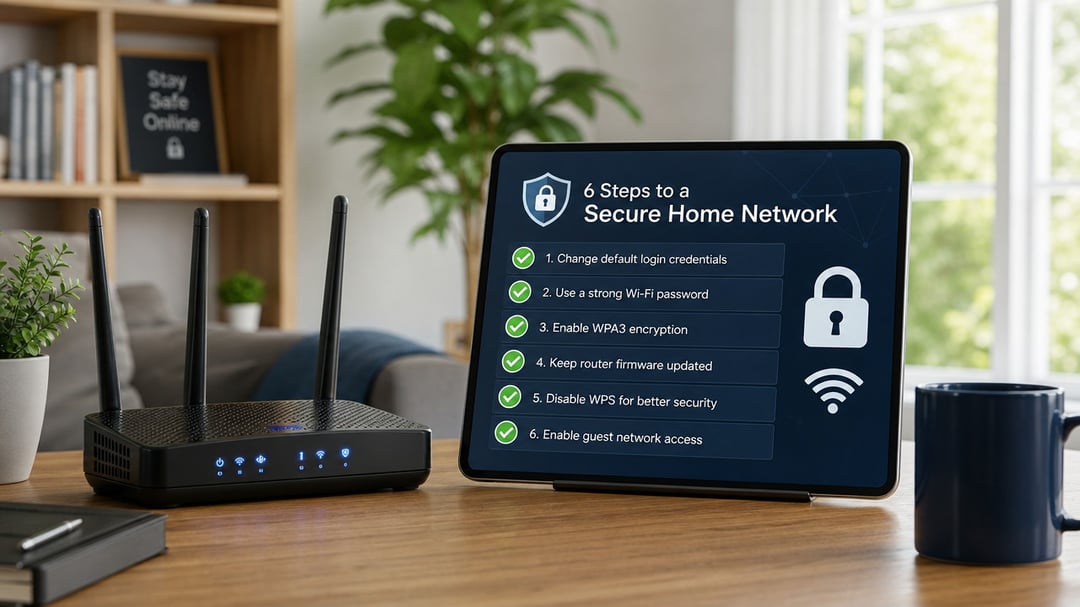
Your router ships with credentials printed on the bottom, WPS enabled, and firmware that hasn't been updated since it left the factory. Every one of those defaults is a open door. Most home network breaches don't require sophisticated attacks—they exploit the settings manufacturers chose because they're convenient, not because they're secure.
This home network security checklist walks through the ten configuration changes that close those doors. You'll learn which router settings to disable, how to structure your wireless networks to contain damage if something does get compromised, and how to maintain those protections without spending your weekends reading security bulletins.
Change Your Router's Default Admin Credentials
Factory default admin credentials are publicly documented in manufacturer manuals and device databases. Attackers scan networks for routers still using "admin/admin" or "admin/password" and gain full control within seconds.
Access your router's web interface by typing its IP address into a browser—typically 192.168.1.1 or 192.168.0.1. The current credentials are printed on the router's label or listed in the quick start guide. Once logged in, navigate to the administration or system settings section.
Create a password with at least 16 characters combining uppercase and lowercase letters, numbers, and symbols. Avoid dictionary words, personal information, and patterns. Store it in a password manager rather than writing it down.
This credential change blocks the most common automated attacks targeting home networks. Unauthorized router access lets attackers redirect traffic, install malicious firmware, or monitor all connected devices.
Enable WPA3 Encryption (or WPA2 if WPA3 Isn't Available)
WPA3 encrypts your network traffic with stronger algorithms that resist brute-force password attacks and protect individual sessions even when someone knows your Wi-Fi password. WPA2, while older, remains acceptable if your router or devices don't support WPA3. Both encrypt data properly; the difference is how they handle weak passwords and forward secrecy.
Open your router's admin panel and navigate to the wireless security settings. Choose WPA3-Personal if available, or WPA2-Personal if not. Never select WEP or leave the network open. WEP was broken in 2001 and can be cracked in minutes. Open networks let anyone intercept your traffic without needing tools more sophisticated than a laptop.
Create a Strong Wi-Fi Network Password
Your Wi-Fi network password controls who can connect to your internet, not your router settings. Every device and guest entering your network uses this password, so it needs to resist brute-force attacks and dictionary guessing.
Use at least 16 characters combining uppercase, lowercase, numbers, and symbols. A passphrase like "Purple$Kayak#Lantern89" is easier to remember than random strings while remaining difficult to crack. Password managers can generate and store complex credentials if you prefer maximum entropy.
Avoid common substitutions like "P@ssw0rd" or sequential patterns. Attackers run dictionaries that account for these. If you share your network with guests frequently, consider rotating the password quarterly or setting up a separate guest network instead.
Disable WPS (Wi-Fi Protected Setup)
WPS lets devices join your network by pressing a button on the router or entering an eight-digit PIN. It was designed to simplify setup for non-technical users, but the PIN method has a critical flaw: the eight-digit code is validated in two four-digit halves, reducing the number of possible attempts from 100 million to about 11,000. Attackers can brute-force this in hours.
Find WPS settings under your router's wireless configuration page, usually labeled "WPS Settings" or "Wi-Fi Protected Setup." Turn off both PIN and push-button modes if your router separates them. Some routers disable WPS entirely with one toggle.
The convenience of skipping password entry does not justify leaving this vulnerability active, especially since modern devices handle standard Wi-Fi passwords without difficulty.
Update Your Router Firmware Regularly
Firmware updates patch security holes that attackers actively exploit. Manufacturers discover vulnerabilities months or years after routers ship, and an unpatched device remains exposed to every known flaw.
Check your router's admin interface for a firmware section, usually under System or Advanced settings. Most interfaces display the current version and check for updates when you click a button. If an update exists, download and install it through that same screen. The router will reboot, taking your network offline for two to three minutes.
Enable automatic updates if your router offers the option. Newer models from Asus, Netgear, and TP-Link support this feature.
For routers more than four years old, visit the manufacturer's support page directly and search by model number. Older hardware often stops receiving updates entirely.
Set Up a Guest Network
A guest network creates a separate Wi-Fi access point that isolates visitors from your main network. When guests connect, they get internet access but cannot see your computers, NAS drives, printers, or other devices on your primary network. This prevents accidental or intentional access to shared folders and local services.
The same isolation benefit applies to IoT devices. Smart speakers, cameras, and connected appliances often have weaker security than your primary devices. Putting them on a guest network limits the damage if one gets compromised.
Most routers include a guest network option in the wireless settings. Enable it, set a separate password, and optionally restrict bandwidth or access hours. For detailed setup instructions and advanced isolation techniques, see our guide on how to set up a guest Wi-Fi network.
Apply This Network Security Checklist in Order
Start with the admin password and encryption. Those two settings protect your router's control panel and the data crossing your network, which makes them the highest-value targets. After that, disable WPS and set up automatic firmware updates so your router stays patched without manual checks. The guest network can wait until you have visitors or want to isolate smart home devices, but the first four steps should happen today. If your router is several years old and doesn't support WPA3 or automatic updates, that's a sign it may be time to replace it. Modern routers make these security settings easier to manage and harder to overlook.