
You want to run Ubuntu on your Windows PC without setting up dual boot, but you’re not sure if virtualization is enabled or what to do after the installer finishes. Windows Subsystem for Linux (WSL 2) in 2026: Complete Setup Guide takes you from that first readiness check to a working Ubuntu terminal.
You’ll see where to check whether virtualization is enabled, how to install WSL and open Ubuntu, and how to verify that Ubuntu is actually using WSL 2. That last check matters if you’ve used WSL before: updating WSL doesn’t automatically convert an existing Linux distribution.
By the end, you’ll be able to open Ubuntu, confirm which WSL version it’s running, and choose where to keep your project files based on whether you work on them mostly with Windows or Linux tools.
1. Check Whether Your PC Is Ready for WSL 2
WSL 2 runs a Linux distribution alongside Windows using virtualization, so you don’t need to repartition your drive or dual-boot. For example, you can keep your Windows apps open while you run Linux commands in a terminal.
First, press Windows + R, type winver, and press Enter. Note the Windows version and OS build shown in the dialog. Check Microsoft’s WSL installation documentation to confirm that your build supports the standard install command. Requirements can change, so check the build number rather than relying on the Windows name alone.
To check hardware virtualization, open Task Manager > Performance > CPU and look for Virtualization: Enabled. If it says Disabled, check your PC or motherboard maker’s instructions for enabling it in the firmware settings. On a managed work or school PC, ask IT if the setting is blocked rather than trying to change it yourself.
Check that the drive where you’ll install Linux has room for the distribution, your tools, and your files. Make sure you have internet access for the downloads and administrator approval to install WSL.
Proceed once your Windows build is supported, virtualization is enabled, and installation is permitted.
2. Install WSL and Launch Ubuntu
On a supported PC that doesn’t have WSL installed, open PowerShell or Windows Terminal as administrator and run wsl --install. This is the quickest way to set up WSL and get Ubuntu, the default Linux distribution, without having to pick one yourself.
If you’d rather choose which Linux distribution to use, run wsl --list --online in the administrator terminal. To install a distro from that list, run wsl --install -d , replacing with the exact name shown. For example, if you’re new to Linux and the list shows Ubuntu, run wsl --install -d Ubuntu.
Restart Windows if prompted. Then open Start, search for Ubuntu (or the distro you chose), and launch it. On the first run, you’ll be asked to create a Linux username and password. These don’t have to match your Windows sign-in. The password prompt may look blank as you type, with no dots or asterisks. That’s normal: type the password and press Enter, then retype it when asked.
Once you reach the Linux shell, run whoami there, not in PowerShell. If you picked alex as your Linux username, the command should print alex.
3. Verify WSL 2 or Convert an Existing Distribution
Before changing any settings, check which WSL mode your Linux distribution uses. To check distro version, open PowerShell on the Windows side and run:
wsl --list --verbose
Find the distribution you plan to use in the NAME column, then read across to VERSION. If that row shows 2, it’s already running in WSL 2 mode. If it shows 1, you’ll need to convert that distribution.
The commands do different jobs: wsl --update updates WSL itself, while wsl --set-default-version 2 sets the default for future distribution installs. Neither converts a distribution you already have.
Before converting, back up important Linux files and make sure the Windows drive that stores the distribution has free space. Conversion can take a while, especially if the distribution holds a lot of data. In PowerShell, run:
wsl --set-version 2
Replace with the exact name from the list. For example, if the NAME column shows Ubuntu, use wsl --set-version Ubuntu 2.
Once conversion finishes, rerun wsl --list --verbose and confirm that the intended distribution shows 2 under VERSION. Then open that same distribution and check that you still reach the Linux shell.
4. Put Project Files Where Your Tools Work Best
Save your project on the same filesystem as the tools that do most of the work. If you build and test with Linux tools, keep the working copy in your Linux home folder (~). Builds and tests can touch lots of small files, and repeated access across the Windows–Linux filesystem boundary can slow them down.
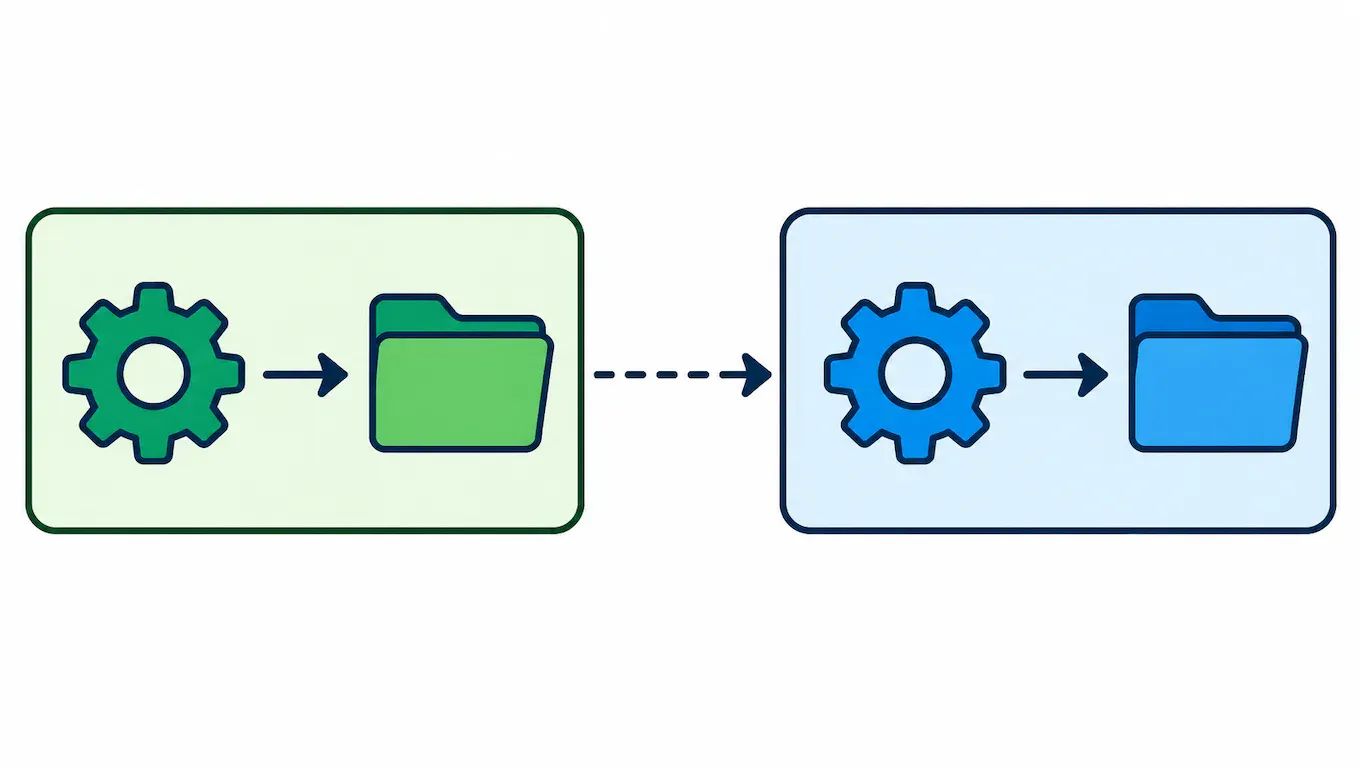
Say you’re building a website for your small business. If you run the build and tests in Ubuntu, keep the working copy at ~/projects/shop-site. But if you mainly edit a set of files in Windows apps, such as product photos in a Windows image editor, keep those files in a Windows folder.
From the Linux shell, you can access host files on your Windows C: drive under /mnt/c. Run cd /mnt/c and then ls to browse it. To go the other way, run explorer.exe . from your project directory in Linux. The dot tells File Explorer to open the folder you’re in.
Before moving a real project, create a sample folder on the filesystem you’ve chosen and add a test file. Open it with the editor and any other tools that need to read it, then save a change from the editor to confirm it can write there.
5. Fix Common WSL 2 Installation and Launch Errors
Start with the step that failed so you don’t reinstall a working setup. If wsl --install prints help or reports an unrecognized option, run winver to check your Windows build and wsl --help to see which options are available. If WSL is installed but no distribution is listed, try a distribution-specific command such as wsl --install -d Ubuntu.
To fix virtualization errors, first look under Performance > CPU in Task Manager. If virtualization is enabled, check whether Virtual Machine Platform is turned on in Windows Features and whether Windows needs a restart. If firmware virtualization is off, follow your PC manufacturer’s instructions or contact IT. Leave unrelated firmware settings alone.
If a download stalls, check whether other downloads work. For example, if browser downloads work but the Store is blocked on your work laptop, ask IT for an approved installation path rather than bypassing the restriction.
If a distribution hangs, save work in any running Linux sessions before running wsl --shutdown. It stops all running WSL distributions. Don’t unregister a distribution as a routine fix: that deletes its data.
After each fix, retry the failed step and confirm the distribution opens. If it still fails, give IT or support the exact error and your Windows build.


