
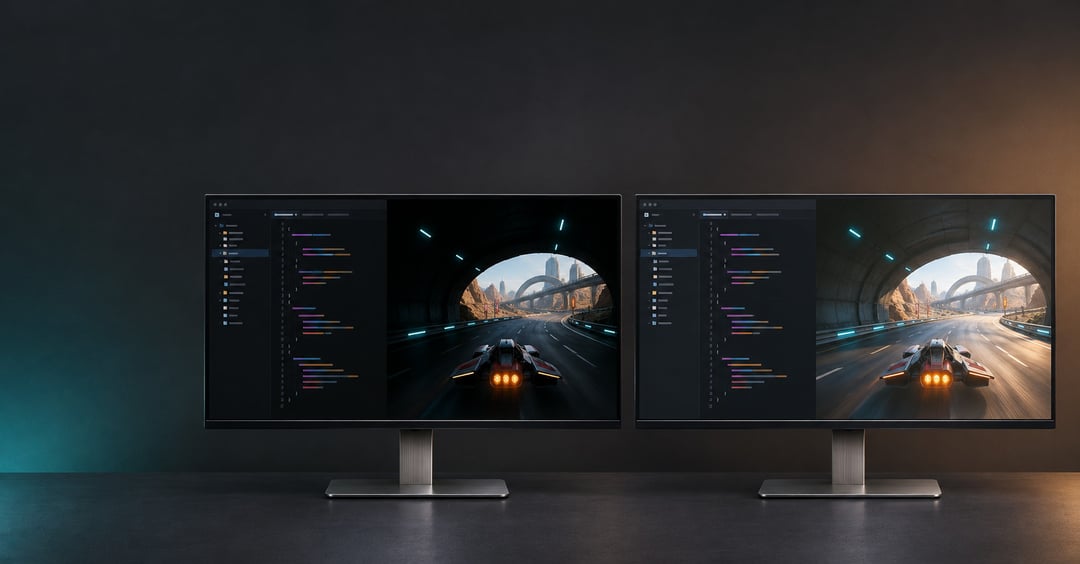
If your monitor spends the day displaying code and the evening running games, start with your workday. In the OLED vs Mini-LED monitors comparison, Mini-LED is the better default for long coding sessions and bright rooms. OLED usually wins for dark-room gaming and fast motion. The choice comes down to how long your editor stays open, where the light hits your desk, and which games you play.
OLED vs Mini-LED monitors: How each controls light
OLED lights individual pixels
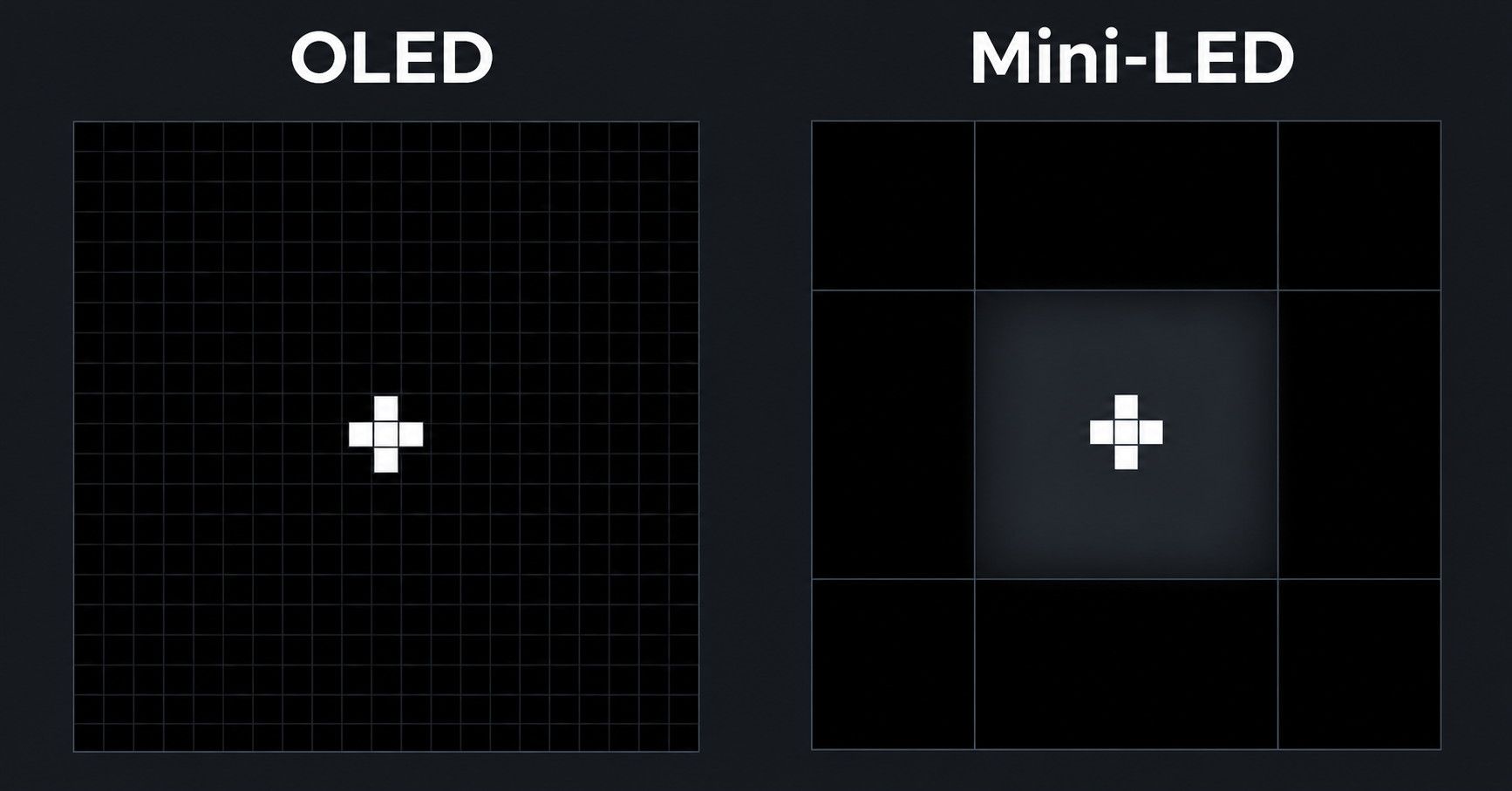
Each OLED pixel emits its own light and can switch off independently. A bright crosshair can sit against a black wall without illuminating the pixels around it. That control gives OLED its advantage in scenes with small highlights against deep shadows.
Mini-LED dims groups of pixels
Mini-LED is a backlight behind an LCD panel such as IPS or VA. Local dimming adjusts groups of LEDs called zones to brighten or darken parts of the image. White subtitles can make an entire zone brighten and create a halo known as blooming. Smaller zones can help but the monitor’s dimming software still decides how much each zone lights up.
OLED vs Mini-LED for coding: Text clarity and static layouts
Pixel density and RGB-stripe OLED in 2026
Two monitors with the same size and resolution can render small code differently. Pixel density measures how many pixels fit into each inch of the display. Higher density generally sharpens text and makes colored edges around letters harder to see. Those edges, known as color fringing, also depend on how the smaller light-producing elements within each pixel are arranged. Compare text at the same scaling and viewing distance.
Some 2026 OLEDs use a conventional red, green, and blue stripe. TFTCentral found that the ASUS ROG Swift PG32UCWM’s RGB stripe improved text rendering. Look for close-up text photos of the exact model, especially if you spend hours reading small type.
Burn-in risk during long IDE sessions
An integrated development environment (IDE) can leave the same sidebar, terminal split, and toolbar on screen for hours. Temporary image retention fades while permanent burn-in can leave a faint outline from uneven pixel wear. Accelerated tests demonstrate the risk but can’t predict when it will appear on a particular desk. Mini-LED LCDs avoid this form of OLED pixel wear.
For OLED, set the display to sleep when idle and leave built-in panel care enabled. Check whether the exact model’s warranty explicitly covers burn-in in your region.
OLED vs Mini-LED for gaming: Motion, HDR, and room lighting
Fast motion and variable refresh rate
Fast OLED pixel transitions help keep moving targets clear. Response time describes how quickly pixels change shade while refresh rate describes how often the screen updates. Look for measured motion performance at the refresh rates you’ll use. Advertised response times can come from different test methods.
Variable refresh rate (VRR) lets the display follow the game’s frame rate to reduce tearing. Some OLEDs show visible flicker in dark scenes when frame rates swing. Check for it in model reviews if your games often run at uneven frame rates.
Dark-scene contrast versus sustained HDR brightness
OLED’s contrast stands out when a flashlight cuts through a dark cave. A capable Mini-LED can look brighter across a sunlit racing track where much of the image stays bright. PC Gamer saw this tradeoff firsthand. Its Alienware OLED looked better in dark scenes while the KTC Mini-LED looked more vivid in the bright desert scenes of Cyberpunk 2077.
VESA’s DisplayHDR criteria test a small bright patch and sustained full-screen brightness separately. Compare both measurements because a peak figure alone can’t tell you how a bright scene will look. If a window faces the display, check how the screen coating handles reflections.
How to choose one monitor for coding and gaming
Start with the task you spend the most time doing.
- Coding first. Look for a high-density Mini-LED LCD with sharp text and a coating that suits your room. Check whether local dimming behaves consistently when you move between windows.
- Gaming first. Favor OLED for dark scenes and motion clarity in a dim room. Check the model’s VRR behavior and read a few lines of code at your usual font size.
- An even split. Compare displays at the same size and resolution. Try both a light and a dark editor theme. Then test a shadowy game scene and a bright HDR scene under the lighting you use at home.
FAQ
Is a 4K OLED sharp enough for coding?
A high-density 4K OLED can render small code sharply. Check the subpixel layout and try your usual editor font and scaling before deciding.
Can an IDE or game HUD cause OLED burn-in?
A fixed editor panel or game heads-up display (HUD) can contribute to uneven pixel wear over time. Display sleep and panel care can reduce exposure.
Should I turn off Mini-LED local dimming while coding?
Try both settings in standard dynamic range (SDR) if the monitor allows it. Turning local dimming off can remove zone-related halos at the cost of shallower blacks.
Do more dimming zones guarantee better HDR?
Zone count alone can’t predict how HDR will look. Check whether the monitor’s dimming preserves shadow detail and limits blooming. Then compare how much brightness the monitor can sustain.
Conclusion
When weighing OLED vs Mini-LED monitors, let the longer session break the tie. Choose Mini-LED if static coding work fills most of your day. Choose OLED if fast motion and dark-scene contrast matter more. Before buying, check the exact model’s text rendering and how its screen handles the light at your desk.


