
If your MacBook is losing charge faster than it used to, check whether it happens while you're working or while the lid is closed. If you searched for "macOS 16 Battery Drain Fixes: 8 Proven Adjustments," that distinction tells you which settings to try first.
When the battery drops during use, lower the display brightness or set Low Power Mode to kick in when you unplug. If you lose charge with the lid closed, check whether your Mac is set to wake for network access. Change one setting at a time and compare battery use under similar conditions so you can tell what helped. You'll be able to keep the changes that make a difference without disrupting the features you rely on.
1. Set Low Power Mode to run on battery
If you notice your laptop battery draining fast while you write or answer email, try Low Power Mode first. It's a better fit for light work than for tasks where you need your Mac to run at full speed.
Open System Settings > Battery. Note your current setting, then set Low Power Mode to "Only on Battery" if that option appears. This lets your Mac save power while unplugged without keeping the mode on when you plug in. If the option is missing, check your Mac model and macOS version in Apple menu > About This Mac.
Low Power Mode can reduce performance. You may barely notice it while drafting a document, but a game may feel less responsive or a long build may take longer.
Compare two unplugged sessions of similar length with the same workload, one at your original setting and one in Low Power Mode. Note how much charge each session uses. Restore your original setting if the slowdown outweighs the savings.
2. Lower display brightness on battery
Check brightness first if your MacBook loses charge faster than expected while you're working with the screen on. The link between display brightness and battery life is straightforward: a brighter screen generally draws more power. If the charge drops while the Mac is asleep and the screen is off, lowering brightness won't address that drain.
While unplugged, press the brightness-down key or open Apple menu > System Settings > Displays and move the Brightness slider left. Start at a level you can read comfortably. On supported models, you can also turn on "Automatically adjust brightness" in Displays to let your Mac respond to room lighting.
Suppose you're editing a document indoors. Note the percentage of charge you use at your usual brightness, then repeat with a lower setting for the same amount of time, using the same apps in similar lighting. Keep the lower setting only if it uses less charge and the screen still feels comfortable to read.
3. Shorten the display-off timer on battery
If your MacBook loses charge while you leave it open and unattended, start with the display-off timer. The screen can keep using power after you walk away, even though you aren't typing or moving the pointer. Turning off the display isn't the same as putting the Mac to sleep: the screen goes dark, but the Mac can still be awake.
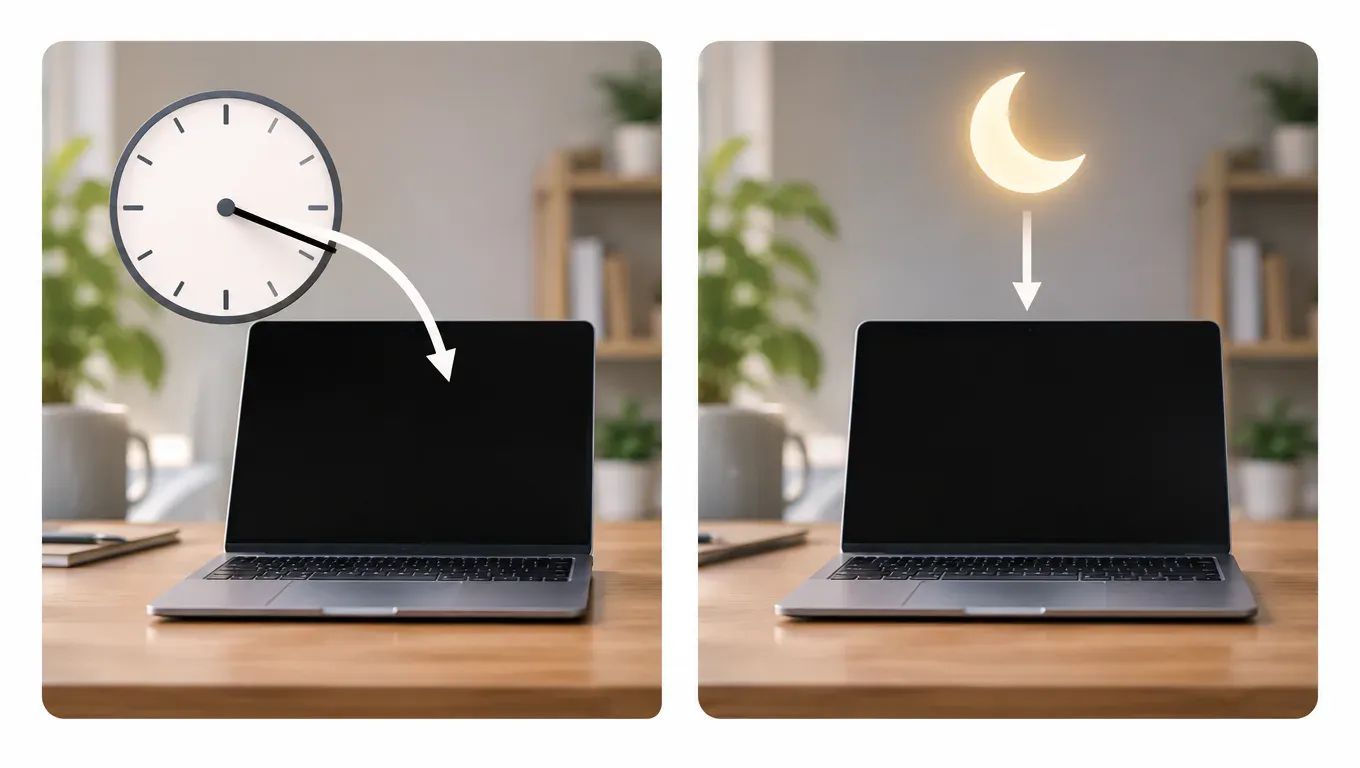
Open System Settings > Lock Screen and find "Turn display off on battery when inactive." Choose a shorter interval than the one you use now. Leave the power adapter setting alone unless you also want the screen to turn off sooner when plugged in.
Suppose you work at a desk and often step away to talk to a coworker. Unplug your Mac, leave the lid open, and check that the screen goes dark after the interval you chose. If it goes dark while you're reading a long document without scrolling, lengthen the timer one step.
4. Disable unnecessary login items and background apps
If your Mac loses charge quickly after sign-in or during light work, start by checking which apps use energy before changing what can run. To see whether background apps and battery drain are related, open Activity Monitor's Energy tab and look for the same app repeatedly showing high Energy Impact during light use. A single spike doesn't establish a pattern.
Search for Login Items in System Settings. Apps listed under Open at Login start when you sign in; background permissions let helpers work even when their apps aren't open. Change one entry you recognize and can do without. Leave required security, backup, and employer-managed tools alone. Disabling a helper can delay syncing or interrupt remote access.
For example, remove an optional app launcher from Open at Login if you rarely use its shortcut. Sign out and back in, then compare battery loss over a similar stretch of light work. Restore the entry if a feature you rely on stops working.
5. Pause large cloud sync jobs while unplugged
Pausing a large cloud transfer can reduce battery use, but an open sync app isn't proof that it's draining your Mac. Check the client's status first. If it shows that your files are up to date, there's no active upload or download to pause.
Suppose Microsoft OneDrive is uploading a large project folder just as you unplug. If the upload can wait, open OneDrive's sync controls and choose the pause option if available. You don't need to unlink your account or delete any files. While sync is paused, teammates may not see pending changes, and your latest local edits may not be available in the cloud or on your other devices.
Compare how much battery you use over two similar sessions of equal length, one with a transfer running and one with it paused. Keep your other work as similar as possible. When you plug back in, resume syncing and check the client's status to confirm it finishes.
6. Turn on your browser's energy-saving mode
If most of your unplugged work happens in tabs, test your browser's energy-saving mode first. A browser energy saver targets power use in the browser, so it's useful for testing a browser-heavy workload rather than replacing your Mac's system-wide power mode.
In Google Chrome, open Settings, go to Performance, and look for Energy Saver. Check the options in your installed release: labels can vary, and other browsers may not have an equivalent switch.
Compare two unplugged sessions of similar length, one with Energy Saver off and one with it on. Use roughly the same tabs and do the same kind of work. Note how many percentage points the battery drops in each session rather than comparing the ending charge alone.
For example, if you take video calls in Chrome, check whether shared screens or video look choppy with Energy Saver on. Turn it back off if it interferes with your work.
7. Set the keyboard backlight to turn off sooner
If your MacBook's keyboard stays lit when you stop typing, shortening its timeout is a small way to save power while you're working unplugged. Start here if you often notice the keys glowing while you're away from them. This setting won't explain a large drop in battery charge while your Mac is asleep.
On a supported MacBook, open System Settings > Keyboard and look for "Turn keyboard backlight off after inactivity." If the option is available, pick a shorter interval than the one you use now. This setting controls the light under the keys, not the screen brightness or when the screen turns off.
Suppose you're drafting an email in a dim room and keep pausing to read your notes. Take your hands off the keyboard during a typical pause and check that the keys go dark. If you're regularly reaching for a key just to bring the light back before you're ready to type, choose a slightly longer interval.
8. Limit wake for network access during sleep
If your Mac loses more charge than expected while asleep, check whether network requests are waking it. On Macs with this control, open System Settings > Battery > Options and look for "Wake for network access."
If you don't need network access while your Mac sleeps, choose the available option that prevents network wake on battery. For example, if a coworker needs to reach a shared folder on your sleeping Mac while it's unplugged, keep the original setting or restore it if access stops working.
To check laptop battery drain overnight, note the charge before putting your Mac to sleep and again when you wake it. Compare sleep periods of similar length before and after the change, with the Mac unplugged both times.
Background work after a macOS update can cause temporary drain, so repeat the test once that work settles. If the loss keeps recurring, check Battery Health. Contact qualified Mac support if your Mac shows a service warning or the loss remains substantial.
Test the setting that fits your Mac's battery drain
Start by measuring when your Mac loses charge so you can choose a setting that addresses the drain you're seeing. Note the battery percentage at the start and end of a typical unplugged work session or, if the loss happens with the lid closed, a period of sleep. If the battery drops during screen-on work, try lowering the brightness. If it drops during sleep, test the network wake setting, provided you don't rely on remote access to the sleeping Mac.
Change one setting at a time. For example, if you lower the brightness, use the same apps for about as long on your next unplugged session. Keep the change if your Mac consistently loses less charge under similar conditions and the setting doesn't get in your way.
Frequently asked questions
Why is my MacBook battery draining faster after a macOS update?
Your Mac may be rebuilding its search index or syncing files after the update. Leave it plugged in while those tasks finish, then compare battery use during a similar unplugged session. If the drain persists after background activity settles, check whether one app is consistently using more energy than the others.
How can I tell if my MacBook battery needs replacing?
Look for Battery Health in System Settings and check the reported condition. If macOS recommends service or your Mac shuts down unexpectedly with charge still showing, contact Apple or a qualified repair technician for an assessment. If the condition reads Normal, check for unusual app activity before assuming the battery needs replacement.
Why does my MacBook lose battery charge while plugged in?
Your MacBook can lose charge while plugged in if the power source supplies less power than the Mac is using. Try a compatible charger and cable connected directly to the Mac instead of charging through a dock. If the charge still falls during light use, ask a qualified technician to check the charging setup and battery.
Does using an external monitor drain my MacBook battery faster?
It can. Driving another display adds work for your Mac, and a portable monitor that draws power from the Mac adds to the load. A monitor that supplies power over USB-C is a different setup. To isolate the effect, compare the same work with and without the monitor, with the Mac running on battery for both tests.
What macOS version should I check if a battery fix says macOS 16?
Use the version shown in About This Mac, which you can open from the Apple menu. Apple named the release after macOS Sequoia 15 macOS Tahoe 26, so a guide labeled macOS 16 may not match what you see. If a menu path differs, search System Settings for the control by name.


