
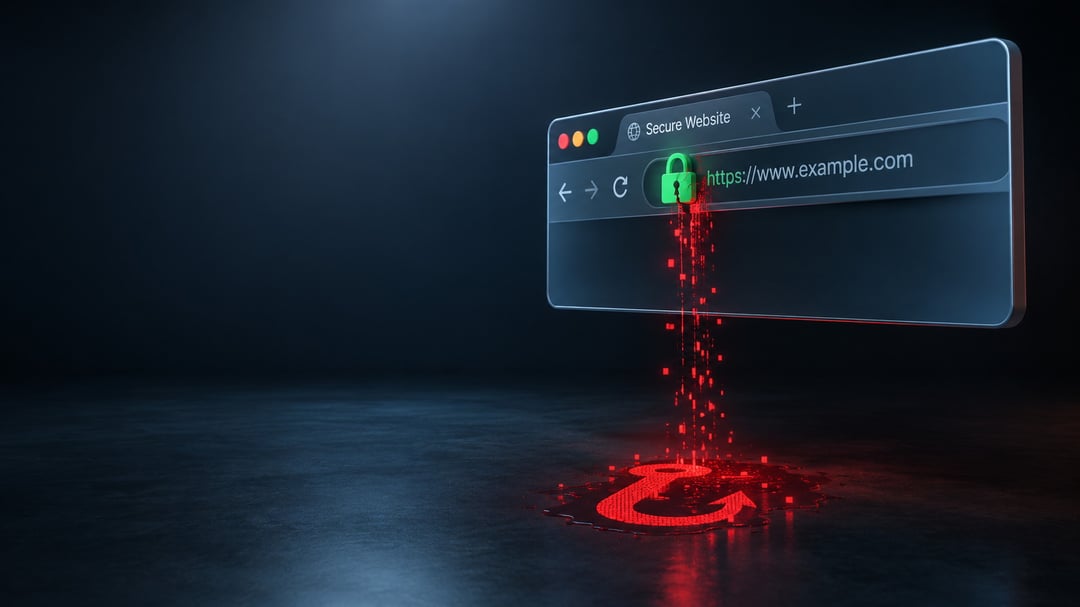
You open your bank's website in the browser. The address in the bar looks right and the page loads as usual. Then the login form asks for a field you have never seen.
That mismatch is how DNS hijacking often shows up. The name you typed stays in the bar. Meanwhile the actual traffic went somewhere else entirely.
Most people treat the moment as a glitch. Sometimes the problem sits one layer lower than the browser. DNS is the directory that turns website names into addresses. If someone else controls that directory, they can send you to a fake site while the screen still looks familiar.
What DNS Hijacking Really Is
DNS works like a phone book for the internet. You type a name and a resolver returns the matching IP address. DNS hijacking changes that lookup without changing what you typed. The name stays familiar while the real destination does not.
Local hijacks change DNS settings on a single device. Malware is the usual tool for this change. Only that computer or phone then follows the bad path.
Router hijacks rewrite the servers your home network hands out. Every device on the Wi-Fi then uses the attacker's resolver. The bad setting lives on the router itself.
Upstream hijacks sit further out on the path. A malicious hotspot or a compromised resolver can return the wrong answer. The address bar is not proof of a clean connection. It doesn't prove who answered the lookup.
Signs Your DNS Has Been Hijacked
Hijacks try to stay quiet for as long as possible. You land on a site that asks for extra personal details. Familiar pages sprout ads they never carried before. Certificate warnings appear on sites you use every week. The same site works on cellular data but fails on home Wi-Fi.
Any one of these can have a boring cause. Several at once deserve a real DNS check. The problem follows the network rather than the browser.
How Attackers Take Over DNS
Most home hijacks do not start with a rare exploit. They start with a door that was left open.
Malware can rewrite a device's DNS settings or the hosts file. That hosts file overrides DNS entirely on the device. A single extra line can send your bank to an attacker.
Many routers still use the default admin password from the sticker. Once inside, an attacker sets DNS for the whole house. The change survives laptop reinstalls and phone restarts.
Public Wi-Fi adds another path into the lookup. A rogue hotspot can hand your phone a DNS server you did not choose. Persistent hijacks last because nobody inspects the changed setting.
How to Check If Your DNS Has Been Hijacked
Start with what your device thinks it is using.
On Windows open Settings, then Network & internet, then your connection. Read the DNS server assignment on that screen. You can also run nslookup example.com in Command Prompt.
On a Mac use System Settings, Network, Details, then DNS. On iPhone open Wi-Fi info and check Configure DNS. On Android check Wi-Fi details and the Private DNS setting.
Log into the router at 192.168.1.1 or 192.168.0.1. Inspect WAN DNS and the DHCP DNS handed to clients. Anything you did not set yourself is a finding.
Compare those numbers with Cloudflare 1.1.1.1, Google 8.8.8.8, or Quad9 9.9.9.9. Random addresses you do not recognize are a red flag.
Run DNS Leak Test to see which server actually handles queries. Repeat the test on cellular data or another network. A mismatch that appears only at home points to the router or a local change.
Check C:\Windows\System32\drivers\etc\hosts or /etc/hosts for extra entries you did not add.
What to Do After a DNS Hijack
Fix the router first if more than one device is affected. Reset it to factory defaults if the configuration looks wrong. Set a strong unique admin password after that reset. Update the firmware before you put it back online. Then enter trusted DNS servers yourself in the router.
On each device set DNS to a resolver you chose. Flush the DNS cache after you save the new servers. Run a full malware scan on every computer that used the network.
Watch bank, email, and shopping accounts for odd logins. Change passwords for anything you opened during the window. If the bad resolver returns after a router reset, contact your ISP.
How to Keep DNS From Being Hijacked Again
Change the router's default password on day one. Keep firmware current when the maker releases updates. Set DNS yourself so a quiet rewrite is easier to spot.
Use a known public resolver you actually chose. Encrypted DNS such as DNS over HTTPS makes on-path tampering harder. Informer Tech's guide to DNS privacy protocols covers those options in more depth.
Hijacking works because the address bar still looks honest. Confirm who is answering the lookup on your network. If the answer is not a server you chose or your ISP named, fix it before the next login.


