
Switching to degoogled android phones can leave you unsure whether the apps and routines you rely on will still work. The biggest trade-offs often involve app availability, banking and work tools, and the convenience of Google services built into Android.
Before changing phones, check which apps depend on Google Play services and how you would install and update replacements. You’ll also need to verify device support and security updates, then consider what changes for navigation, messaging, and backups. Some tasks may take more setup, and app behavior can vary by device and service.
The goal is to make the trade-offs clear before you switch. You’ll be able to assess whether a Google-free setup fits your essential needs and what to verify on a device before relying on it.
Check what your phone depends on before switching
Start by auditing your phone as you use it: note the apps you open daily, the accounts they require, and any Google services tied to them. Removing Google apps is not the same as using Android without Google services. You can hide or uninstall some Google apps while services such as Google Play services remain active in the background. A de-Googled setup aims to reduce or remove that service layer, which can affect apps that rely on it.
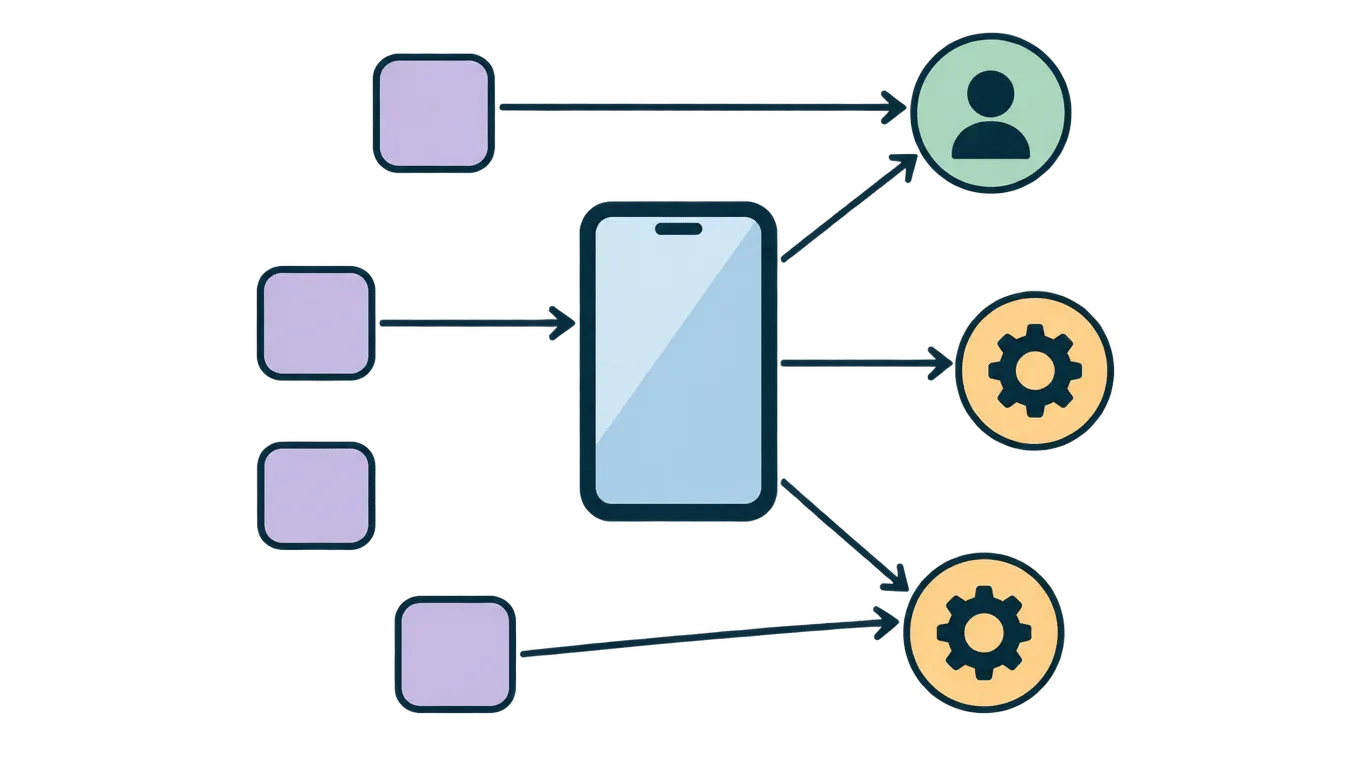
Sort your dependencies into three groups: essential, useful, and easy to replace. A work authentication app might be essential; a photo editor with a suitable alternative might be easy to replace. Keep the list specific to your routine, rather than assuming every Google app matters equally.
Before choosing a device or setup, verify:
- Which apps require Google services
- Whether your accounts depend on Google sign-in
- Which functions rely on Google apps or services
- What alternatives you would accept for essential tasks
Understand which Google conveniences disappear
Removing Google services does not erase every Android convenience, but it can separate features that once felt connected. Depending on the phone and setup, Gmail, Maps, Photos, Assistant, contact syncing, calendar access, and password autofill may work differently or require a Google account. A Google-free Android phone may rely on another mail provider, navigation app, photo backup service, or password manager, each with its own account and settings.
Suppose you use Gmail for mail, Maps for commuting, Photos for family pictures, and Google Calendar for work. Map each task before switching: choose a mail app, select a navigation option, pick where photos will sync, and confirm which calendar can share events across devices. You may keep one Google app while replacing other services, but its features can depend on Google Play services or account access, so test the specific combination rather than assuming it will behave normally.
Which Google conveniences matter enough to preserve, and which are you willing to replace?
Test essential apps, especially banking and work tools
Check app-by-app compatibility
Android app compatibility depends on both the app and the phone’s software setup. A banking app may install but still refuse to sign in if it relies on Google Play services or device integrity checks. A work app may need a company’s management software, while an authenticator or payment app may have separate requirements.
Before switching, check each app’s installation options and whether it requires Google services. If possible, test it on the intended phone and software setup. Keep access to essential accounts on your current device during the test; don’t remove or reset it until you’ve confirmed you can sign in and complete important tasks.
For example, test a bank transfer, a work login, and an authenticator approval, not just whether the apps open. Treat these as go/no-go items:
- Banking and payment apps you rely on
- Work apps required by your employer or clients
- Authenticator apps needed to access those accounts
If any must-have app fails, resolve that before switching or choose another setup.
Plan how you will install and update apps
Without Google Play, app access depends on the setup you choose. Some de-Googled Android phones support another app store; others rely on developers’ sites or repositories. Google Play alternatives do not all offer the same app selection, update process, or safeguards, so check how each source verifies downloads before installing anything.
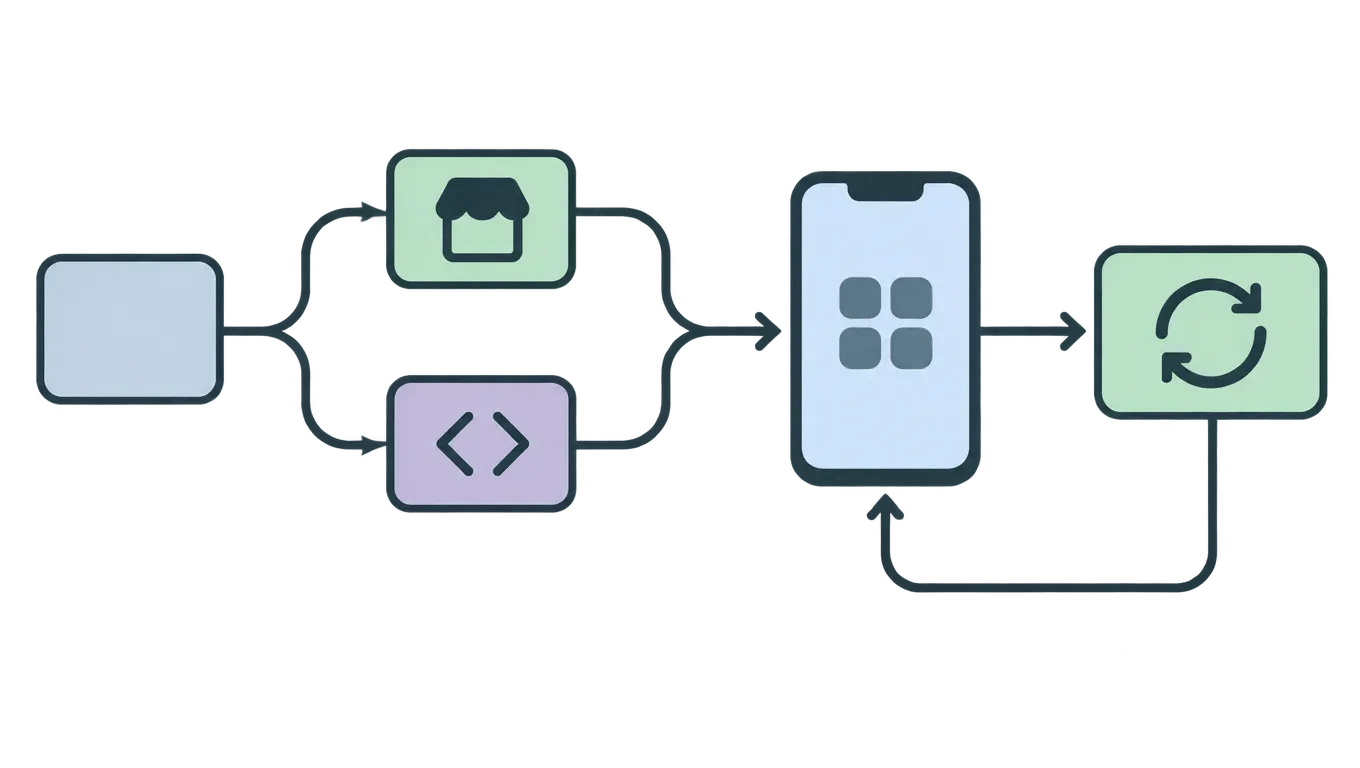
Installing apps from separate sources can take more steps. You may need to download an installer, approve the installation, and repeat the process when an update appears. For example, an app store may notify you about updates, while an app installed from a developer’s site may require you to check that site yourself.
Confirm how your chosen setup updates each app, and whether updates arrive automatically or need manual action. An available download does not prove that the app still receives updates or has ongoing support.
Before switching, identify the trusted installation and update method for every essential app.
Verify device support and Android security updates
Device support and a dependable update path matter because a de-Googled setup can receive updates differently from the phone’s original software. Don’t assume updates arrive automatically or on the same schedule.
Before choosing a setup, confirm that its developers support your exact phone model and software combination. Check what the update process covers, how updates are delivered, and whether you need to install them manually. A project may support one model but not a similar-looking variant.
For example, a phone might receive updates through its operating system’s settings, while another setup may require you to follow project instructions. If those instructions are unclear or updates depend on steps you may miss, factor that into your decision. Android security updates help address security issues, but their availability depends on the device and software’s support policy. Don’t treat an old installation guide or a device listing as proof of current support. Check the update policy for the exact device and software you plan to use.
Account for changes to navigation, messaging, and backups
Removing Google services can change how your phone gets location data, sends messages, and moves files to a new device. A replacement may have different features, require separate setup, or share data differently, so test the full workflow rather than checking whether an app opens.
Try a route you regularly take and confirm that directions, location search, and any location sharing you rely on still work. For example, a family member may need to share their live location through a different app or method.
Test messages with the people you contact most, including group chats and any features you use for photos or video. Then check how to back up important files and restore them on another device. A backup is only useful if you can retrieve what you need.
Before switching, write down any workflow that needs a replacement or a habit change: navigation, location sharing, group messaging, file backup, or moving data between phones.
Decide whether the privacy trade-off fits your needs
A de-Googled phone may appeal if you want fewer Google services involved in your daily use, but removing them does not make a device private or secure by itself. Your comfort with the change depends on why you want it and which compromises you can accept.
The extra setup may suit someone who enjoys configuring a phone and has alternatives for the services they use. Someone who relies on a particular work app or banking app may find a compatibility gap more disruptive than expected. For example, a user who can manage without one optional app has more room to experiment than someone whose job depends on it.
Proceed if your essential apps work, the device has a suitable update path, and you have replacements for the services you rely on. Pause if a critical app or security update remains unresolved. Where feasible, try the setup on a spare or secondary phone before making it your primary device.
Avoid common mistakes during the switch
Changing your primary phone before testing the essentials can lock you out or interrupt daily work. First confirm that critical apps work, you can recover important accounts without the phone, and the device has a supported update path. An app appearing in a store does not prove it will run properly without Google services or receive dependable updates. For example, a banking app may install but fail at sign-in or device verification.
Keep your current phone or another trusted way to access essential accounts while you test replacements. Avoid removing recovery methods until you have signed in successfully using the new setup. If a work app fails, you should still have a practical way to reach your team and files.
Before committing, check that you can:
- Open critical apps and complete their main tasks.
- Recover essential accounts without relying on the new phone.
- Confirm who provides device and operating system updates.
- Return to your previous setup if a replacement app or service does not work.
What to confirm before choosing a Google-free Android setup
Start with an inventory of the apps, accounts, and routines you cannot afford to lose. Then verify that your essential banking, work, authentication, and payment apps work on the exact phone and software setup you plan to use, and confirm how that setup receives updates. An app download alone does not prove that an app will work reliably or keep receiving updates. Avoid replacing your primary phone before checking account recovery and keeping a way to reach essential services during a trial. The switch is working when you can complete your everyday tasks, restore the data you need, contact important people, and install updates without unresolved workarounds. If a critical app or workflow fails, pause and resolve it before relying on the new setup.
Frequently asked questions
Does de-Googling an Android phone mean I have to delete my Google account?
No. You can keep a Google account for services you still use while limiting Google services on your phone. The practical result depends on which apps and services you choose to remove or replace, and some functions may still require an account. Check each service’s sign-in and sync requirements before changing your setup.
Can I try a Google-free Android setup before making it my primary phone?
Yes. Test it on a spare or secondary device if you have one, or check essential workflows before moving your SIM and relying on it. Install the apps you need, test sign-in and notifications, and confirm that account recovery works without the phone. A successful download alone does not show that an app works properly.
Can I switch back to Google services if a de-Googled setup does not work for me?
Often, returning to Google services depends on the phone, its software, and how you changed the system. Before switching, find out whether restoring the original software is supported and what that process would do to your data. Keep a separate backup of important files and account recovery information.
Is a de-Googled phone automatically more secure?
No. Removing Google services does not make a phone secure by itself. Security also depends on whether the device and software receive updates, where you get apps, and how you protect accounts and data. Confirm the update path and app-source safeguards for the exact setup, and seek qualified technical help if you cannot verify them.


