
Your favorite games, not the operating system itself, should decide whether Linux for gamers is a good fit for your PC. Compatibility depends on more than whether a game runs: its launcher, anti-cheat system, graphics drivers, and peripherals can all affect the experience.
Before switching, check each game you care about and learn how Steam Play and Proton help run some Windows games on Linux. You’ll also see why anti-cheat support needs its own check, and how to test a Linux setup without disrupting your current system. By the end, you’ll have a practical way to assess your game library, spot likely trouble, and decide whether Linux fits your gaming routine.
Check your games and hardware before switching
Start with the games you play most, not a list of titles you might try someday. Note which ones you need to keep working, along with any multiplayer modes or features you rely on. A single-player campaign may be easy to set aside; a regular team game with friends may not be.
Then write down the hardware you use: graphics card, controller, headset, and any other devices you need for gaming. Include the exact model when you can find it. For example, if you use a wired headset for voice chat, record its model rather than just “headset.” That gives you something specific to check when researching Linux gaming compatibility.
Compatibility information can change as games, software, and device support change. Verify each important title and device before deciding to switch, and repeat those checks close to the time you plan to install. A report from an earlier release may not describe how things work now.
Finally, back up important files before installing an operating system or changing disk partitions. Keep the backup somewhere separate from the drive you plan to modify. Partition changes can erase data if you select the wrong drive or option, so do not proceed until you know which files you need to preserve and have confirmed the backup is usable.
Check each game’s Linux compatibility
Check the exact game and features you use
Check the specific game you play, not just its series or publisher. Windows games on Linux can behave differently from one another, and a game's launcher, multiplayer modes, or required online features may affect whether you can use it.
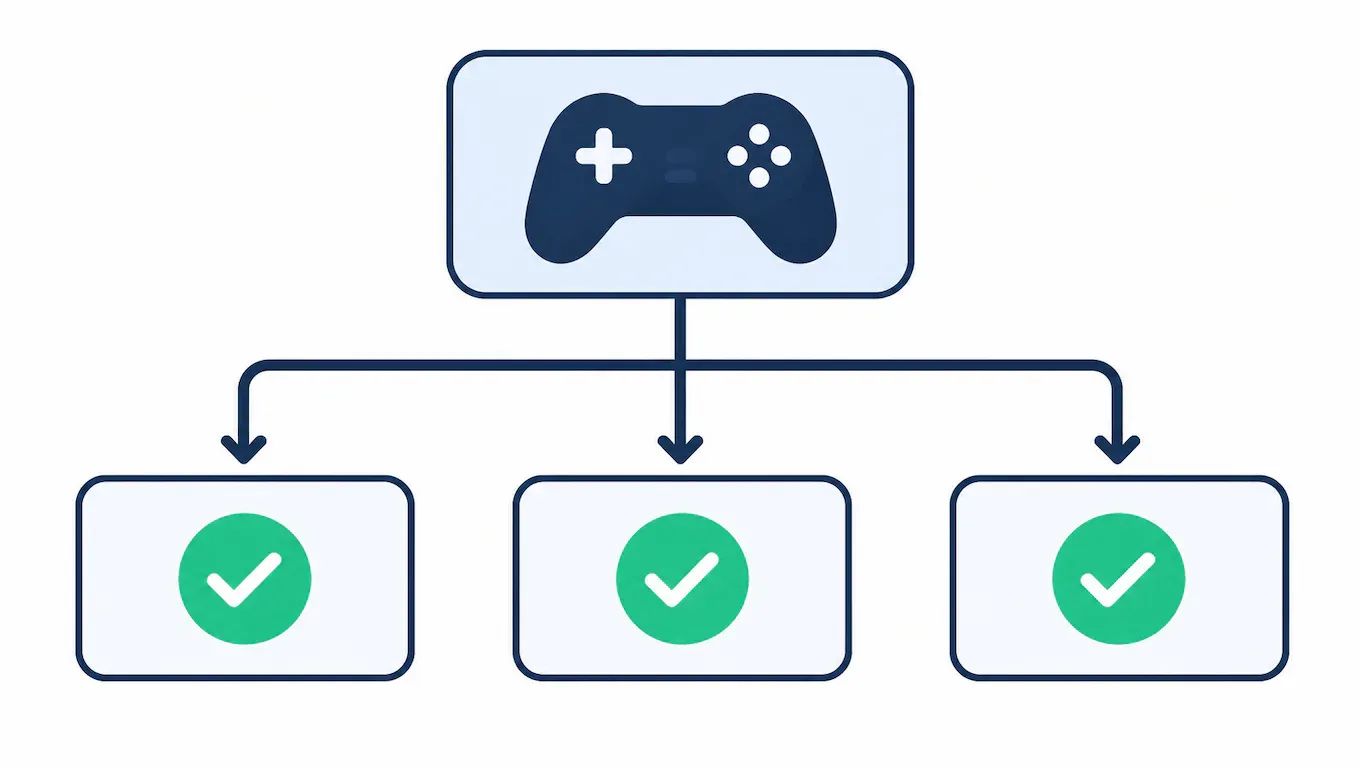
Separate three questions: Does the game install? Does it launch? Can you play it reliably, including the modes and online features you need? A successful launch answers only the second question. For example, a game might open and let you play solo, while one multiplayer mode fails to connect.
Treat compatibility reports as a starting point
Look for recent reports about the exact game and its current launcher and features. Read the report details, not just a compatibility label: the player's Linux setup, the game mode tested, and any problems they mention can change how useful the report is for you.
Check when the report was posted and whether it describes the game's current version. Game updates and system changes can alter results, so an older success or failure may no longer apply. If reports disagree, compare their dates and testing context before deciding. A report that says a game works may refer only to installing and launching it, not to reliable play in every mode you use.
Understand Steam Play and Proton
Steam Play lets you use Steam’s compatibility tools to run many Windows games on Linux. Its compatibility layer, Proton, translates calls a game makes to Windows so Linux can run it. Proton is not a Windows installation, and it does not make every game compatible.
A game may launch and play well with one Proton version but fail with another. Check the game’s current compatibility notes and whether they recommend a particular version or setting. Steam’s default choice may work, but some titles need a different Proton version selected in the game’s properties.
Expect occasional troubleshooting. For example, a game might start only after you switch Proton versions or change a setting. Another may install but still have problems that prevent normal play. These cases are why “works on Linux” can depend on the game, the Proton version, and its configuration.
Steam Proton makes a large range of Windows games accessible without installing Windows, but it is a compatibility tool, not a guarantee. Allow time to test and adjust settings if a title does not work as expected.
Check launchers and non-Steam games
A game can depend on a launcher or account system outside Steam, so check those requirements along with the game itself. A title may install but still fail to start if its launcher cannot update, sign you in, or hand off to the game correctly. These systems can change, so a setup that worked before an update may need new steps.
For example, a game from another store may require its desktop launcher to download updates before play. A game installed through a community tool may need a specific configuration or launch command. The steps vary by title and launcher, so verify instructions for your own library rather than assuming one method works for every game.
Before switching your main gaming setup, test the games you play that rely on separate launchers. Confirm that the launcher installs and opens, that you can sign in, and that the game starts from it. If a title depends on a launcher that does not work reliably on your system, treat that as a compatibility limitation even if the game itself appears to be supported.
Treat anti-cheat support as a separate check
Anti-cheat software can stop a game’s online modes from working on Linux, even when the game itself launches. The game may run in single-player, but its anti-cheat system may reject the Linux environment or lack support for it. That means a general compatibility result does not always tell you whether multiplayer works.
Check the specific game’s current anti-cheat support before switching. Look for confirmation from the game’s developer or publisher, and check whether the information covers online play rather than only launching the game. Linux anti-cheat support can vary by title, and it can change when developers update their games or anti-cheat settings, so avoid relying on an old report.
For example, a role-playing game might let you play its solo campaign on Linux while blocking access to its competitive online mode. In another game, the launcher may open, but matchmaking may fail once anti-cheat checks begin. Treat those as separate questions: can the game start, and can you use the modes you care about?
If one competitive game is essential to your routine, make its current multiplayer support a deciding factor before you switch. A workaround or partial compatibility may not be enough if you need reliable access to ranked matches.
Check graphics, peripherals, and performance
Check graphics drivers and devices
Graphics support and working peripherals are both necessary for a smooth gaming setup. Check that your graphics card has a suitable driver available for your Linux distribution, then test the controller, headset, microphone, and other devices you rely on. Support can vary by hardware and setup, so confirm that each device works in practice rather than assuming it will behave as it does on Windows.
For example, a controller may connect successfully but fail to respond in a particular game. Test its buttons and vibration, if relevant, before settling in for a long session.
Test performance in the games you play
Linux gaming performance depends on the game, hardware, drivers, and system configuration. It may be similar to Windows in one game and differ in another, so there is no universal speed advantage or penalty to count on.
Compare frame rate and stability in the same games, at the same settings, that you use regularly. Also watch for stuttering, crashes, or devices disconnecting. If several games show graphics glitches, check the driver and system configuration first. If the issue appears in one game while others run normally, it may come from that game's compatibility rather than a general hardware problem. Change one setting at a time, then retest so you can identify what affected the result.
Test Linux gaming before committing
Test a small group of games you rely on before moving your full library or changing your primary PC. Choose titles that represent your routine, such as a single-player game, a multiplayer favorite, and one that depends on a separate launcher.
Pick a trial method that fits your comfort level and hardware. A spare drive lets you install Linux without replacing your current setup. If you are comfortable with virtual machines, you can use one to explore the desktop and install software, but its gaming performance may not match a direct installation. A live USB is another low-risk way to explore Linux, though it may not reflect how games run after a full install.
For each game, test the parts that matter in actual use: does it launch, stay stable during gameplay, allow multiplayer access, recognize your controls, and open any required launcher? For example, reach a real multiplayer match rather than stopping at the title screen. Note any setup steps or problems so you can judge whether they would be tolerable in regular play.
A successful test applies to that game on that hardware and setup. It does not guarantee that another title, update, or configuration will work the same way.
Decide whether Linux fits your gaming routine
Linux can suit you if the games you care about and the devices you use work well on it. It may be a poor fit if a must-play game is unsupported or you do not want to spend time troubleshooting.
Make the choice around your own routine: which games you play most, whether you rely on particular multiplayer titles, and how much configuration you are willing to handle. For example, a player who mainly enjoys compatible single-player games may find Linux comfortable, while someone whose regular gaming group depends on an unsupported online game may not.
If one essential game still requires another operating system, you can keep your existing setup or use a dual-boot arrangement. That lets you choose which system to start, but it adds setup and maintenance. You will need to manage both systems and switch between them when your gaming plans call for it.
There is no need to replace a working gaming setup just to try Linux. Check the current compatibility of your most important games first, then test Linux with your actual hardware and routine before migrating.
How to decide if Linux gaming fits your setup
Start with the games you rely on most, then check each one’s current support for its launcher, multiplayer modes, and required online features. Confirm that your graphics card and essential peripherals work with the Linux setup you plan to use. Avoid treating a successful launch or a general compatibility report as proof that every mode will work; test the features you actually use, especially competitive multiplayer. Before changing your main setup, try a small group of must-play games in a low-risk way. You’ll know the trial worked when those games run stably, your controls and devices behave as expected, and the required online features are available. If an essential title still depends on another operating system, keep your current setup or consider dual booting, with the added maintenance in mind.


