
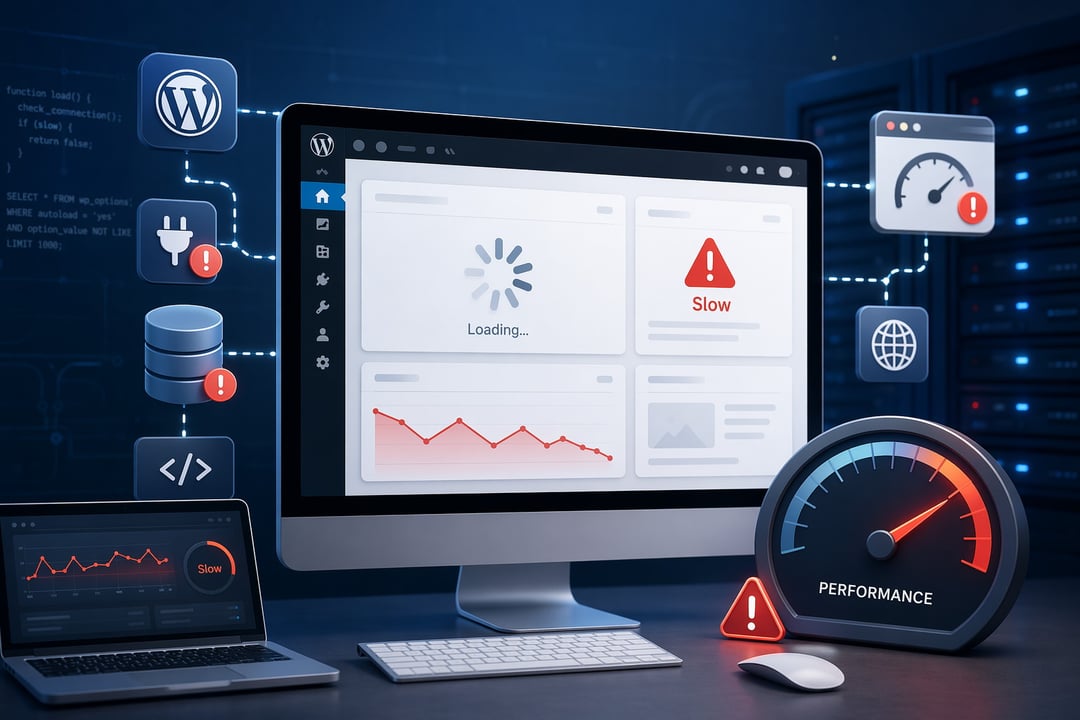
A WordPress site rarely becomes slow for no reason. It feels random because the symptoms show up all at once: pages hang, the admin dashboard crawls, images load in pieces, and visitors start leaving before the page finishes.
But behind that sudden slowdown, something usually changed.
Maybe a plugin updated overnight. Maybe your cache stopped working. Maybe your hosting server hit its limits. Or maybe bots started hammering your login page while you were busy doing something more pleasant, like literally anything else.
Here’s how to think through the most common reasons your WordPress site suddenly slowed down.
Start With One Simple Question: What Changed?
When a WordPress website suddenly becomes slow, the first thing to check is recent activity. Look at the last 24 to 72 hours.
Did you update WordPress core? Install a plugin? Change your theme? Add a tracking script? Import products? Launch a campaign? Switch hosting settings? Update PHP?
That timeline matters because WordPress is a stack of connected parts. A small plugin update can affect database queries. A new homepage banner can add a huge image. A new chat widget can delay page rendering. One tiny change can tug on the whole sweater.
Before installing another “speed optimization” plugin, pause. More plugins often add more moving parts. Diagnosis beats guesswork every time.
Your Hosting Server May Be Under Pressure
Hosting is the foundation. If the server struggles, everything above it struggles too.
A slow server response often shows up as a delay before anything appears on the screen. The browser waits. The page feels frozen. This can happen when your hosting account runs out of CPU, memory, disk input/output capacity, or PHP workers.
PHP workers are especially important for dynamic WordPress sites. They handle uncached page requests. If too many visitors, bots, admin tasks, or WooCommerce actions need processing at once, requests start waiting in line. The site may not be broken. It’s just stuck in traffic.
Shared hosting can make this worse. Your site may compete for resources with other websites on the same server. That setup works for small blogs, but it can buckle under heavier plugins, online stores, membership sites, or traffic spikes.
Check your hosting dashboard for CPU usage, memory usage, entry processes, bandwidth, and error logs. If those graphs spike during the slowdown, your hosting environment deserves serious attention.
A Plugin Update Could Be the Culprit
Plugins are one of the most common reasons a WordPress site suddenly slows down. They’re powerful. They’re also risky when poorly coded, overloaded, or recently updated.
A security plugin might start a full file scan during busy hours. A backup plugin might create a large archive. An SEO plugin might rebuild indexes. A WooCommerce extension might run expensive database queries on every product page.
And sometimes two plugins simply stop playing nicely together.
If your WordPress site is slow after a plugin update, start there. On a staging site, disable recently updated plugins one at a time. Then test page speed, admin speed, and server response. Tools like Query Monitor can help reveal slow database queries, PHP errors, and scripts that drag down performance.
Don’t randomly delete plugins from a live site. Some store important settings and data. Disable carefully, test clearly, and keep a backup nearby.
Your Theme or Page Builder May Be Too Heavy
Themes and page builders can make a site look polished, but they can also load a lot of baggage.
Sliders, animations, icon libraries, custom fonts, nested layouts, popups, and dynamic widgets all add weight. A page builder update can change how assets load. A new landing page can quietly introduce dozens of extra CSS and JavaScript files.
You’ll often notice this problem on complex pages first. A basic blog post may load fine while the homepage or service page drags. Mobile visitors usually feel the pain faster because phones have less processing power and slower network conditions.
Test a simple page against your most designed page. If the designed page performs much worse, your layout may be the issue. Remove unused widgets, simplify sections, reduce animations, and avoid loading builder add-ons everywhere.
Pretty is nice. Fast and usable is better.
Caching May Have Stopped Working
Caching is like meal prep for your website. Instead of cooking the same page from scratch for every visitor, WordPress serves a ready-made version.
When caching breaks, WordPress has to rebuild pages again and again. That means more PHP work, more database queries, and more pressure on the server.
A sudden WordPress slowdown can happen after a cache plugin update, a CDN purge, a hosting cache change, or a new exclusion rule. WooCommerce, membership, and booking sites need extra care because carts, account pages, and checkout areas should not be cached like normal blog posts.
Check whether page caching is active. Confirm your CDN serves static assets properly. Review cache exclusions. If you use server-level caching and a caching plugin together, make sure they’re not fighting each other.
The official WordPress performance documentation is a useful reference if you want a deeper technical baseline.
Your Database or Media Library May Be Dragging
WordPress depends heavily on its database. Posts, pages, settings, comments, users, orders, revisions, and plugin data all live there.
Over time, that database can become bloated. Expired transients pile up. Post revisions multiply. WooCommerce order metadata grows. Old plugins leave behind autoloaded options that WordPress loads on nearly every request.
That last one matters. If autoloaded data becomes too large, every page request carries extra weight before visitors even see the page.
Media can create another drag. A few oversized hero images or uncompressed product photos can make a previously fast site feel slow overnight, especially after a redesign or content upload. Use modern formats like WebP where appropriate, compress images, and avoid uploading massive camera-original files.
Always back up before cleaning the database. One careless cleanup can turn a slow site into a broken one.
External Scripts, Bots, or Malware May Be Involved
Not every slowdown starts inside WordPress.
Analytics tools, chat widgets, ad networks, heatmaps, social embeds, review widgets, and marketing tags can all delay loading. A slow third-party script can make your site feel sluggish even when your server performs well.
Bot traffic can cause trouble too. Login attacks, scrapers, fake crawlers, and repeated hits to xmlrpc.php can overwhelm hosting resources. If your traffic suddenly jumps but sales or inquiries don’t, look closer.
Malware is the darker possibility. A hacked WordPress site may run spam scripts, create fake pages, send emails, or inject malicious code. Warning signs include unknown admin users, strange redirects, suspicious files, and unexplained CPU spikes. The WordPress security hardening guide is worth reading if security looks suspicious.
How to Diagnose the Problem Quickly
Start broad, then narrow down.
Test your homepage, a blog post, a product or service page, the login page, and the admin dashboard. If everything is slow, check hosting, caching, traffic, malware, and database health first. If only one page is slow, inspect that page’s images, layout, scripts, and plugins.
Next, review hosting metrics and error logs. Match spikes to the time the slowdown began. Then check recent updates and disable likely plugin suspects on staging.
After that, verify caching and CDN behavior. Use PageSpeed Insights or other performance tools to compare before-and-after results, but don’t obsess over scores alone. Real speed comes from server health, clean code, smart caching, optimized assets, and fewer unnecessary requests.
Change one major thing at a time. Otherwise, you’ll never know what actually fixed the problem.
Final Thoughts
If your WordPress site suddenly slowed down, don’t panic and don’t start installing random optimization tools.
Look for the trigger. Check hosting. Review plugin changes. Confirm caching. Inspect the database, media files, external scripts, bots, and security.
A slow WordPress site feels chaotic in the moment. But once you follow the evidence, the cause usually starts to show itself. Then you can fix the real problem instead of throwing more weight onto an already tired site.


