
Something went wrong. Maybe Windows won't load past the spinning circle. Maybe a recent update broke something and now half your apps won't open. Maybe you're staring at a blue screen that keeps cycling back no matter how many times you restart.
That helpless feeling is real. But here's the thing — Windows already has the tools to fix most of this, built right in. You don't need a technician or a full reinstall. You just need to know where to look.
This guide walks you through Windows Automated System Recovery: what it is, when to use it, and exactly how to run it.
What Is Windows Automated System Recovery?
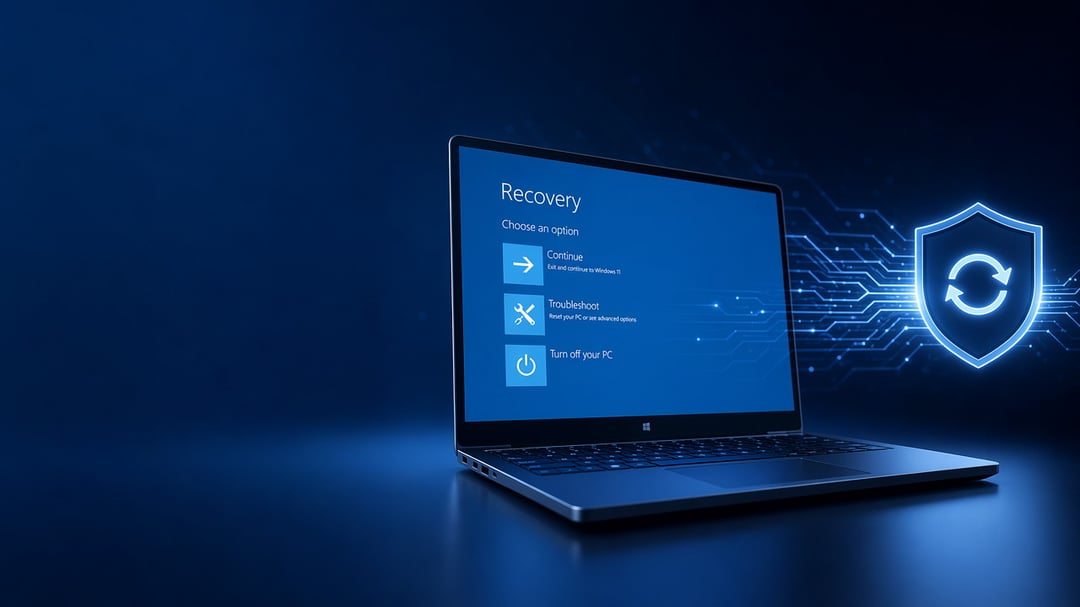
Think of it as Windows' self-healing system. When something breaks — a corrupted file, a bad driver, a boot failure — the recovery environment gives you a set of tools designed to bring your system back to life.
Four main tools live under the recovery umbrella:
- System Restore rolls back system settings and files to an earlier point in time, without touching your personal documents.
- Startup Repair scans for boot-related problems and fixes them automatically.
- Reset This PC gives Windows a fresh start, letting you choose whether to keep your personal files or remove everything.
- Windows Recovery Environment (WinRE) is the central hub where all these options live.
Worth clarifying upfront: these tools fix your system, not your files. If you deleted a document, recovery won't retrieve it. What it will do is get Windows itself running again.
When Should You Use Windows System Recovery?
Not every hiccup calls for recovery. But these are clear signals that it's time:
- Windows is stuck in a boot loop and won't reach the desktop
- Blue Screens of Death (BSODs) keep appearing on every restart
- A Windows update installed incorrectly and broke core functionality
- Malware damaged system files that antivirus couldn't fully repair
If you haven't tried Safe Mode yet, start there. It strips Windows to its essentials and often lets you undo the problem. Recovery is your next move if Safe Mode doesn't help.
Before You Start
Sort out three things before diving in.
Back up what you can. Even if the system is struggling, copy important files to an external drive or cloud storage. Recovery tools are generally safe but there's no reason to gamble with files that matter.
Know your Windows version. The steps are similar for Windows 10 and 11 but the menus look slightly different. Check Settings → System → About if you're unsure.
Prepare a recovery USB. If your PC can't reach the desktop at all, you'll need a bootable Windows USB. Create one for free on any working PC using Microsoft's Media Creation Tool.
One last thing — plug in your laptop. Never run system recovery on battery power. A shutdown mid-process can make things significantly worse.
Step-by-Step: How to Run Windows System Recovery
Step 1 — Access the Recovery Environment
How you get into WinRE depends on the state of your PC.
If Windows still reaches the desktop: Settings → System → Recovery → Advanced Startup → click Restart Now.
If Windows won't boot: Force a shutdown the moment you see the Windows logo. Do this three times in a row. On the third attempt, Windows detects the repeated failures and opens WinRE automatically.
If neither works: Boot from a Windows USB, select your language, then click Repair your computer instead of Install.
Step 2 — Choose the Right Recovery Method
Inside WinRE, go to Troubleshoot and choose based on your situation:
- System Restore → Troubleshoot → Advanced Options → System Restore Best when a specific change (an update, driver, or new app) caused the problem. Rolls back your system without removing personal files.
- Startup Repair → Troubleshoot → Advanced Options → Startup Repair Best when Windows simply won't start and you're not sure why. It diagnoses and fixes boot failures automatically.
- Reset This PC → Troubleshoot → Reset This PC Best when the system is too broken to fix incrementally. Choose Keep my files or Remove everything, then select cloud or local reinstall.
Step 3 — Let It Run
Once you confirm your selection, step back. Recovery takes 15 minutes to an hour depending on your method and hardware. Your PC will restart multiple times — that's completely normal. Don't interrupt it and don't force a shutdown. The process finishes when Windows boots to the login screen.
Step 4 — After Recovery, Check Everything
- Run Windows Update immediately — recovery can roll back recent patches
- Reinstall any apps removed during the process
- Restore backed-up files from your external drive or cloud storage
How to Prevent the Next System Failure
Create a recovery drive today. Open Control Panel → Recovery → Create a recovery drive. Store it somewhere safe. This is the one thing most people skip — and regret skipping.
Confirm restore points are active. Search Create a restore point in the Start menu, open System Properties, and verify that Protection is set to On for your main drive.
Keep Windows and drivers updated. Most BSODs trace back to outdated drivers. Let Windows Update run and check your device manufacturer's website periodically.
Recovery isn't something most people think about until they urgently need it. But now you know where the tools are and exactly how to use them. The next time Windows goes sideways — and eventually it will — you'll have a clear path forward instead of a panic spiral.
Start with the easy win: create that recovery drive today. Ten minutes now could save you hours later.