
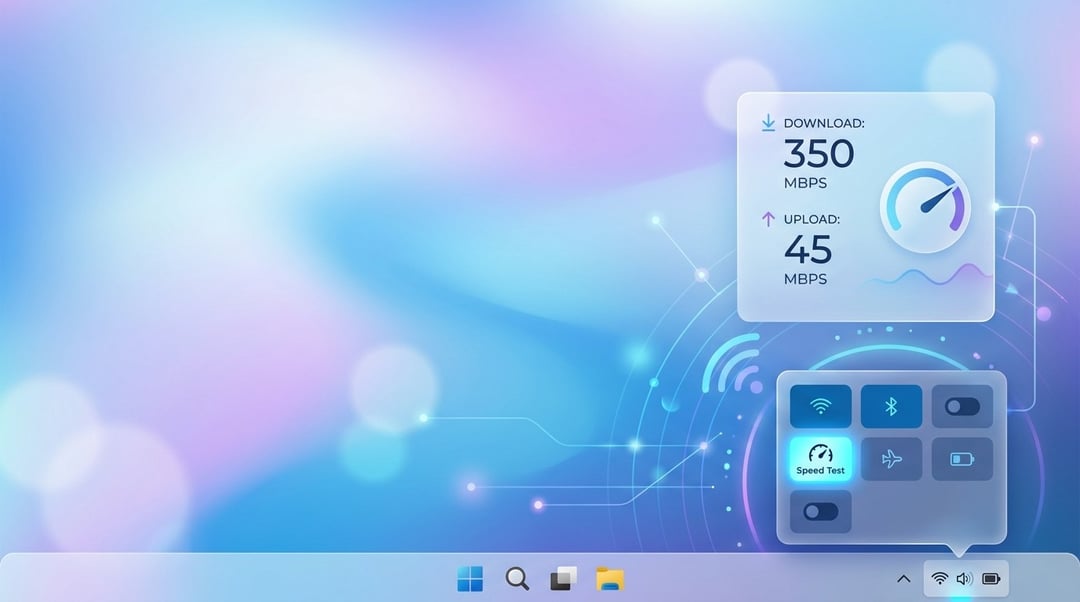
Built-in Windows 11 speed test: what Microsoft is adding
Windows 11 is getting a built-in way to check your internet connection speed straight from the taskbar area—basically where you already go when something feels “off.” Instead of opening a third-party speed test site from memory (or digging through bookmarks) or installing another utility, you’ll be able to trigger a Windows 11 speed test in just a couple of clicks.
Microsoft frames it as a practical tool for checking performance and troubleshooting network problems. The value here isn’t that Windows is inventing speed tests—it’s that Windows is putting the shortcut right into the workflow you’re already using when Wi‑Fi drops or your call starts glitching.
Where to find the Windows 11 speed test in the taskbar UI
Run the speed test from Quick Settings (Wi‑Fi or Cellular)
The shortcut appears in Quick Settings under Wi‑Fi or Cellular. That’s significant because Quick Settings is the “fast control” layer people actually use in the moment—when you’re toggling Wi‑Fi, checking signal, switching connections, or trying to figure out why things suddenly feel slow.
Run the speed test by right-clicking the network icon (system tray)
You’ll also be able to access it by right-clicking the network icon in the system tray. This is the most “muscle memory” friendly option: the system tray network icon is the first place many people go when their connection starts acting up.
What happens when you start the Windows 11 speed test
This speed test isn’t described as a fully native, built-in panel living inside the Windows Settings app. When you run it, Windows opens your default web browser and starts the test there.
So, yes—it’s deeply integrated in terms of access and convenience, but the actual test experience is still browser-based rather than a self-contained Windows interface.
Connection types supported: Ethernet, Wi‑Fi, and cellular
One of the more useful details: the feature supports Ethernet, Wi‑Fi, and cellular connections. That makes it relevant across the devices and scenarios people actually live in now:
- Wired desktop setups on Ethernet
- Laptops moving between home and office Wi‑Fi
- Laptops/tablets that can use cellular data while traveling
And that last bit matters because “my internet is slow” isn’t one problem. It’s often a mix of location, access point, network type, and upstream issues. A speed test you can run the same way on multiple connection types gives you a more consistent baseline.
Why a taskbar speed test is useful for troubleshooting network problems
Faster answer to the real question: is it the internet or the app?
When streaming starts buffering or a video call gets choppy, you typically need one thing first: a quick reality check.
The built-in Windows 11 speed test makes it easier to answer that “first question” quickly: is it my internet, or is it the app? If you can run a speed check without breaking your flow, you spend less time guessing and less time bouncing between tabs, sites, and settings.
Easier comparison across networks (and clearer baselines)
A lot of PCs switch networks throughout the day—Wi‑Fi at home, Ethernet at work, cellular on the road. A consistent, built-in test across these options helps you compare connection performance without changing your process each time.
It also helps you narrow down what’s actually failing:
- If Wi‑Fi looks bad but Ethernet looks fine, that’s a strong clue the problem is local (not your provider).
- If everything is slow, you can stop obsessing over router tweaks and start looking upstream.
This kind of “compare and isolate” approach is the core of sane network troubleshooting, and Windows putting the test within reach makes that behavior more likely.
Rollout details: availability and timing in Windows 11
There’s no clear timeline for when the taskbar speed test will land in the standard Windows 11 release outside Insider channels. It’s also unclear whether it will arrive in one drop or roll out in phases.
So for now, the most accurate expectation is: it exists (at least in some form) in Insider contexts, but mainstream availability is still TBD.
How to use the Windows 11 speed test when it shows up on your PC
Once it appears on your system, the most practical way to use it is as a comparison tool:
Compare Wi‑Fi vs Ethernet results
Run a test on Wi‑Fi, then test on Ethernet if you can. Big swings between those results are a giant arrow pointing toward the connection type as the issue (or the environment around that connection type).
Compare Wi‑Fi vs cellular on supported devices
If your device supports cellular, compare those results too. If cellular is fine and Wi‑Fi is rough, you’ve learned something immediately: your slowdowns are probably local to the Wi‑Fi path, not “the internet” as a whole.
Use big performance swings as your troubleshooting signal
The most actionable insight isn’t the exact number—it’s the change. Big swings between results point toward where the problem lives, and which connection method is worth trusting in the moment.