
A new Windows 11 installation can leave important protections untouched, even when Windows Security reports that everything is running normally. The right Windows 11 security settings can help protect your account, files, apps, and browsing activity without turning your PC into a hassle to use.
Start with the settings that limit account access and make sign-in safer, then enable BitLocker device encryption to protect data if your computer is lost or stolen. You should also review Microsoft Defender Antivirus, Windows Security, Controlled Folder Access, and the built-in firewall. App and browser protection settings deserve attention too, particularly if you install software from outside the Microsoft Store. By the end, you will know which protections to enable and where to find them.
Strengthen your Windows account and sign-in settings
Use Windows Hello and stronger sign-in protections
Open Settings > Accounts > Sign-in options. Review Windows Hello face or fingerprint recognition, PIN (Windows Hello), password, security key, and related sign-in settings. Choose a sign-in method that is difficult for someone else to guess or reuse. A separate PIN or biometric sign-in can limit exposure if a password used elsewhere is compromised. Windows Hello face and fingerprint options require compatible hardware, and available sign-in controls can differ by Windows edition.
Use an administrator account only for tasks that require elevated permissions. For everyday browsing and software use, a separate standard user account limits what malware or an attacker can change after gaining access to the device.
Review account permissions
Go to Settings > Accounts > Other users and inspect every listed account. Remove accounts that are no longer needed. For accounts that must remain, select the account and use Change account type to choose Standard User unless administrator access is necessary. The names and placement of some account controls may vary by Windows edition.
Turn on BitLocker device encryption
Find BitLocker or device encryption
Open Settings > Privacy & security > Device encryption. If that option is missing, search Start for Manage BitLocker or open Control Panel > System and Security > BitLocker Drive Encryption. Windows edition and hardware affect which option appears and which controls are available.
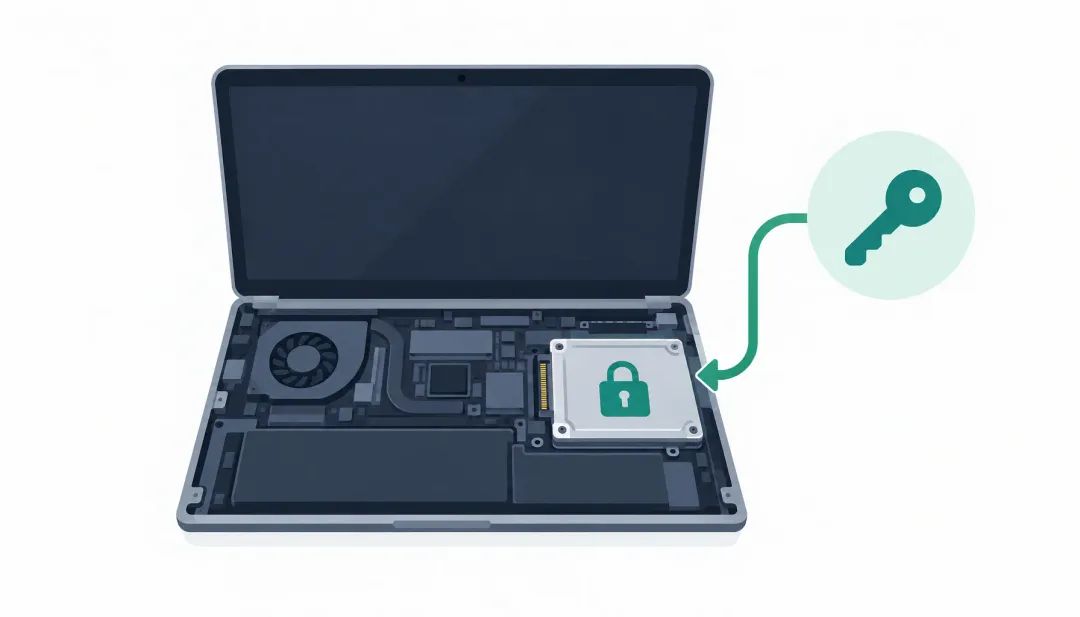
BitLocker encrypts the drive, helping prevent someone who removes it or accesses the powered-off PC from reading its files. It does not protect data from someone using your device after you have signed in, or from malware running in your account.
Back up the recovery key
Before changing encryption settings or troubleshooting a startup problem, make sure you can access the recovery key. If Windows asks for it and you cannot provide it, you may be unable to access the encrypted drive. Save the key somewhere separate from the PC, such as a secure account or another protected device, and check that you can retrieve it.
Configure Microsoft Defender Antivirus and Windows Security
Check real-time protection
Open Windows Security from the Start menu and select Virus & threat protection. Check the status under Virus & threat protection settings. Keep Real-time protection, Cloud-delivered protection, and Automatic sample submission turned on unless you have a specific reason to change them. These settings let Defender check files as you use them and draw on cloud protection when assessing threats.
To scan on demand, choose Quick scan for a check of common locations. For a more thorough check, select Scan options, then Full scan. You can review detections and actions under Protection history on the same page.
Review scan and notification settings
Avoid installing multiple antivirus products with real-time protection. They can conflict with Microsoft Defender or interfere with each other’s monitoring. If you install another antivirus, check Windows Security to see how it affects Defender’s status, then confirm that one product is actively protecting the device.
Enable Controlled Folder Access against ransomware
Turn on Controlled Folder Access
Controlled Folder Access helps stop ransomware by letting only trusted apps change files in protected folders. An untrusted app may be able to read a file, but Windows blocks it from modifying or deleting one. You can protect common folders such as Documents and Pictures, along with other folders you add.
Open Windows Security and go to Virus & threat protection > Ransomware protection. Select Manage ransomware protection, then switch on Controlled folder access. The setting can interfere with legitimate software that saves or edits files, so test important applications afterward. For example, check that your photo editor can still save changes to a protected Pictures folder.
Allow trusted apps carefully
If Windows blocks a program you trust, return to Ransomware protection, choose Allow an app through Controlled folder access, and add that specific app. Don’t create broad exclusions or allow apps you don’t recognize; that gives malicious software more room to change files. Controlled Folder Access also can’t protect files from every threat or hardware failure, so keep backups of important data.
Review firewall, app, and browser protection settings
Check Microsoft Defender Firewall
Open Windows Security, select Firewall & network protection, and check each profile you use. Microsoft Defender Firewall should be on for domain, private, and public networks. A home network you trust is usually set to Private; public networks, such as hotel or airport Wi-Fi, should use Public, which limits how discoverable your PC is to other devices. For travel-network guidance, see the companion article on public Wi-Fi safety.
Use reputation-based protection
In Windows Security, go to App & browser control and review Reputation-based protection settings. Keep Microsoft Defender SmartScreen on to check apps and files, and enable potentially unwanted app blocking. These settings can warn you about untrusted downloads or apps bundled with unwanted software. If a trusted app is blocked, check its source before allowing it.
- Apply available Windows updates.
- Restart if prompted.
- Confirm firewall and protection status in Windows Security.
- Revisit these settings after major Windows changes.
What to apply first in Windows 11 security settings
Start with the protections that matter most if the device is lost or someone gains access: use a strong sign-in method, limit everyday use of administrator accounts, and turn on BitLocker or Device encryption if your PC supports it. Save the recovery key somewhere you can reach without the computer before changing encryption settings. Then open Windows Security and confirm that Defender’s real-time protection and Firewall are on. Controlled Folder Access can add a barrier against ransomware, but test your important apps and allow only trusted programs it blocks. Finish by installing Windows updates, restarting if prompted, and checking protection status again. Some options depend on your hardware or Windows edition, so a setting that is missing may not be available on your PC. Revisit these protections after major Windows changes.