
Windows 11 Build 26300 Adds Print Screen Key Rebinding
For years, pressing the Print Screen (PrtScn) key in Windows 11 has been tied directly to the built-in Snipping Tool. Simple. Predictable. A little limiting.
Now, in Windows 11 preview Build 26300, that changes.
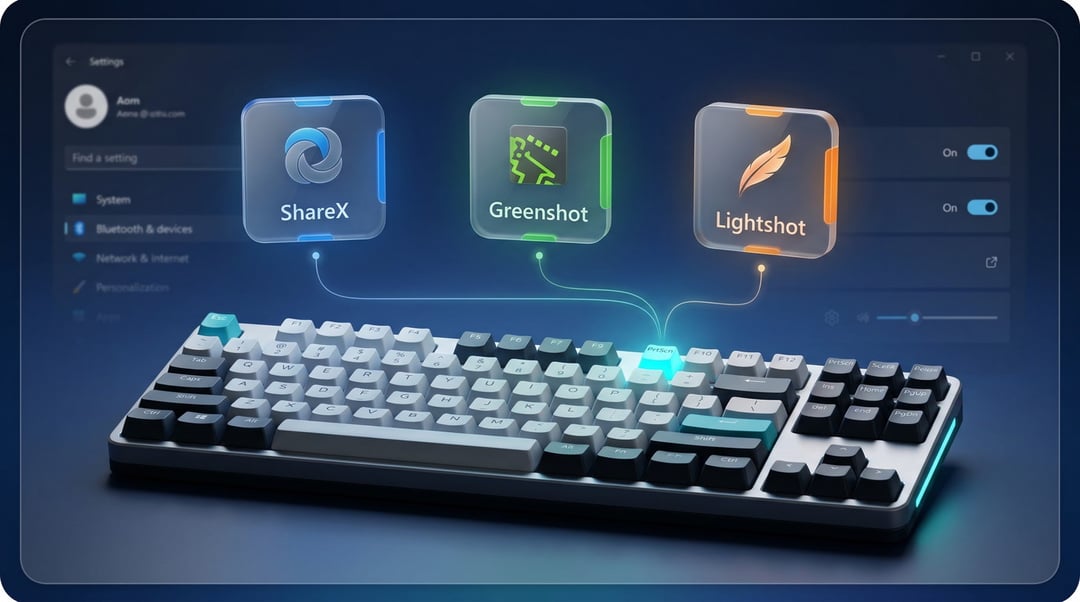
Microsoft is introducing the ability to rebind the Print Screen key to any third-party screenshot application. That means instead of automatically launching the Snipping Tool, you’ll be able to connect that key to tools like ShareX, Greenshot, or Lightshot—apps many power users already rely on every day.
And if you take screenshots constantly—documentation, tutorials, bug reports, quick grabs for Slack—you know this isn’t a small tweak. It’s a workflow shift.
Why Rebinding the Print Screen Key Matters
Greater Control Over Your Screenshot Workflow
The Snipping Tool works fine for casual screenshots. It’s clean. It’s built in. It does the job.
But for people who live in screenshots—developers, writers, support teams, designers—it can feel limited.
Third-party tools often offer:
- Advanced annotation options
- Automatic uploads to cloud services
- Custom keyboard shortcuts
- Scrolling capture
- File naming automation
- Direct sharing integrations
Being able to assign the Print Screen key directly to your preferred screenshot app removes friction. No extra shortcuts. No manual launches. Just press the key and go.
And honestly? That kind of speed adds up over hundreds of screenshots.
A Win for Power Users and Professionals
Apps like ShareX, Greenshot, and Lightshot offer more robust functionality than the default Windows Snipping Tool. For users who need more than basic cropping and markup, this update makes Windows 11 more flexible and professional.
It signals something important: Microsoft is leaning into customization instead of forcing defaults.
That’s the kind of shift advanced users appreciate.
How Print Screen Key Rebinding Works in Windows 11
Currently Managed Through Group Policy Editor
In Build 26300, the option to rebind the Print Screen key is currently accessed through the Group Policy Editor.
That means, for now, it’s more accessible to advanced users or enterprise environments than everyday consumers.
But there’s hope that this feature will eventually move into the Windows Settings app, making it easier and more visible for all users.
If that happens, we could see:
- A dedicated keyboard shortcut customization panel
- Native app selection for Print Screen behavior
- Simplified toggle options
Right now, it’s early. But the foundation is there.
Built-In Snipping Tool vs Third-Party Screenshot Apps
When the Snipping Tool Is Enough
For occasional screenshots, the Snipping Tool remains practical and integrated. It launches quickly, allows basic cropping, and works well for everyday needs.
Casual users likely won’t feel an urgent need to change anything.
When Third-Party Tools Offer More Power
If your workflow depends on:
- Batch screenshot capture
- Auto-save rules
- Instant uploads
- Advanced editing tools
- Keyboard shortcut chains
Then linking Print Screen directly to a third-party screenshot app becomes a meaningful upgrade.
Instead of adapting your process to Windows, Windows adapts to you.
Microsoft’s Shift Toward Greater Customization in Windows 11
This update reflects a broader pattern in Windows 11: offering users more control.
Allowing the Print Screen key to be reassigned shows Microsoft recognizing that not everyone uses Windows the same way. Some want minimalism. Others want deep control.
And giving users the option—without removing the default—strikes a smart balance.
It’s not about replacing the Snipping Tool. It’s about choice.