
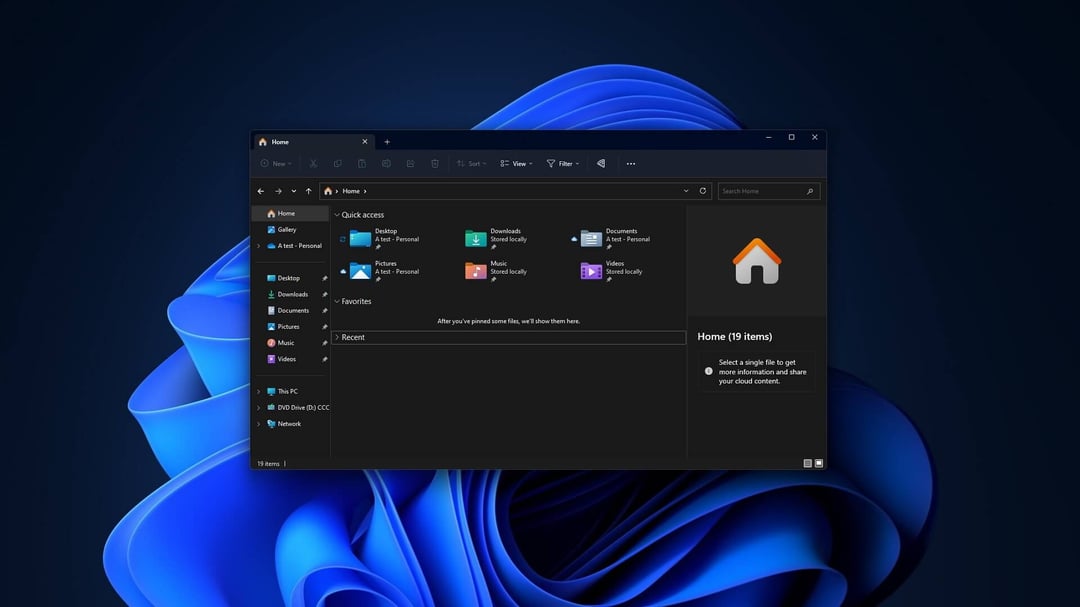
Windows 11 Bug Blocking Access to the C: Drive
It’s the kind of thing that makes your stomach drop.
You open File Explorer, click on your C: drive—the heart of your PC—and instead of your folders, you get hit with an “Access is denied” message. No warning. No explanation. Just locked out of your own system drive.
Microsoft has acknowledged a critical Windows 11 bug that’s doing exactly that for some users. After installing a recent cumulative update, certain systems suddenly can’t access the C: drive, even though the files are technically still there.
This isn’t just an inconvenience. The C: drive holds system files, applications, user profiles—everything. When access breaks, workflows stop. Updates fail. And for some people, panic sets in fast.
What’s Causing the Windows 11 C Drive Access Error?
Security Policy Misfire After a Recent Update
According to Microsoft, the issue stems from a recent Windows 11 update that introduced a problem with security configurations. In particular, a Windows Defender Application Control (WDAC) policy appears to be misapplying restrictions.
Here’s what that means in plain English:
A security rule that’s supposed to protect your system is accidentally blocking legitimate access to the C: drive.
Instead of filtering harmful activity, it’s acting like an overzealous bouncer—denying entry to users who absolutely should be allowed in.
Who Is Affected?
The bug doesn’t appear to impact every Windows 11 device. Reports suggest it’s limited to specific configurations and update versions.
Users affected typically notice:
- “Access is denied” errors when opening C:
- Inability to view or modify files on the system drive
- Potential application failures tied to restricted access
- Administrative accounts still experiencing permission blocks
Microsoft has confirmed awareness of the issue and is actively investigating.
How to Fix the Windows 11 C Drive Access Problem
If you’re dealing with this right now, take a breath. There are steps you can try.
Uninstall the Problematic Windows 11 Update
For many users, rolling back the recent cumulative update restores access.
Here’s how:
- Open Settings
- Go to Windows Update
- Select Update history
- Click Uninstall updates
- Find the most recent cumulative update and remove it
- Restart your PC
After rebooting, check whether C: access has returned.
It’s not glamorous. But sometimes the simplest move—backing out the update—is what works.
Use Known Issue Rollback (KIR)
Microsoft may deploy a Known Issue Rollback (KIR) to automatically reverse the faulty change without requiring full update removal.
For consumer devices, this can happen automatically after a system restart once Microsoft pushes the fix.
For managed or enterprise environments, IT admins may need to apply a Group Policy update to trigger the rollback.
If you’re on a work machine, it’s worth looping in your IT team before trying deeper fixes.
Avoid Manual Permission Changes Unless Necessary
When something says “Access is denied,” the instinct is to dive into security settings and start changing permissions.
But here’s the thing—this issue isn’t caused by traditional NTFS permission corruption. It’s tied to a policy-level bug.
Manually altering system drive permissions can make things worse.
If you’re not 100% sure what you’re changing, pause. Wait for Microsoft’s fix or remove the affected update instead.
Why This Windows 11 Bug Matters
The C: drive isn’t just another folder. It’s the backbone of Windows.
When access to it breaks:
- Core apps can fail
- Updates may not install properly
- Backup processes can stall
- Enterprise environments can face compliance risks
And honestly? It shakes user confidence.
Operating systems are supposed to feel stable. Predictable. When a routine update locks users out of their own drive, it chips away at trust.
That’s why Microsoft’s acknowledgment matters. And why a structured rollback process is critical.
What Microsoft Is Doing About the Issue
Microsoft has officially recognized the bug and is working on mitigation.
Current actions include:
- Investigating the faulty security configuration
- Deploying rollback mechanisms where possible
- Preparing a permanent fix in a future update
If your system isn’t affected, there’s no need to panic or preemptively uninstall updates. But if it is—rolling back the specific update remains the most reliable solution for now.
Windows 11 C Drive Access Bug: Q&A
Why is my C: drive showing “Access is denied” in Windows 11?
A recent Windows 11 update introduced a security policy issue that mistakenly blocks access to the system drive. Microsoft has confirmed it’s a known bug affecting certain configurations.
Will reinstalling Windows fix the C drive lockout issue?
A full reinstall may restore access, but it’s not recommended as a first step. Uninstalling the recent cumulative update or waiting for Microsoft’s rollback is safer and far less disruptive.
Is this Windows 11 bug caused by malware?
No. Microsoft has identified it as a software issue linked to a Windows update and security policy misconfiguration—not a virus or external attack.