
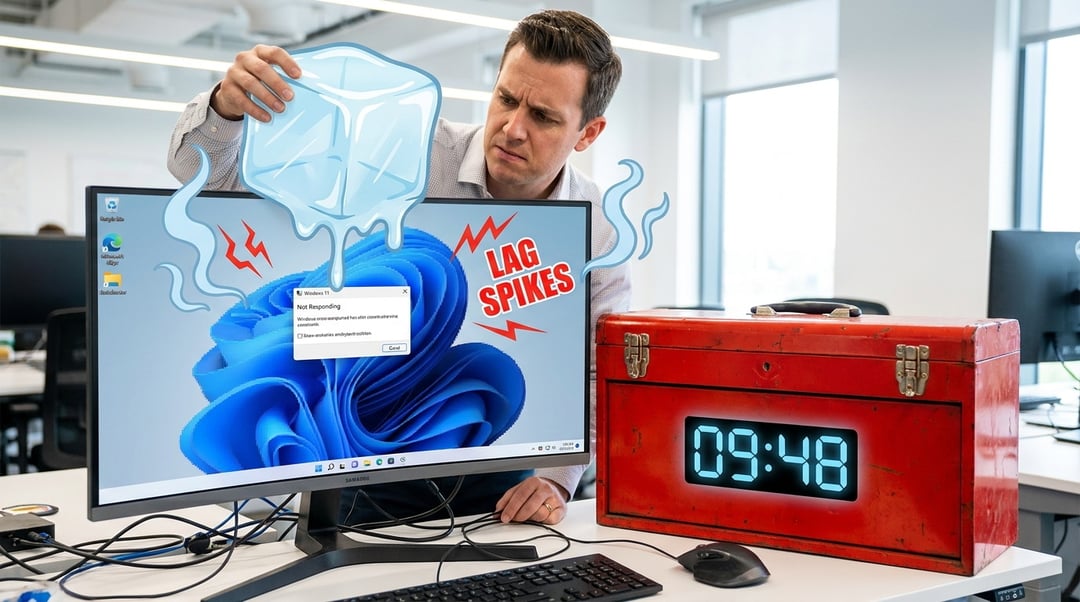
Look we have all been there at some point recently. You sit down with a fresh cup of coffee and hit the power button. You expect a snappy machine ready to work. Instead you get a sluggish mess. Your workstation boots up but it crawls through basic tasks. Honestly it feels incredibly frustrating. Windows 11 is a massive operating system. It demands significant hardware resources continuously. And unoptimized configurations bottleneck performance rapidly. Unnecessary background processes consume your CPU cycles relentlessly. Aggressive memory leaks choke your available RAM capacity. We have to take control back.
Think about it this way. Your computer is a high-performance athlete carrying a hundred-pound backpack. We need to drop the weight. Here is what I mean. Let us dive into this Windows 11 acting slow 10-minute fix guide.
Decoding System Latency: Why Is Windows 11 Acting Slow?
You know that moment when everything freezes for two seconds? Your mouse stops moving and your keystrokes just vanish into the void. That specific freeze represents a critical interrupt request collision. Modern operating systems execute thousands of concurrent threads daily. Kind of like a massive digital highway system during rush hour. Traffic jams occur when background tasks monopolize system bandwidth. I am not sure about your specific hardware configuration but software bloat invariably degrades baseline performance metrics. Even the fastest processors stumble when the operating system mismanages the queue.
The Architectural Overhead Of Modern OS Environments
The Fluent Design system looks undeniably gorgeous. But it utilizes heavy GPU acceleration continually. This creates stunning visual appeal but it taxes older hardware severely. Animations and transparency effects are heavy. Furthermore Microsoft integrates aggressive cloud synchronization protocols natively right out of the box. OneDrive continuously scans local file directories for external changes. This constant background reading and writing degrades solid-state drive responsiveness entirely. It is a massive drain.
Conceptual Diagram: The Anatomy of System Latency
- Background telemetry services flood the CPU with low-priority analytics tasks.
- Cloud syncing applications lock critical file directories during constant system scans.
- Visual rendering engines demand continuous VRAM allocation for desktop animations.
- The system bus clogs up and it halts user inputs temporarily.
Immediate Triage: The 10-Minute Fix Guide Protocol
This section dictates the core troubleshooting workflow. Diagnostic precision matters immensely during this crucial stage. We will prioritize high-impact adjustments first and foremost. Think about it this way right now. You must stop the bleeding before performing invasive surgery. We need immediate results.
Phase 1: Purging Background Telemetry And Bloatware
Your Task Manager is the ultimate truth teller. Hit Ctrl+Shift+Esc and just look at it. Identify resource-heavy background applications immediately. Always sort the active processes by memory consumption strictly. You will likely see software you never even installed. Terminate non-essential OEM diagnostic tools aggressively. Disable third-party antivirus suites temporarily for accurate performance benchmarking. Windows Defender is honestly plenty good for most people. Review the Microsoft Sysinternals Process Explorer documentation for advanced thread analysis if you want to geek out. But really just killing the bloat is half the battle.
Phase 2: Optimizing Startup Routines For Rapid Boot
Numerous applications register themselves within the startup sequence automatically. They just assume they are the most important thing in your life. This automated behavior elongates system boot times drastically. Your machine struggles to load twenty icons into the system tray before you can even click the start menu. Navigate to the Task Manager Startup tab explicitly. Disable Spotify or Skype or gaming launchers. These specific applications do not require immediate launch privileges. You can open them when you actually need them. Pure and simple.
Phase 3: Visual Effects Calibration And Resource Reclamation
Transparency effects look beautiful but they consume valuable VRAM. We do not need our windows to look like frosted glass if the computer is unusable. Access the Advanced System Settings menu via the Windows Run dialog. Select the optimal performance configuration profile immediately. This strips away the flashy animations. Re-enable font smoothing though. You absolutely want to maintain basic typographic legibility.
Advanced Diagnostics For Persistent Windows 11 Slowdowns
Sometimes the 10-minute fix guide requires deeper technical probing. Really stubborn latency points toward hardware-level misconfigurations. We must look beyond the graphical user interface now. If your machine is still acting slow then we have to roll up our sleeves.
Storage I/O Bottlenecks And NVMe Optimization
Solid-state drives are miracles of modern technology. But they suffer performance degradation near maximum capacity. A full drive is a slow drive. Ensure at least twenty percent free space exists always. Your drive needs that empty room to shuffle files around efficiently. Kind of like a sliding puzzle. Execute administrative PowerShell commands to verify active TRIM status. This background protocol maintains NAND flash memory efficiency over time and it keeps your drive healthy.
Thermal Throttling And Power State Management
Processors reduce clock speeds automatically when temperatures exceed safe thresholds. Laptops are especially guilty of this. This protects silicon integrity but it destroys system responsiveness entirely. Your computer is basically putting itself to sleep to avoid catching fire. Clean your fans out. And switch the Windows power plan to high performance immediately. This forces the central processor to maintain elevated base frequencies.
System performance optimization requires ongoing systemic maintenance. You cannot just fix it once and forget it entirely. Install cumulative security patches deliberately. But delay major feature updates until early adoption bugs resolve themselves. Implementing this diagnostic protocol reclaims your digital autonomy. You must actively command your underlying hardware architecture. Take a stance here. Do not let the software dictate your workflow pace. Mean what you say when you tune your machine and enjoy the speed.