

You want to build an app with AI, but getting started means sorting through editors, assistant settings, and advice that assumes you already know how to code. A practical vibe coding setup should get you to a small, working app without making you configure everything at once.
Start with one tool and a project you can describe in a few sentences. Then connect your AI assistant, give it a prompt with a clear finish line, and check what it builds before asking for changes. By the end, you'll be able to run your first app, find your way around the generated code, and save working checkpoints so you have something to return to when a change breaks.
Step 1: Choose a tool and keep your first app small
Vibe coding means building software through natural-language requests to an AI tool. You describe what you want, but you're still responsible for reading the generated code and checking that the app works.
This walkthrough uses VS Code with GitHub Copilot as its default environment, not because it's the best choice for everyone. An editor with AI assistance lets you work directly with project files; a browser-based app builder centers the workflow in a web interface. For alternatives, consult [Best AI Coding Tools for Vibe Coding in 2025] or [Cursor vs Windsurf vs GitHub Copilot: Which AI IDE Is Best for Vibe Coding?].
Start with a local task-list app using HTML, CSS, and JavaScript. Limit it to adding tasks, marking them complete, and deleting them. Skip accounts, a backend, and external services so you can focus on checking behavior without configuring integrations.
Step 2: Install the editor and connect your AI assistant
Download VS Code from its official website and run the installer. In the editor's extensions panel, find GitHub Copilot, verify that GitHub is the publisher, and install it. Follow its sign-in prompts to authorize your GitHub account. Check GitHub's current account and access requirements rather than assuming a particular plan includes access; interface labels may change.
Create a dedicated folder named my-first-app, open it in VS Code, and add an empty index.html. Ask Copilot: "Read index.html in this workspace and tell me whether it contains anything." Confirm its answer matches the file; a generic chat response doesn't establish workspace access.
This plain HTML app needs neither Node.js nor package installation. Install Git from git-scm.com for later checkpoints.
Keep credentials out of prompts. Before approving an unfamiliar terminal command, understand what it does and which files it affects.
Step 3: Write a first prompt with a clear finish line
Use a small, testable request for your vibe coding setup:
Build a local task-list app with separate index.html, styles.css, and script.js files. Use readable code, labeled controls, and no external dependencies. Users must be able to add a task, mark it complete, and delete it. Empty submissions must not create tasks. Persistence after refresh is outside this initial version. Do not add authentication or external API calls. Give brief instructions for opening the app in a browser, and explain any command you propose. Summarize which files you created and how they connect.
Before accepting changes, inspect each proposed file. Check that the HTML connects to the CSS and JavaScript, and question additions outside the request. Then open the app and test every requested interaction, including an empty submission. Success means those behaviors work in your browser, not that the assistant says "complete."
Step 4: Open the app and read the generated code
Double-click index.html to open this dependency-free example in your browser. Projects using modules or network requests may need a local server instead.
Scan HTML for page structure: <form> collects input; <ul> holds tasks. CSS such as li { padding: 8px; } controls appearance. In JavaScript, find addEventListener("submit", ...) for submission handling and tasks.push(...) for task updates. Match these excerpts to your code; implementations vary.
Test every interaction requested in your original prompt, including an empty submission. Compare actual behavior with what you asked for.
Open browser developer tools and select Console. If an error appears, send the assistant its exact text and reproduction steps, such as "Submit an empty task." Avoid "fix everything."
Check for unexpected dependencies, external requests such as fetch(...), and unrelated changes. Treat the assistant's explanations as guidance to verify, not proof of correctness.
Step 5: Save a working checkpoint before each change
Test adding, completing, and deleting tasks. If those actions work, save your three app files, then record a baseline from the project folder:
git init
git add index.html styles.css script.js
git commit -m "Save working task app"
Use your actual filenames if they differ. Saving updates a file; committing records a version you can recover later.
Keep your vibe coding setup predictable: test, commit, request one small change, inspect the diff, then test again. Try: "Add an unfinished-task count above the list. Leave everything else unchanged."
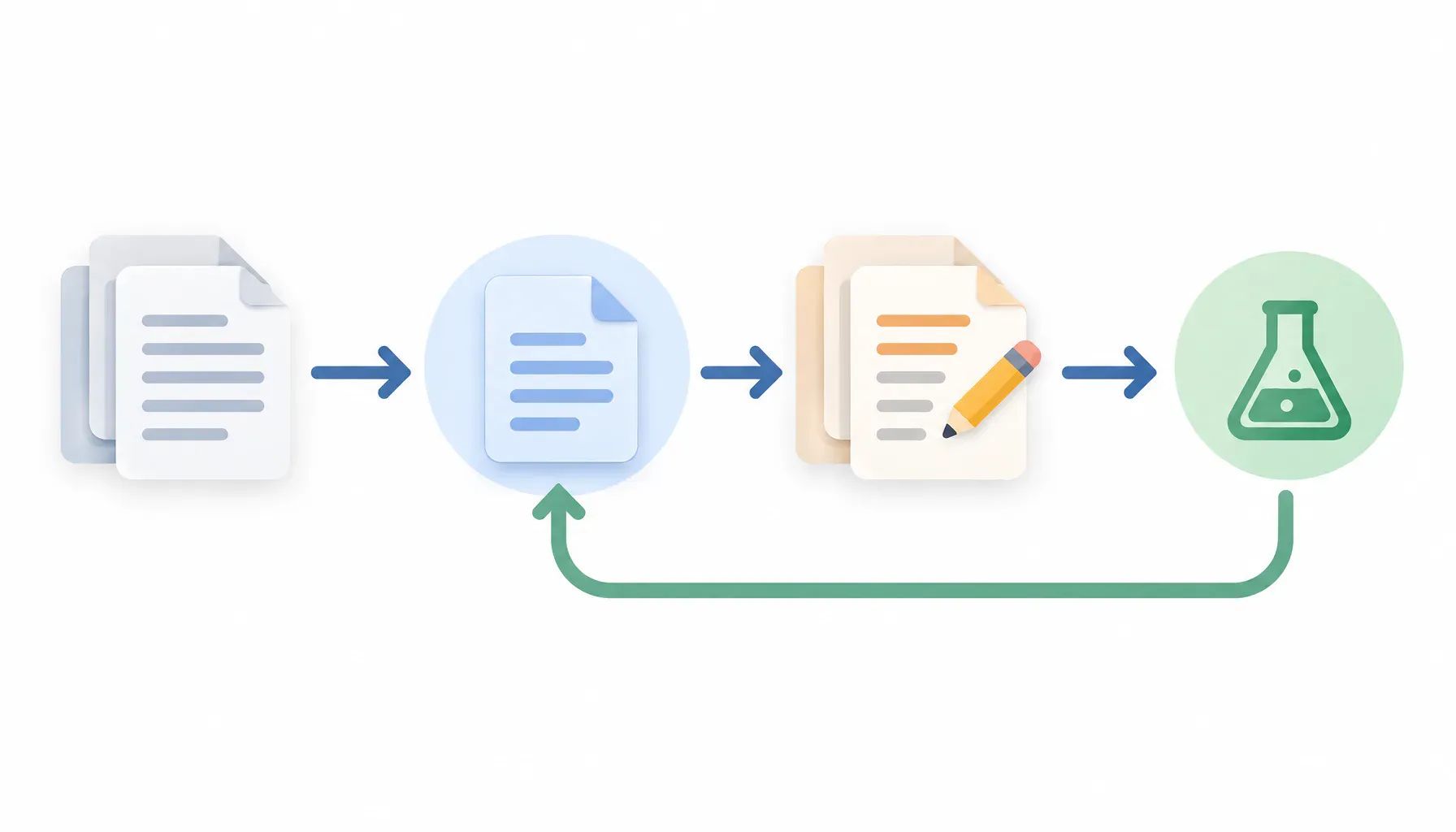
Run git diff to review the edits. Check that the count updates when tasks change. If the change fails, preserve work you need before undoing only the failed edits; avoid broad resets.
Once the app works, see 7 Vibe Coding Projects to Build as a Beginner.
Commit this version, then choose one small improvement and repeat the workflow.
Put your vibe coding setup to work with one small change
Start by testing your task-list app in the browser: add a task, mark it complete, delete it, and check that an empty submission creates nothing. If those behaviors work, commit that version before asking the assistant to change anything.
Then choose one small improvement, such as an unfinished-task count. Describe the behavior you want, inspect the proposed changes, and repeat the browser tests. If something breaks, report the exact error and the steps that triggered it rather than asking for a general fix.
Keep this first app local while you learn to follow how its HTML, CSS, and JavaScript connect. A useful vibe coding setup gives you a repeatable way to check the assistant's work and return to a known working version.
Frequently asked questions
Can I start vibe coding for free?
You can start with tools that offer a free plan or trial, but check their current limits before choosing one. AI requests, model access, and hosting may have separate restrictions or charges. For a first project, run the app locally and avoid paid integrations until you understand which parts of your workflow cost money.
Is it safe to paste private code into an AI coding assistant?
Treat any code you send as data shared with that service. Check its retention, training, and privacy settings, along with your employer's policies, before submitting private code. Never paste passwords, API keys, or customer records into prompts. Use a small, sanitized example when you need help with a sensitive project.
Can I use a vibe coding setup without an internet connection?
Offline use depends on whether your assistant runs its model locally or relies on a hosted service. A hosted assistant generally needs an internet connection for AI requests, even if the editor works offline. A local model can support offline work, but you still need suitable hardware and any required dependencies downloaded beforehand.
Can I publish an app built with vibe coding?
Yes, but a working local demo is not enough to establish that an app is ready for public use. Before publishing, test its behavior, review dependencies and licenses, and check how it handles secrets and user data. Apps involving payments, accounts, or sensitive information need closer security review than a simple personal tool.
Who owns the code generated by an AI coding tool?
Ownership and usage rights depend on the tool's terms, applicable law, and any third-party code included in the output. Do not assume generated code comes with unrestricted rights. Review the service's terms and dependency licenses before distributing an app, especially for commercial work. Get legal advice if ownership or licensing is material to your project.
Vibe coding setup FAQ
Do I need coding experience to start?
Beginners can start, but learn where files belong, how to test changes, and how to spot edits you don't understand. Ask the assistant to explain unfamiliar changes before accepting them.
Do I need a paid AI coding tool?
Not necessarily. Account requirements and free access vary by tool. Check current official plan details for usage limits and included features before choosing.
Why does my app fail when the assistant says it works?
Generated code can contain errors or assume a different environment. Check the browser console, then report reproducible behavior: what you clicked, what happened, and the exact error message.
Is my local app ready to publish?
A working local prototype isn't production-ready. Publishing requires appropriate testing and security review, especially when adding accounts, personal data, or payments. Local success doesn't establish that those features are safe.