
A 4K Monitor for Work Is About Clarity, Not Just More Pixels
Upgrading to a 4K monitor for work sounds simple. You buy a sharper screen and everything looks better. That’s the dream anyway. The reality is more nuanced.
A 4K monitor gives you 3840 × 2160 pixels, which is roughly four times the pixel count of a standard Full HD display. That extra pixel density can make text look cleaner, spreadsheets easier to scan, design files sharper, and browser windows less cramped. If you spend all day reading, writing, coding, editing, or comparing documents, the difference can feel surprisingly calming.
But here’s what nobody tells you: 4K does not automatically create more usable workspace. It creates more detail. Whether that detail turns into productivity depends on screen size, scaling, desk depth, software support, and your eyesight.
A great 4K work setup feels crisp and effortless. A poor one feels tiny, awkward, and oddly expensive.
The Hidden Scaling Problem With 4K Work Monitors
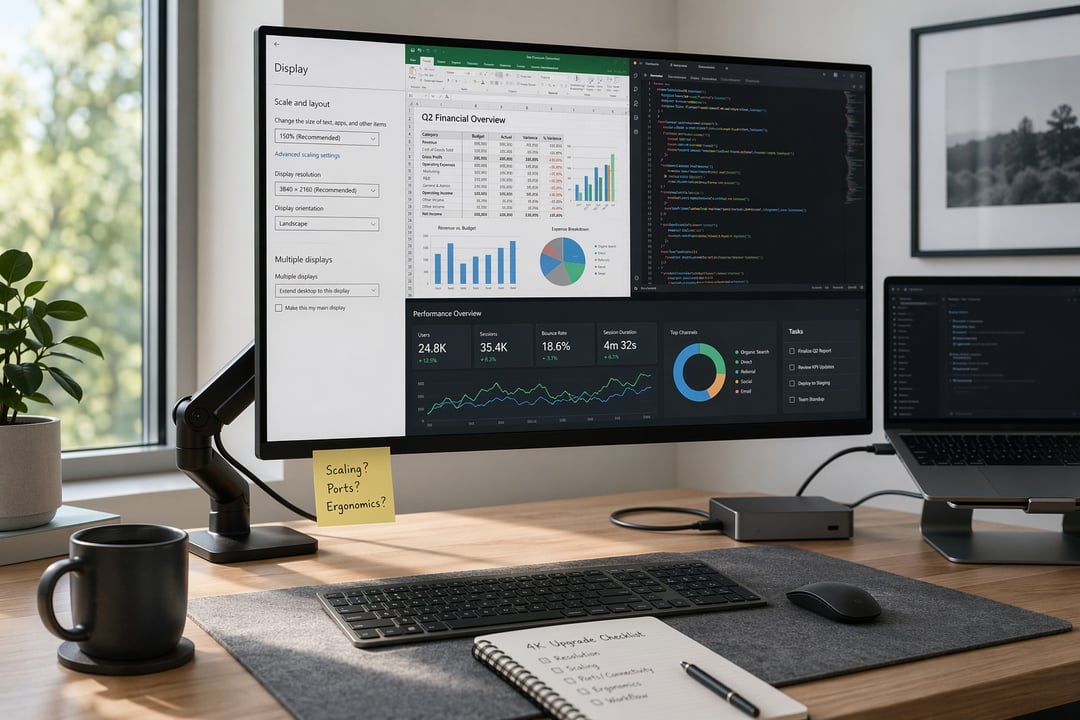
Display scaling is the first surprise most people meet after upgrading. On many 4K monitors, especially 27-inch models, native 100% scaling makes text painfully small. So Windows or macOS enlarges the interface to make everything readable.
Many users run a 4K monitor at 125%, 150%, or 175% scaling. That sounds like it defeats the purpose. It doesn’t.
Scaling makes buttons, menus, and text comfortable while still using the dense pixel grid for sharper rendering. Think of it like printing a document at the same physical size but with a better printer. You may not get four times the visible space yet you get smoother letters and cleaner edges.
Microsoft’s own display settings guidance can help users understand resolution and scaling basics: Microsoft Windows display settings.
Why 150% Scaling Can Still Be a Smart Choice
At 150% scaling, a 27-inch 4K monitor often feels similar in workspace to a 1440p display but much sharper. Text appears smoother. Fine interface details look less jagged. Long writing sessions can feel easier on the eyes.
This matters for work that involves dense visual information. Developers can read code with better character definition. Editors can review documents without zooming constantly. Analysts can keep dashboards open while still seeing crisp labels and charts.
The catch is software compatibility. Modern apps usually scale well. Older business tools may look blurry, cramped, or strangely oversized. Legacy accounting apps, remote desktop sessions, virtual machines, and dated enterprise dashboards can all behave poorly on high-DPI displays.
Before committing, check the apps you use every day. The weakest link often decides the experience.
Monitor Size Changes the Entire 4K Experience
A 4K monitor’s size matters as much as its resolution. A 24-inch 4K display can look razor sharp but uncomfortable without heavy scaling. A 27-inch 4K monitor offers a strong balance between crispness and desk-friendly size. A 32-inch 4K monitor gives you more physical room and often needs less aggressive scaling.
For most office users, 27-inch 4K is the safe sharpness-focused choice. For people who multitask heavily, compare documents, or work with large timelines, 32-inch 4K can feel more natural.
But bigger is not always better. A 32-inch screen on a shallow desk can dominate your field of view. You may start turning your head instead of moving your eyes. That gets tiring faster than people expect.
OSHA’s computer workstation guidance recommends placing the monitor so posture stays neutral, with the top of the screen at or slightly below eye level: OSHA Computer Workstations.
A monitor arm can matter more than a premium panel. It lets you set height, depth, and angle properly. That one adjustment can make a 4K work monitor feel twice as comfortable.
Connectivity Can Quietly Ruin a 4K Monitor Upgrade
Nobody gets excited about cables. Still, they can make or break the upgrade.
To run 4K smoothly at 60Hz, your laptop, desktop, dock, cable, and monitor all need the right support. HDMI 2.0 or newer usually handles 4K at 60Hz. DisplayPort 1.2 or newer also works well. USB-C can be excellent if it supports DisplayPort Alt Mode. Thunderbolt docks are often better for complex laptop setups.
Cheap hubs can cause flicker, random black screens, wake-from-sleep problems, or a disappointing 30Hz refresh rate. And 30Hz feels sluggish for normal work. Mouse movement looks choppy. Window dragging feels delayed. It’s subtle at first then deeply annoying.
Laptop users should be especially careful. Some older machines can power one 4K display but struggle with two. Others support 4K only through specific ports. Check the technical specifications before buying the monitor.
The Quality of the Screen Is More Important Than Just Having 4K
Resolution is only one part of display quality. A mediocre 4K monitor can still have weak brightness, poor contrast, uneven backlighting, or frustrating glare.
For most work setups, an IPS panel offers the best all-round balance. It gives wide viewing angles, consistent colors, and reliable text clarity. VA panels often deliver better contrast but may show slower pixel response. OLED displays offer beautiful blacks and instant response though static office elements can raise burn-in concerns. Mini-LED screens can improve brightness and HDR but usually cost more.
For everyday work, prioritize these features:
- Comfortable brightness of around 300 nits or higher
- Matte coating if your workspace has glare
- Good stand adjustability
- Strong text clarity
- Reliable USB-C power delivery if you use a laptop
- Factory color calibration for creative tasks
HDR branding deserves caution. A badge can indicate standards compliance yet it does not guarantee a great office monitor. VESA’s DisplayHDR program explains common certification levels: VESA DisplayHDR.
The Ergonomic Side of Upgrading to a 4K Monitor for Work
A sharper screen can reduce squinting. But poor setup can create neck pain, shoulder tension, and eye fatigue.
The ideal 4K monitor setup keeps your head level, shoulders relaxed, and eyes naturally aligned with the upper portion of the display. If you lean forward to read small text, increase scaling. If you look upward all day, lower the screen. If the panel reflects a bright window, move the monitor or adjust the lighting.
Eye comfort also depends on brightness and habits. Match screen brightness to the room. Avoid extreme contrast between the display and your surroundings. Take short visual breaks during deep work. Dry eyes often come from reduced blinking during focus rather than resolution itself.
When a 4K Monitor for Work Is Actually Worth It
A 4K monitor is worth it when sharper text and better layout control remove daily friction. Writers, editors, developers, designers, analysts, researchers, and remote workers often benefit the most. The gain comes from hundreds of tiny improvements: fewer zoom changes, cleaner split-screen layouts, sharper PDFs, and less visual strain.
Still, not everyone needs one. If your desk is small, your laptop is old, or your workflow lives inside basic email and web apps, a high-quality 1440p monitor may offer better value.
The smartest upgrade is not the highest resolution. It’s the setup that makes your work feel clearer, calmer, and easier to sustain every day.