
A new GPU can deliver impressive benchmark scores yet still stutter, drop texture quality, or run out of memory in the games and applications you use. The question behind Understanding VRAM: How Much Video Memory Do You Need? is not simply about buying the largest capacity available—it is about matching memory to resolution, settings, workloads, and your upgrade plans.
This guide explains why VRAM matters, how much gaming at 1080p, 1440p, and 4K typically demands, and when creative software or AI workloads require more. It also covers how to compare GPUs, recognize VRAM bottlenecks, and manage limited memory through settings and workflow changes. By the end, you’ll be able to choose a GPU with greater confidence and avoid paying for—or falling short of—the capacity you actually need.
What VRAM Is and Why It’s Important
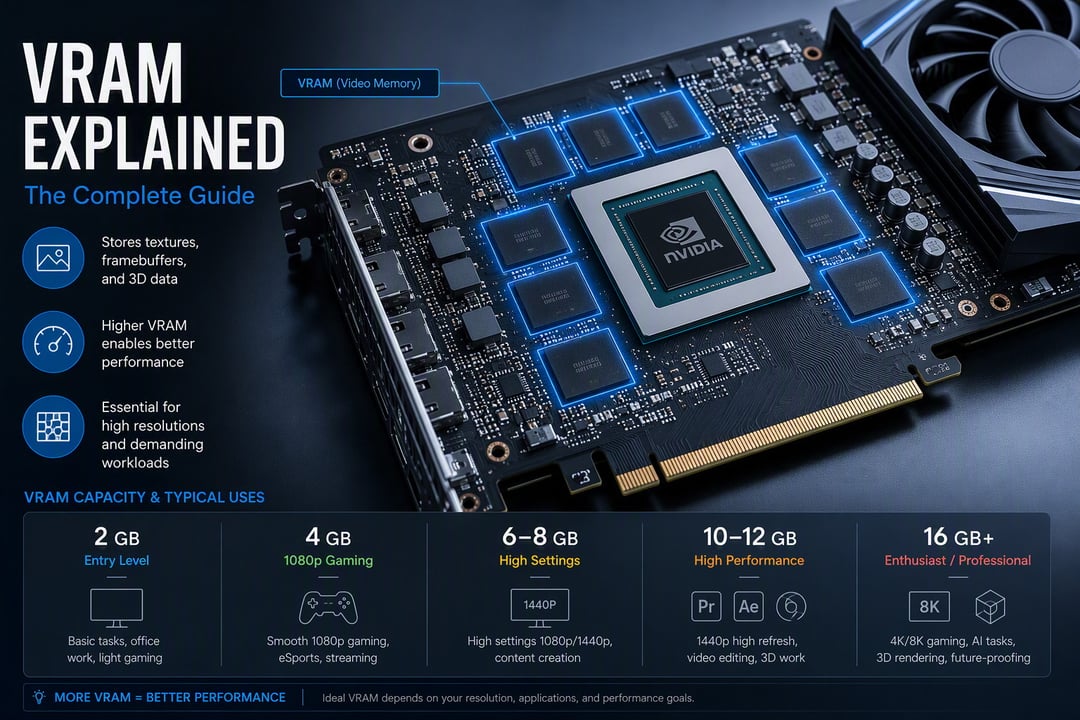
VRAM (video random-access memory) is dedicated memory on a graphics card. It stores the GPU’s rendering data, including textures, frame buffers, shaders, geometry, 3D models, lighting data, and other graphics assets. Keeping these assets close to the GPU avoids repeated transfers from slower storage or system memory.
VRAM vs. System RAM
System RAM serves the CPU and operating system; VRAM is optimized for the GPU’s parallel graphics workload. Adding regular RAM does not increase a graphics card’s VRAM. If a game exceeds available VRAM, the driver may move assets into system RAM over the slower PCIe connection. This may prevent immediate failure but can cause hitching and inconsistent frame times. More system RAM supports multitasking, not the card’s dedicated-memory limit.
What Uses Video Memory
Higher resolutions require more VRAM because a 4K frame buffer contains far more pixels than a 1080p buffer. Higher-quality textures, large open-world assets, ray-tracing acceleration structures, extra buffers, and multiple high-resolution or high-refresh monitors also increase demand. When VRAM runs out, expect stuttering, texture pop-in, reduced settings, crashes, or slower system-memory reliance.
How Much VRAM You Need for Gaming
VRAM Guidelines by Resolution
For modern games, use 8GB as a practical starting point for 1080p, 12GB for 1440p, and 16GB or more for demanding 4K. These are planning targets, not guarantees: a well-optimized title may run comfortably below them, while another can stutter when texture data exceeds available VRAM. “Playable” may mean accepting reduced textures or occasional streaming; comfortable headroom keeps settings stable and avoids swapping, so choose extra capacity if you want a longer useful life.
How Game Settings Change Demand
Resolution is only one variable. High-resolution texture packs store larger assets, ray tracing adds scene data and acceleration structures, and expansive open-world games may stream more content as you move through them. Mods can raise demand further—for example, a 1080p game with an ultra-HD texture mod may need more VRAM than its resolution target suggests. A 12GB card could suit 1440p, yet 4K ray tracing or heavy modding may require 16GB or more, even if lowering textures restores playable performance. Check benchmarks for the specific games and GPU you are considering, including the tested settings and resolution; VRAM capacity alone does not determine frame rate.
VRAM Requirements for Creative Work and AI
Video Editing and 3D Rendering
An 8GB GPU suits many mainstream editing and design workflows, including standard-resolution timelines, common effects, and moderate image or video projects. For high-resolution timelines, complex effects, multiple streams, or large projects, 12GB to 16GB or more provides useful headroom and reduces reliance on slower system memory.
3D rendering, CAD, motion graphics, and visualization can demand substantially more. A detailed scene may include geometry, lighting data, simulations, and large texture libraries; if these cannot fit in VRAM, applications may lower texture quality, divide the render into passes, or transfer assets through system RAM. Those workarounds can slow previews and complicate production.
Local AI and Machine Learning
Local generative AI commonly needs 8GB to 12GB for smaller models, while larger models can require substantially more VRAM once model weights, activations, and longer context windows are loaded. Quantization reduces precision and memory use, though it may affect output quality or compatibility. Offloading parts of a model to system RAM makes limited-VRAM hardware viable but generally reduces speed.
Capacity is only one factor: software support, GPU compute features, memory bandwidth, and application-specific benchmarks can determine whether a card performs well in a particular editor, renderer, or AI framework.
How to Choose a GPU and Manage VRAM Limits
Checking Real-World VRAM Usage
Measure VRAM while the workload runs, rather than trusting a game’s recommendation. Windows Task Manager, under Performance > GPU, shows dedicated memory; monitor it during a demanding scene, level load, or export. GPU-Z and MSI Afterburner add live readings and logging, while in-game graphics menus and overlays may show allocation. Test your highest resolution and detail settings. Nearing capacity is a warning, not a target: retain headroom for Windows, background applications, shader caches, and sudden scene spikes.
Balancing Capacity, Performance, and Budget
Select for the workload, weighing VRAM against shader/compute performance, memory bandwidth, drivers, and features required by the workload, such as ray tracing or upscaling. More VRAM does not make a weaker GPU render faster; capacity cannot compensate for limited processing power. If memory pressure appears, lower texture quality or resolution, disable ray-tracing effects, reduce asset detail, or disconnect an extra display. A balanced GPU with adequate capacity and headroom usually offers better value and steadier performance than a capacity-first purchase.