
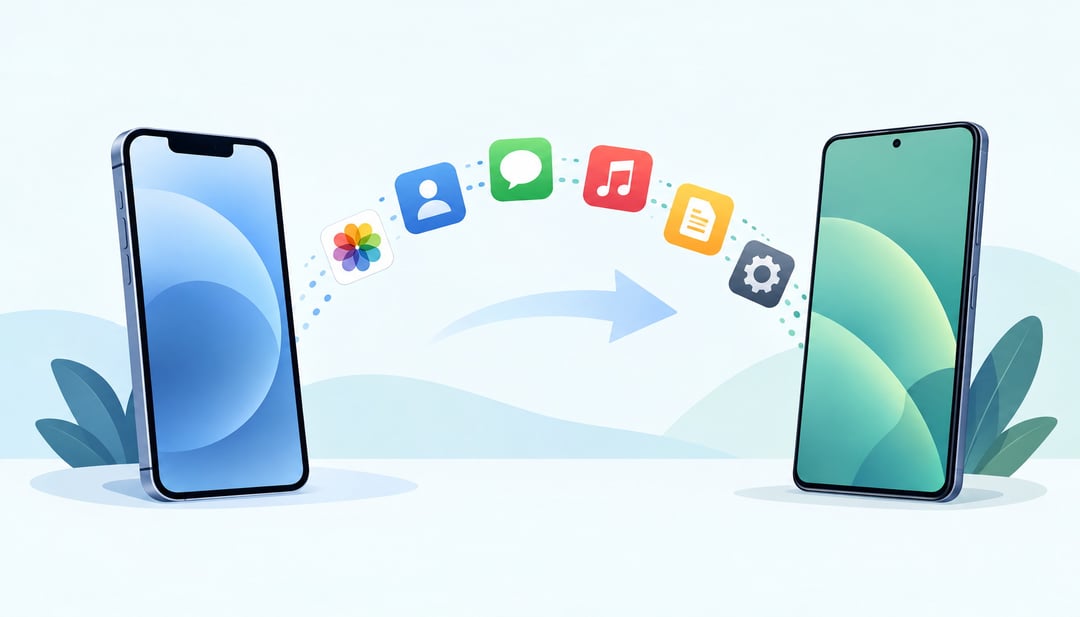
Moving your apps, photos, contacts, messages, and settings to a new phone can be more complicated than expected, especially when you switch between iPhone and Android. This guide explains how to transfer data to new phone safely, whether you are moving from iPhone to iPhone, Android to Android, or changing platforms.
Before you start, you will learn how to prepare both phones, use the built-in transfer tools, and handle data that often needs extra attention. We will also cover photos, videos, contacts, messages, chat app backups, and two-factor authentication. By the end, you will know how to verify everything on the new phone before erasing or trading in your old one.
Prepare Both Phones Before You Start
Back up your old phone
Create a fresh backup before starting the transfer. On an iPhone, check that the latest backup is saved to iCloud. On Android, confirm that your Google backup has completed. A current backup gives you a fallback if the direct phone-to-phone transfer stops, the devices disconnect, or some content does not copy correctly. You can then restore supported data during setup instead of starting over.
Check power, storage, and account access
Charge both phones before you begin, and keep them connected to power if the transfer takes a while. Connect both devices to Wi-Fi, then place the old phone nearby throughout setup. Depending on the phones and transfer method, they may need to communicate directly or remain connected to the same network.
Confirm that you can sign in to the account used by the old phone. For an iPhone, verify your Apple Account credentials. For Android, check your Google Account email and password. You may also need access to the account's verification method.
Finally, check the new phone's available storage. If your old phone contains 90 GB of photos, apps, and files, a new phone with less free space may not hold everything. Do not erase, reset, or trade in the old phone until the transfer finishes and you have confirmed that you can access your accounts and important data.
Transfer Data from iPhone to iPhone
Use Quick Start
Place the old and new iPhones next to each other, then turn on the new iPhone. Quick Start detects the nearby device and displays instructions for pairing them. Use the old iPhone to scan the animation shown on the new one, enter the old device's passcode, and follow the prompts to transfer your data directly.
Keep both iPhones close together throughout the transfer. Connect them to power if possible, especially when moving a large photo library or many apps. Both devices should remain connected to Wi-Fi until setup finishes. Interrupting the process or moving one phone out of range can delay setup or require you to start again.
Restore from an iCloud backup
An iCloud restore is useful when the old iPhone is unavailable, damaged, or unable to complete a direct transfer. During setup on the new iPhone, choose to restore from an iCloud backup and select the most recent backup that contains your data. This requires access to the Apple Account used for the backup.
The new iPhone may reach the Home Screen before every app, photo, or other item has returned. Keep it connected to Wi-Fi and power while remaining apps and content download in the background. Depending on the amount of data, some items may not appear immediately.
Transfer Data from Android to Android
Use the setup transfer tool
During setup, keep both phones nearby and choose the option to copy apps and data. Depending on the phones, the transfer may use a USB cable, a wireless connection, or a manufacturer’s tool. It can copy contacts, texts, photos, videos, apps, and other supported data.
Sign in with the Google Account used on the old phone and follow the transfer prompts. Skip them only if you plan to restore your data another way. A cable can help with a large photo or video library; wireless transfer is convenient if you lack the required cable.
Options vary by manufacturer and Android version. Samsung, Google Pixel, and other phones may name the tools differently or add steps. Check for settings, app data, downloads, and media that did not transfer before erasing the old phone.
Restore from a Google backup
If the old phone is unavailable, select its Google backup during setup. Sign in with the same Google Account and choose what to restore. Contacts, messages, settings, apps, and some media may return, depending on what the backup saved and what each app supports.
Move Data from Android to iPhone
Use Apple's Move to iOS app
Apple's Move to iOS app supports the Android-to-iPhone setup process. Install it on the old Android phone, then use it when the new iPhone displays its data transfer option during initial configuration. Follow the prompts on both phones and enter any requested code so the devices can connect.
The app may transfer contacts, message history, photos, videos, calendars, and mail accounts. It can also match some free Android apps with their iOS versions, allowing you to download those apps from the App Store. For example, contacts and calendar entries can appear on the iPhone without requiring manual re-entry.
Keep both phones connected to power if possible, and do not switch away from the transfer process while it is running. Moving a large photo or video library can take time, and interrupting the process may leave the iPhone with incomplete data.
Check transferred content
After setup finishes, open Contacts, Messages, Photos, Calendar, and Mail to confirm that the expected information arrived. Music, books, and PDFs may require separate transfers or downloads. Paid apps do not automatically become iPhone purchases, and some app data may not transfer even when the app itself has an iOS version. Check important apps individually and sign in again where necessary.
Move Data from iPhone to Android
Use the Android setup process
During Android setup, look for the option to copy data from an iPhone. Depending on the phone and its software, the tool may support a wired transfer with a cable or a wireless transfer. Follow the on-screen instructions and keep both phones charged until the copy finishes.
The available transfer method may copy contacts, photos, videos, calendars, and text messages. A cable can be useful when you have a large photo library or an unreliable Wi-Fi connection. Check the transfer list before starting so you know which categories the new phone supports.
Use the same Google, Microsoft, or other account on Android when that account already stores your contacts, calendars, or email. After setup, open Google Play and download Android versions of the apps you used on the iPhone. Some apps restore their data after you sign in, but the app itself must support that process.
Handle iCloud-only content
Some information may remain in iCloud, an Apple-specific service, or an app that does not support Android migration. Export or move that content separately. For example, download photos from iCloud before copying them, export contacts if they are stored only in iCloud, and check each messaging or notes app for its own transfer option. Do not erase the iPhone until you have opened important files and conversations on the Android phone.
Transfer Photos, Videos, Contacts, and Messages
Check cloud-synced content
First, identify what already lives in an online account. On the old phone, open iCloud Photos, Google Photos, Google Contacts, or the service you use for calendars and notes. Check that syncing has finished and that the account shown is the one you will use on the new phone. Then sign in on the new device and verify actual items, not just the app installation. Open recent photos and videos, search for several contacts, and check calendar events and notes. For messages, confirm that your iPhone backup or Android chat backup completed before restoring it on the new phone.
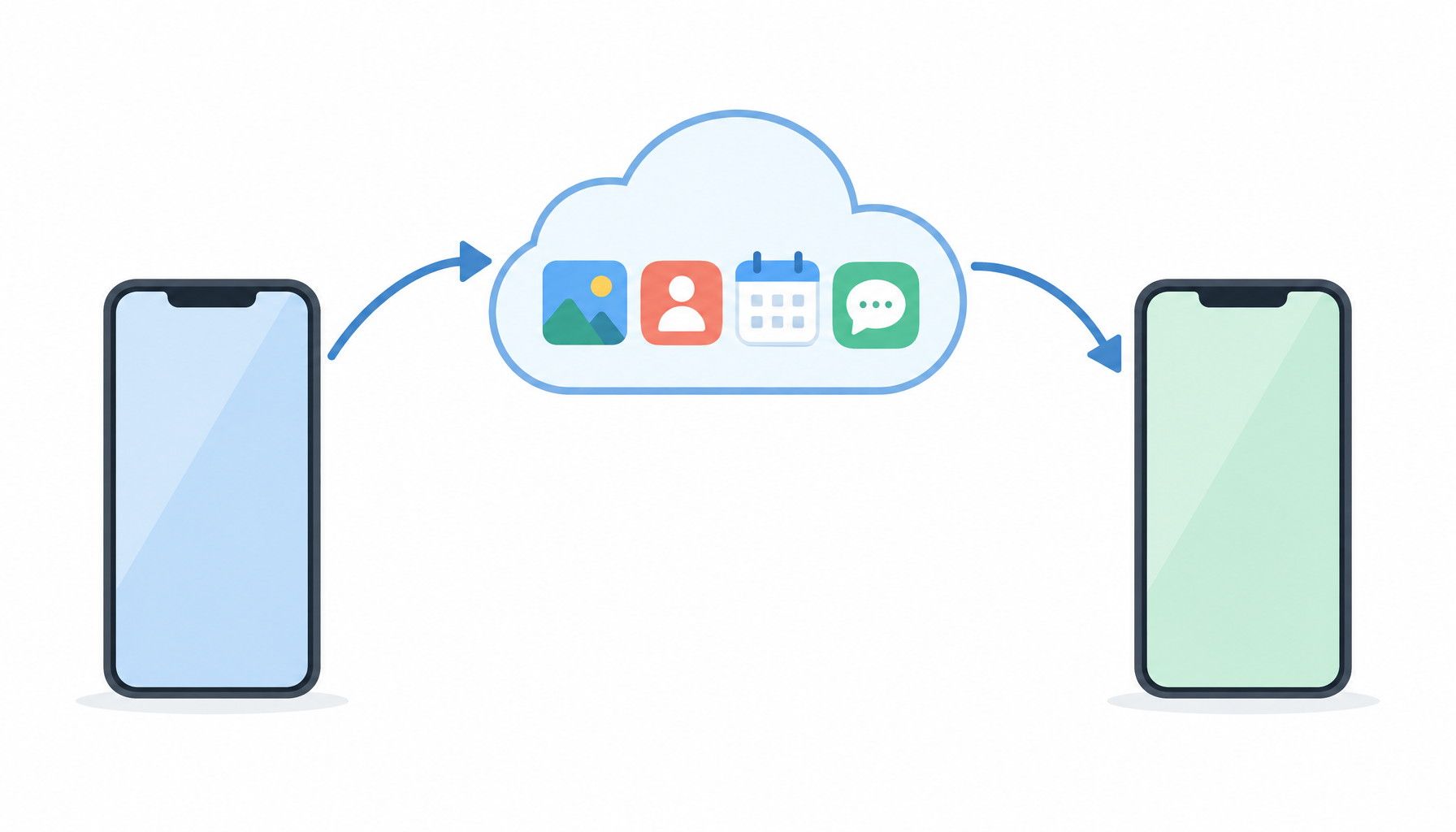
Do not erase the old phone until the new phone shows the content you need. A photo visible in Google Photos may not be stored in the new phone's local gallery until you download it. Likewise, contacts saved only under a phone or device account may not appear after signing in to Google or iCloud.
Move files that were stored locally
Files in folders such as Downloads, Documents, or screenshots may exist only on the old phone. Move them with a USB cable, through a computer, by uploading them to a cloud drive, or with a trusted file-transfer app. Check both the source and destination folders after copying.
Be careful when combining a backup restore with direct transfer. The same photos or contacts can be imported twice, creating duplicates. Review the transferred library before running another import.
Set Up Chat Apps and Two-Factor Authentication
Restore chat backups
A phone transfer does not always restore your chat history. Messaging apps often use their own backup and restore process, so check each app before you sign out of the old phone. Open its backup settings, confirm that a recent backup exists, and note which account or cloud service stores it.
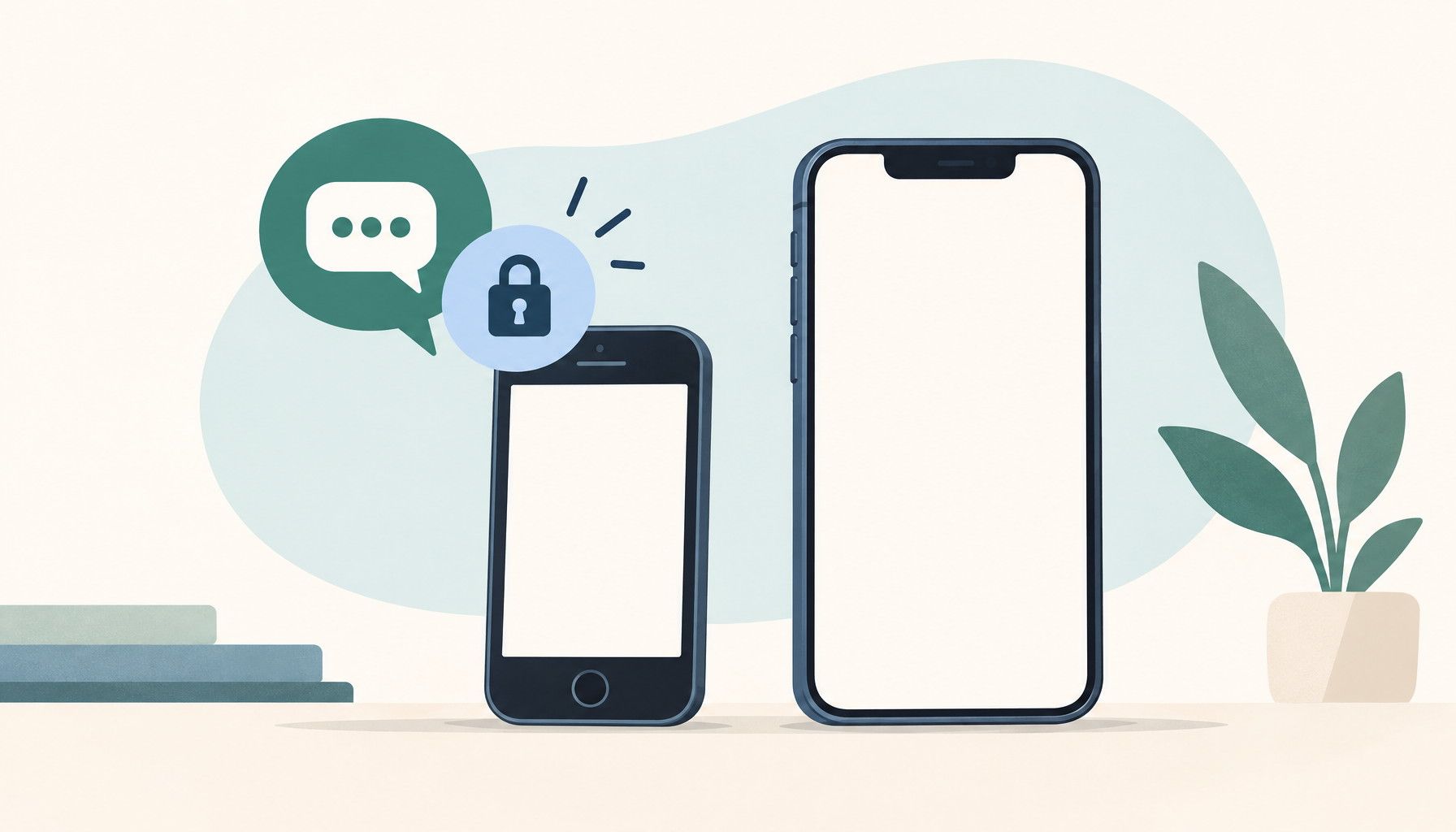
Install the app on the new phone and complete its restore prompt before deleting the old app or wiping the old device. If the app asks you to verify your phone number, use the same number associated with the backup. Some apps may require both phones nearby for a direct transfer. Open several conversations afterward to confirm that recent messages, photos, and attachments are present.
Move authentication accounts
Authenticator apps require separate attention because their accounts may not transfer with the rest of your phone data. Use the app's account-transfer option where available, scan new setup codes from the services you use, or enter backup codes when a service provides them. Keep the old phone available until every important account works on the new one.
Test services such as your primary email, work accounts, banking apps, and messaging apps. Sign in on the new phone, approve a test prompt, and confirm that generated codes work. If you lose access before moving an account, you may need its recovery process or a backup code.
Verify the New Phone Before Erasing the Old One
Run a transfer checklist
Before changing or erasing anything, test the new phone as your daily device:
- Make a call, send a text, and confirm contacts display correctly.
- Open several photos and videos, including recent items, and check that calendars and email are syncing.
- Sign in to your password manager, open essential apps, and review chat history in services such as WhatsApp or Signal.
- Confirm that two-factor authentication apps generate working codes. Keep backup codes available if an account requests extra verification.
- Check that the correct SIM or eSIM is active. Turn off Wi-Fi briefly to confirm cellular data works, then reconnect to Wi-Fi and test browsing.
This catches missing backups, incomplete cloud sync, and account access problems while the old phone is still available to fix them.
Securely retire the old phone
Once every check passes, sign out of Apple, Google, email, password manager, and other accounts on the old phone. Remove saved payment cards, disable Find My iPhone or Android device protection, and remove any screen lock only when you are ready to reset it. Then perform a factory reset through the phone's settings.
Keep the old phone untouched for a short verification period. After you are certain nothing is missing, recycle it, trade it in, or store it securely.
Final checks after transferring data to a new phone
Start by keeping the old phone charged, connected, and nearby while the new phone completes its transfer. Use a current iCloud or Google backup as a fallback, and sign in with the same Apple Account or Google Account when prompted. After setup, check the data that matters most: contacts, photos, videos, messages, calendars, email, passwords, apps, chat history, and two-factor authentication. Confirm that the correct SIM or eSIM is active and that calls, Wi-Fi, and cellular data work. Some files, chat histories, authenticator accounts, and locally stored media may need separate steps. Do not erase the old phone until these checks are complete. Keep it untouched for a short verification period, then sign out, remove device locks, and reset it before trading it in, recycling it, or storing it.