
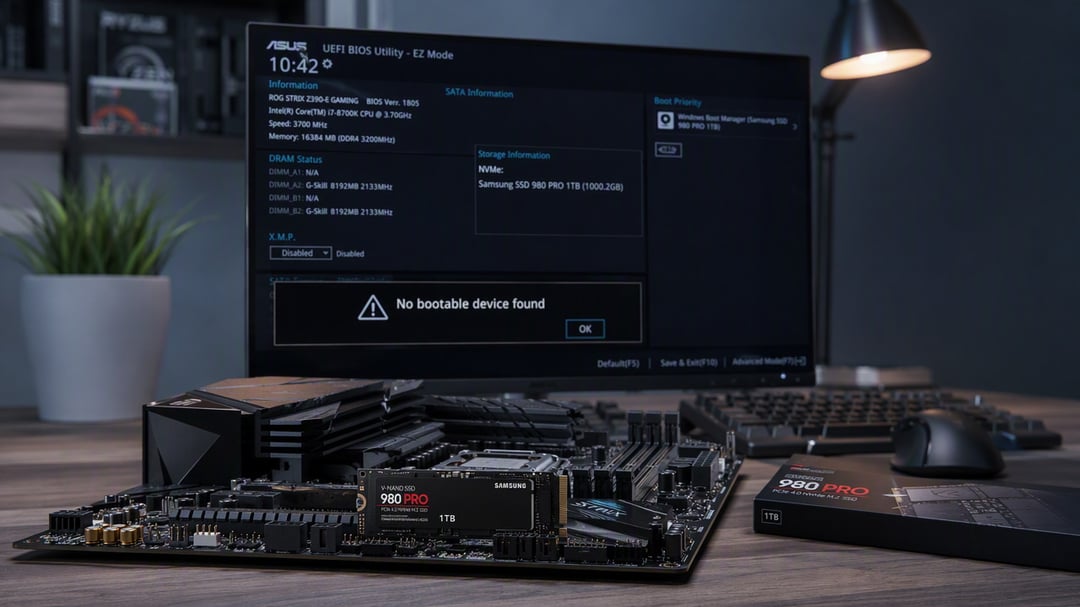
The PC won’t start. The screen shows a short, unhelpful line: no boot device found. You reboot into BIOS and the SSD is right there, with the correct name and capacity. The drive is clearly detected. Windows still never loads.
That split is the whole problem. Seeing a drive and booting from it are two different jobs.
Why the SSD Shows Up but Windows Won’t Start
Firmware checks hardware first. If the SSD appears in BIOS, the SATA cable, NVMe slot, or controller already did its part. Next, firmware looks for a bootloader. On current Windows PCs, that is the EFI System Partition. On older machines, it is an active MBR partition.
If that loader is missing, corrupt, or built for a different boot mode, you get no boot device found even though the SSD is detected. The storage list can look healthy the entire time.
Most cases come down to a short list:
- Boot order that puts USB, DVD, or network above the SSD
- UEFI mode fighting a Legacy install, or the reverse
- A damaged EFI partition or BCD store
- A GPT or MBR layout that does not match firmware
- A cloned disk that copied Windows files but skipped boot files
NVMe drives can add one extra catch. Some boards list the module under storage yet never offer it as a boot device until you enable an NVMe option or update BIOS.
First Checks When You See No Boot Device Found
Restart and enter BIOS or UEFI. The key is usually Delete, F2, or F10. Open the storage page and confirm the SSD model and size. If the capacity looks wrong, the connection may still be loose even though the drive is listed.
Then open the boot menu. UEFI systems often need Windows Boot Manager at the top, not the raw disk name. Move that entry first, save, and reboot.
On a desktop, shut the PC down fully. Reseat the SATA data and power cables, or the M.2 stick. A drive can show in BIOS with a weak connection and still fail when the bootloader is read.
Unplug extra USB sticks and optical drives. Firmware may try those first and then report no bootable device even though the SSD is sitting in the list.
Fixes That Usually Get a Detected SSD Booting Again
Match boot mode to the install. A UEFI Windows install will not start in Legacy or CSM. A Legacy install will not start in pure UEFI. If you reset BIOS, swapped a board, or turned on Secure Boot, try the other mode. Disable Secure Boot for one test boot. Turn it back on if it was not the cause.
Still stuck? Use Windows installation media. Build it on another PC with Microsoft’s Media Creation Tool. Boot from the USB, choose Repair your computer, then Troubleshoot.
Start with Startup Repair. Microsoft’s Startup Repair steps follow the same path. If that fails, open Command Prompt and run:
bootrec /fixmbr
bootrec /fixboot
bootrec /scanos
bootrec /rebuildbcd
On UEFI PCs, /fixboot may say Access Denied. Assign a letter to the EFI partition with diskpart, then run bcdboot C:\Windows /s S: /f UEFI, swapping S: for the letter you assigned.
From the same recovery screen, run chkdsk C: /f /r and sfc /scannow. File-system damage can hide a working loader behind bad sectors.
These commands repair boot files. They do not wipe your documents.
When a Detected SSD Still Won’t Boot
If the SSD is still detected and repair still fails, inspect the partition table. GPT needs UEFI. MBR needs Legacy. Cloning tools often copy the Windows volume and skip the EFI partition. The drive looks full of files. It is not bootable.
Watch for SMART warnings, a reported size that jumps, or a drive that appears then vanishes. That pattern points to a failing SSD, not a setting. Tools from Samsung, WD, Crucial, or Kingston can confirm drive health.
At that point, copy what you can from another PC or a live USB. Replacing a dying drive is cheaper than hoping the NAND holds.
Keep This Error From Coming Back
Make a Windows recovery USB while the machine still works. Keep a backup of your files, not just the OS. After a clone, boot once with only the new SSD attached so Windows writes its boot files to that disk.
No boot device found with a detected SSD is rarely a mystery. Firmware can see the hardware. It cannot find a valid starting point. Fix the boot order, match UEFI to the disk, or rebuild the loader. Most PCs come back without a reinstall.