
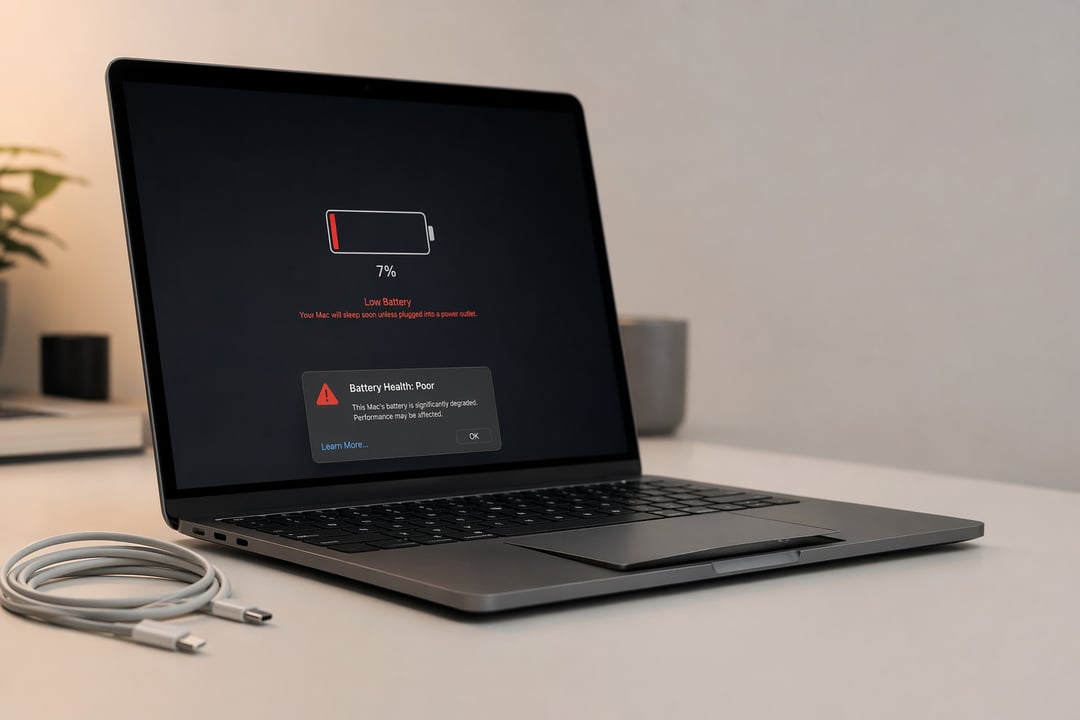
It usually starts with a small annoyance. Your laptop used to survive most of the workday. Now it needs a charger before lunch. Then the battery percentage starts behaving strangely. One minute you have 42%. The next, the screen goes black.
Laptop batteries wear out. That is normal. But knowing the warning signs can help you replace a failing battery before it interrupts work, risks your data, or becomes a safety problem.
Why Laptop Batteries Lose Capacity
Most laptops use lithium-ion batteries. Inside each battery pack, chemical reactions move energy back and forth as you charge and use the device. Those reactions become less efficient with age, heat, and repeated charging.
A battery does not need to reach zero before it “counts” as used. One charge cycle means using a total amount equal to 100% of its capacity, whether that happens all at once or across several partial charges. Over time, the battery holds less energy and delivers power less consistently.
Heat makes the problem worse. A laptop that regularly runs hot while plugged in, gaming, editing video, or sitting on a blanket has a tougher life than one with clear airflow and moderate temperatures.
1. Your Laptop Battery Drains Far Faster Than It Used To
A shorter runtime is the most common sign of a dying laptop battery.
Maybe your laptop once lasted six or seven hours of browsing and documents. Now it lasts two. Before blaming the battery, check for power-hungry apps, a bright display, background updates, or unusually heavy workloads. But if the decline has been gradual and persistent, battery wear is the likely cause.
Compare current battery life with how the laptop performed when it was relatively new. You do not need to match a manufacturer’s optimistic “up to” estimate. You are looking for a meaningful change in your own normal use.
2. The Battery Percentage Jumps Around
A healthy battery usually falls at a steady, predictable pace. A failing one can become erratic.
You might see 55% remaining, unplug the charger, and suddenly drop to 30%. Or the laptop may stay at 100% for an oddly long time before falling rapidly. These swings can happen when the battery’s internal cells no longer hold or release energy evenly.
The operating system estimates battery percentage through the battery management system. When degraded cells send unreliable signals, that estimate becomes less trustworthy.
3. Your Laptop Shuts Down Before Reaching 0%
A laptop that shuts down at 25%, 40%, or any number above zero is sending a clear warning.
The percentage displayed on screen is an estimate. Under a demanding task, such as opening a large spreadsheet or joining a video call, a weak battery may not provide enough voltage. The laptop protects itself by powering off.
Save your work often if this is happening. Sudden shutdowns can corrupt files and make an ordinary battery problem much more expensive.
4. It Will Not Charge Fully
If your laptop stops charging at a fixed number, first check whether a battery-preservation setting is enabled. Some manufacturers intentionally limit charging to around 80% to reduce long-term wear for laptops that spend most of their time plugged in.
If no such setting is active, a charging ceiling may point to battery degradation, a damaged charger, or a problem with the charging port. Try the manufacturer’s original adapter if possible. A low-wattage or failing charger can create symptoms that look like a bad battery.
5. The Laptop Feels Unusually Hot During Basic Tasks
A little warmth is normal. Excessive heat while checking email or writing a document is not.
As batteries age, their internal resistance can rise. That means more energy turns into heat instead of useful power. The heat then speeds up further degradation. It is an unhelpful little loop.
Check whether the fans and vents are clear. Avoid soft surfaces that trap heat. If the heat seems concentrated near the battery area or appears alongside other symptoms, arrange a battery inspection.
6. The Battery Is Swollen or Your Laptop’s Shape Has Changed
This is the one sign not to “keep an eye on.”
A swollen battery can push up the trackpad, separate the bottom case, lift the keyboard, or make the laptop rock on a flat desk. Swelling happens when battery cells break down and release gas. It can create a fire hazard if the battery is punctured, crushed, or overheated.
Stop using and charging the laptop immediately. Do not press the case back into shape. Do not try to puncture the battery or remove it unless you have the right repair experience. Contact the manufacturer, an authorized repair provider, or a reputable local technician.
7. Your Operating System Says “Service Battery” or “Replace Soon”
Your laptop can often provide the most useful evidence.
On Windows, open Command Prompt and run:
powercfg /batteryreport
Windows creates an HTML report that compares Design Capacity with Full Charge Capacity. A major gap means the battery has lost substantial capacity. Microsoft explains the process in its battery report guide.
On a Mac, hold Option, click the Apple menu, then choose System Information and select Power. Look for battery condition and cycle count. Apple’s battery service guidance explains what those health messages mean.
These reports will not solve the problem. They will tell you whether you are dealing with normal aging, serious capacity loss, or a battery that needs service now.
What to Do Next When Your Laptop Battery Is Dying
Start with the simple checks. Update your operating system, inspect the charger and cable, and review battery health data. If the laptop has a removable battery, replacement may take minutes. Many modern laptops require internal disassembly, so compare the repair quote with the device’s age and overall condition.
Replacing the battery usually makes sense when the laptop is otherwise fast, reliable, and supported with current software updates. If it is already slow, damaged, or several generations behind, put the repair cost toward a replacement laptop instead.
For your next battery, keep heat under control and avoid leaving it at 100% for weeks if your manufacturer offers an 80% charging limit. Battery wear is unavoidable. A dead laptop in the middle of something important does not have to be.