
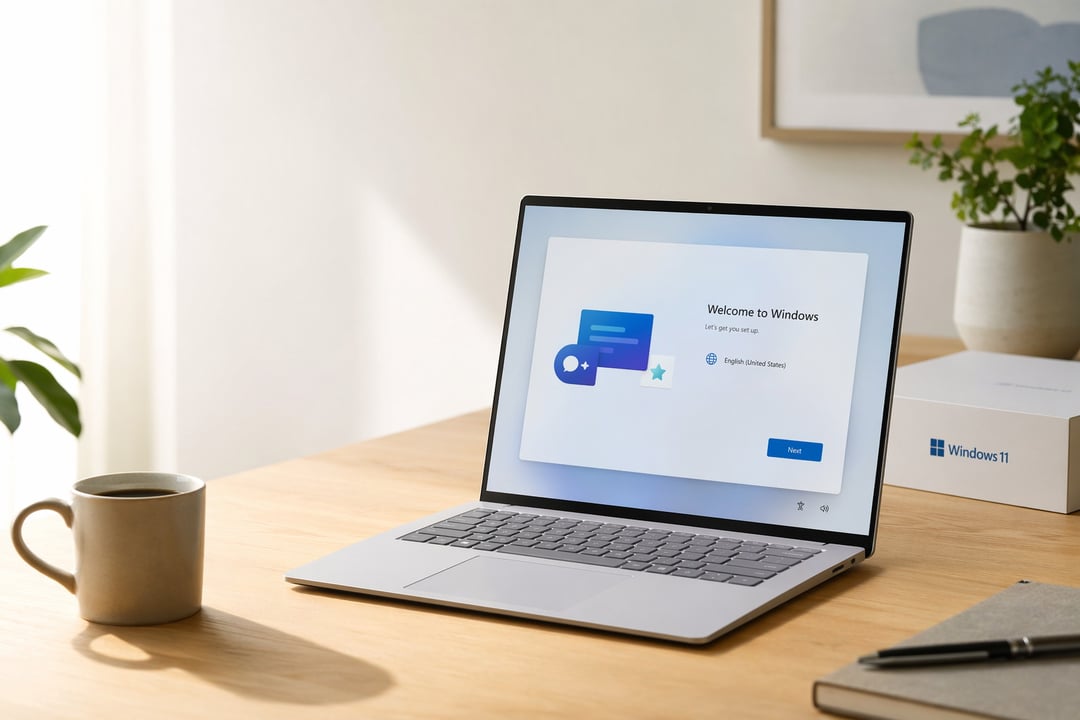
The laptop is out of the box. It powers on. The screen glows, and every instinct says click Next until you hit the desktop. Resist that instinct. A rushed setup is exactly how a fast new machine turns slow, cluttered, and quietly leaky within a month. Fifteen careful minutes now will save you a season of frustration. Here's the right order to set up a new Windows laptop, step by step.
Take the First-Boot Setup Seriously
Windows greets you with a friendly walkthrough called the out-of-box experience. Those cheerful screens hide real decisions. The first is whether to sign in with a Microsoft account or a local one. A Microsoft account syncs your settings and stores your encryption recovery key, which is convenient. A local account keeps things simple and independent. Neither is wrong but the choice should be deliberate. Watch the privacy prompts too. Windows defaults location, diagnostic data, tailored ads, and an advertising ID to on. Turn off what you don't need. Microsoft explains the account types in its official support documentation.
Update Everything Before You Do Anything Else
Your "new" laptop probably shipped months ago and sat in a warehouse. That means it's behind. Open Settings, run Windows Update, reboot, then run it again until nothing's left. Updates often arrive in waves. One pass rarely finishes the job. Drivers matter just as much. Your graphics, chipset, and Wi-Fi components all need current software to behave. Use the manufacturer's own tool — Dell Update, HP Support Assistant, or Lenovo Vantage — instead of hunting drivers manually. Doing this before you install anything else means fewer conflicts and far fewer surprise reboots later.
Clear Out the Bloatware
Most laptops arrive carrying baggage. Trial antivirus, manufacturer "helper" apps, preinstalled games, and shopping shortcuts all launch on startup and nibble at your resources. Be ruthless but careful. Head to Settings, then Apps, and uninstall anything you don't recognize or want. The one exception is genuine driver utilities, which you should leave alone. Then visit the Startup tab in Task Manager. Disabling apps that don't need to launch with Windows is the single highest-impact change for how fast your machine feels. Speed is often less about hardware and more about what's running in the background.
Lock Down Security and Privacy
Good news first. Microsoft Defender, built right into Windows, is genuinely strong now. Most people don't need to buy a separate antivirus suite. What you do need is a backup, set up before you have anything worth losing. Turn on File History or sync your important folders to the cloud. Encryption is your next move. Device Encryption or BitLocker scrambles your data so a stolen laptop stays unreadable. Store that recovery key somewhere safe — losing it can lock you out for good. Finally, revisit your privacy settings, because a big update sometimes flips a few back on.
Install the Apps That Actually Matter
There's a temptation to install everything at once. Don't. Start with the short list that earns its place. A browser you trust, a password manager, your cloud storage, and your messaging tools cover most of daily life. Add the rest only as you actually need it. Where you install from matters as much as what you install. Stick to official websites and the Microsoft Store. Avoid random download portals that bundle junk. Then make it yours. Switch on dark mode, tidy the taskbar, and set your default browser. Small touches, but they turn a generic machine into your machine.
The Payoff
None of this was busywork. Each step bought you something concrete — a faster, safer, quieter laptop that respects your time and your data. The difference between a machine set up well and one set up in a hurry shows up every single day you use it. So do one last thing right now. Save your BitLocker recovery key and account details somewhere you'll find them later. Future you will be grateful.