
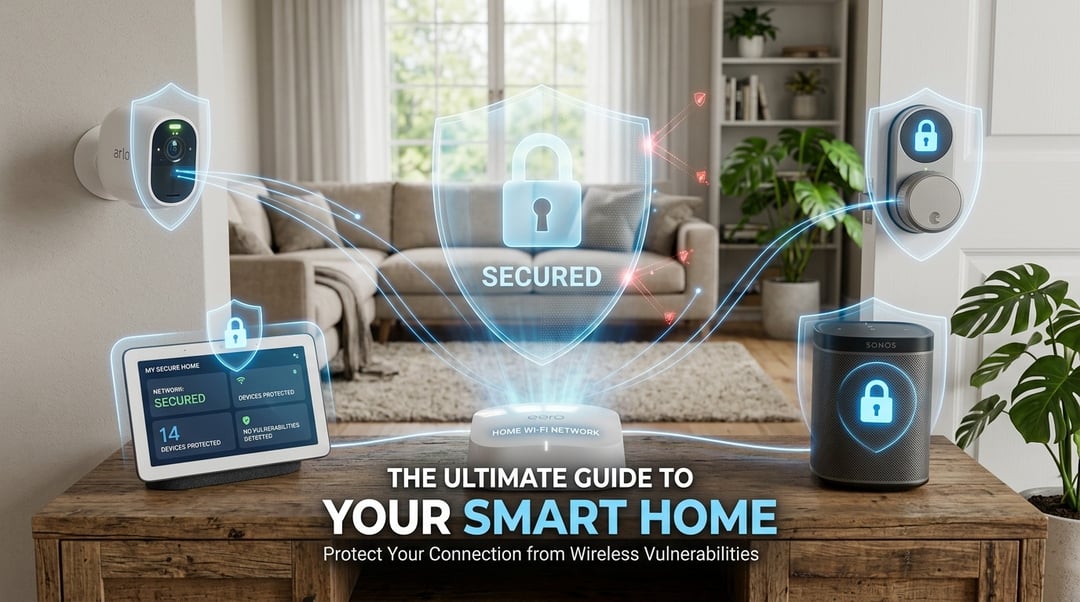
Smart home devices multiply attack surface faster than most people realize. Cameras, thermostats, and voice assistants all connect through your router, and each one is a potential entry point if you don't secure smart home devices properly. The problem isn't just theoretical: poorly configured IoT gear has been hijacked for botnet attacks, and unsecured devices can leak everything from network traffic to video feeds.
Most vulnerabilities stem from weak defaults and shared network access. You'll learn how to isolate devices on a separate network, disable risky features like UPnP, keep firmware current, and replace factory credentials with strong passwords. These steps close the gaps that make smart homes easy targets.
Isolate smart home devices on a separate network
Most routers let you create a guest network, which keeps devices on that network from communicating with your main computers and phones. Set one up specifically for smart home gear. Name it something distinct, assign a strong password, and enable guest isolation (sometimes called AP isolation or client isolation). This setting prevents devices on the guest network from seeing each other or reaching your primary network.
If your router supports VLANs, you can segment traffic at a deeper level. A VLAN assigns smart home devices their own isolated subnet with firewall rules that block inbound connections from that segment to your trusted devices. Either approach limits lateral movement: if a compromised camera or thermostat gets exploited, the attacker can't pivot to your laptop or NAS.
Check your router's wireless settings or LAN configuration page. Consumer routers typically offer guest network isolation as a checkbox. Prosumer and enterprise models expose VLAN tagging under the switch or interface settings. Both methods work; guest networks are faster to configure, VLANs offer finer control.
Turn off UPnP and disable unused remote access features
UPnP (Universal Plug and Play) lets devices automatically open ports in your router's firewall without asking permission. A smart camera or speaker requests access, and UPnP grants it immediately. That convenience becomes a problem when malware on a compromised device uses the same mechanism to punch holes for remote attackers.
Disable UPnP in your router's admin panel. Most interfaces place it under Advanced Settings, Security, or WAN settings. Look for a checkbox labeled "Enable UPnP" and turn it off. Your devices will still work, but you'll configure port forwarding manually when needed.
Remote access features deserve the same scrutiny. Cloud-based device control, remote login, and forwarded ports stay open even when you're home. If you don't access your smart lock or thermostat from outside your network, turn off remote management in each device's app settings. Use local control through your home Wi-Fi instead. When remote access is necessary, restrict it to specific IP addresses or enable it only during travel.
Keep device firmware and router software up to date
Unpatched firmware is the most common entry point for IoT exploits. Attackers routinely scan for devices running known vulnerable versions and exploit them within hours of a device going online. Most smart home breaches succeed because the firmware hasn't been updated in months or years.
Check your router's admin panel for firmware updates under System, Administration, or Advanced settings. Most manufacturers release patches quarterly, though critical vulnerabilities trigger immediate releases. For individual devices, open each manufacturer's app and look for a firmware or software update option, usually in Settings or Device Info. Run updates on all devices at least monthly.
Enable automatic updates wherever the option exists. Routers from Netgear, Asus, and TP-Link offer this feature, as do most major smart home platforms like Ring, Nest, and Philips Hue. Automatic updates close vulnerabilities before you hear about them.
If a device no longer receives updates from its manufacturer, replace it or move it to the isolated IoT VLAN described earlier. An abandoned device is a permanent security hole.
Change default credentials and use strong, unique passwords
Default credentials are a public invitation. Manufacturers ship devices with usernames like "admin" and passwords like "admin" or "password," and these combinations are published in device manuals, support forums, and searchable databases. Attackers run automated scans across IP ranges, trying known defaults until something opens.
Log into your router's admin panel first. The login page is usually at 192.168.1.1 or 192.168.0.1. Change both the username and password to something unique. Then work through each smart device. Some configure through a web interface, others through a mobile app. Look for "Account," "Security," or "Device Settings."
Use a password manager to generate and store credentials. A good manager creates random 16-character passwords you'll never need to remember and fills them in automatically. For accounts tied to your smart devices (like your camera manufacturer's cloud service), enable two-factor authentication if it's offered. That adds a second check, usually a code sent to your phone, so stolen passwords alone can't grant access.
Secure your smart home devices with network isolation first
Start by putting your smart home devices on a separate network. Most routers let you create a guest network in under five minutes, and that single change stops a compromised bulb or camera from reaching your laptop or phone. After that, log into your router and turn off UPnP, then walk through each device to change any default passwords. Set a monthly reminder to check for firmware updates on both the router and your devices, or enable automatic updates where the manufacturer supports it. These steps close the gaps attackers scan for first and limit what they can reach if one device is breached.