
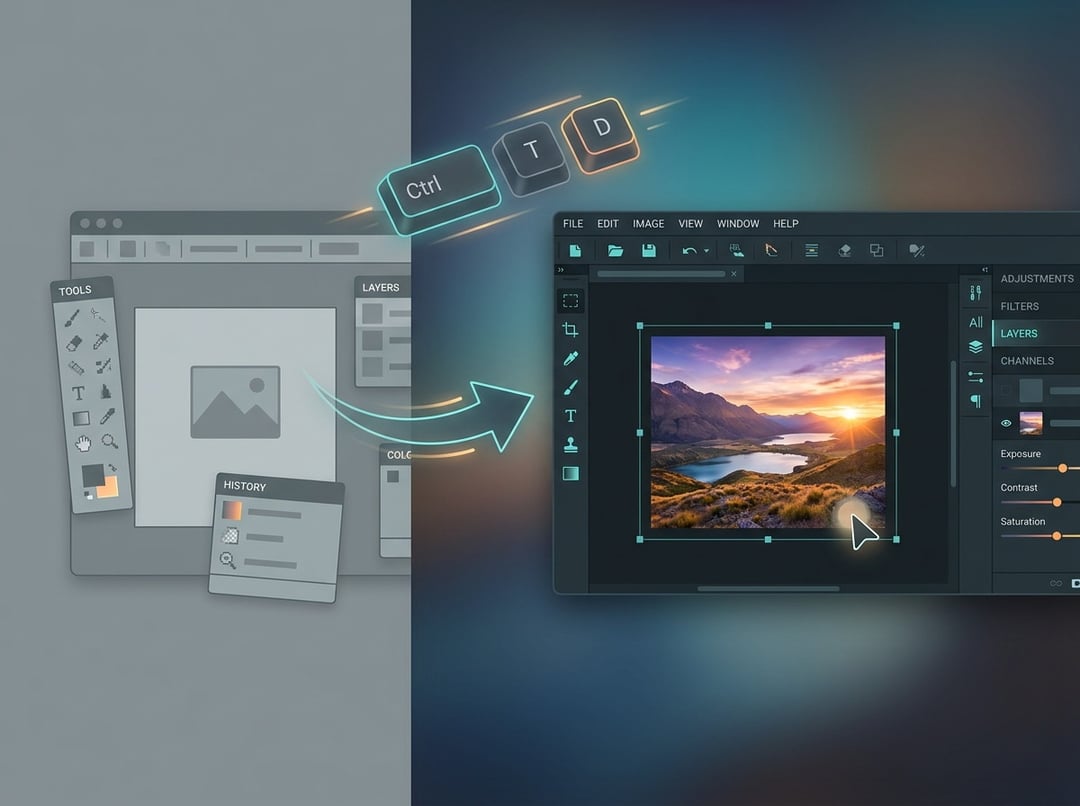
What PhotoGIMP Actually Is
Switching from Photoshop to GIMP can feel like walking into your own house after someone rearranged every piece of furniture. Everything's suddenly in the wrong place, and the interface feels alien. That's the exact problem PhotoGIMP sets out to solve.
PhotoGIMP is a free, community-driven patch for GIMP 3.0 and newer that reshapes the open-source image editor into something far more familiar for Photoshop users. It's worth being clear about one thing upfront: it doesn't turn GIMP into Adobe Photoshop. What it does is shake up the layout, shortcuts, and app identity so they match Photoshop, which means new users don't feel completely lost on day one. It's not a standalone Photoshop clone, and it's not a separate application. It's a patch that overwrites GIMP's configuration files.
GIMP has always been a strong free alternative to Photoshop, but its interface can be intimidating for people accustomed to Photoshop's workflow. PhotoGIMP closes that gap. It's a powerful tool precisely because it removes the biggest barrier most people hit when they try to leave Adobe behind.
The Interface Overhaul
The interface is where PhotoGIMP makes its biggest impression. The patch reorganizes GIMP's tools to mimic the layout Photoshop users already know, and it adjusts default settings to maximize canvas space so you have more room to actually work.
It doesn't stop at tool placement. PhotoGIMP adds a custom splash screen, a custom icon and app name, and a dedicated desktop launcher on Linux. These touches give GIMP a more polished, professional feel from the moment it loads, and they reinforce the sense that you're working in something purpose-built rather than a default install you've had to wrestle into shape.
Photoshop-Style Keyboard Shortcuts
If you've spent years in Photoshop, your hands know the shortcuts better than your brain does. That muscle memory is hard to unlearn, and it's one of the most frustrating parts of switching tools.
PhotoGIMP can map shortcuts to follow Adobe's official Photoshop documentation for Windows. The result is that basic editing feels far less alien, because the keystrokes you've burned into your fingers over the years still do what you expect. This is one of the highlights of the patch, and for a lot of people it's the single feature that makes the transition feel possible at all.
How Installation Works
Because PhotoGIMP is a patch and not a program, the setup follows a specific order. You can't just run an installer. The project is explicit about the steps: install GIMP first, open it once so it creates its configuration folders, close it, and then apply the PhotoGIMP files.
That sequence matters. GIMP needs to generate its config folders before the patch has anywhere to go, and the application needs to be closed when you paste the files in so it doesn't overwrite the new settings on exit.
Supported Platforms
The project supports Linux, Windows, and macOS, with separate installation instructions for each operating system. Whichever platform you're on, the underlying idea is the same: get the PhotoGIMP files into the correct GIMP configuration location.
Back Up Your Settings First
There's an important precaution worth taking seriously. You're advised to back up any existing GIMP settings before applying the patch, because PhotoGIMP replaces configuration files. That includes shortcuts, tool ordering, dock layout, session settings, templates, and theme tweaks. If you've spent time customizing GIMP and want the option to roll back, copying those files somewhere safe first is the smart move.
Who PhotoGIMP Is For
PhotoGIMP is built for people coming from Photoshop who want a free alternative without throwing away their workflow. GIMP itself has always been a great no-cost option, but its interface can be a wall for anyone used to Adobe's environment. This patch lowers that wall. If you've tried GIMP before and bounced off it because the interface felt wrong, PhotoGIMP is designed to make that second attempt go a lot more smoothly.