
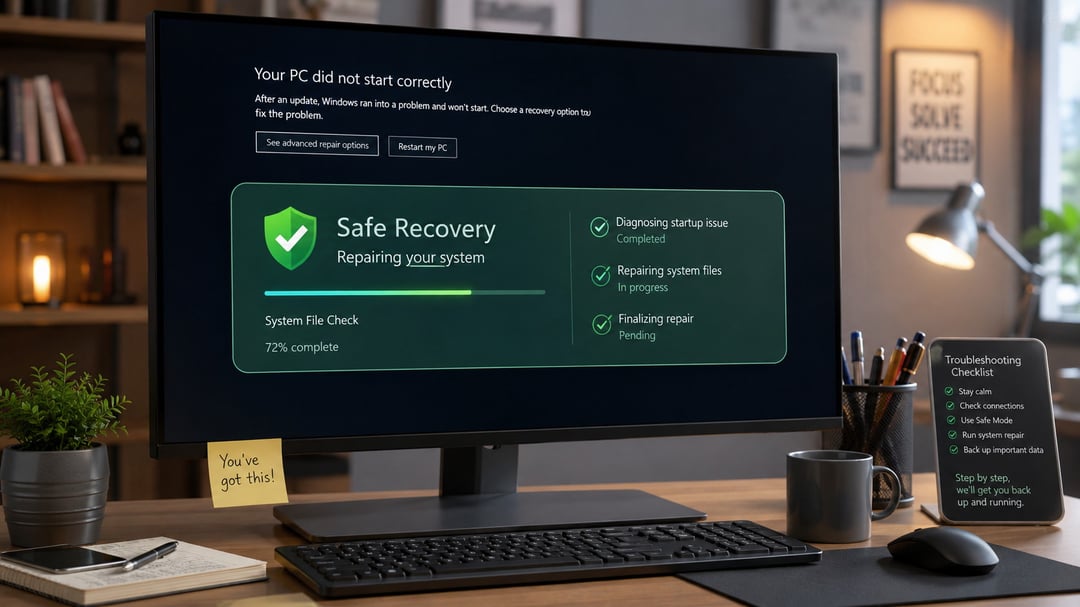
You installed a routine update, restarted, and now the machine hangs on the manufacturer logo, loops through an automatic repair screen, or drops to a black screen with a blinking cursor. When a PC will not start after an update, safe recovery steps matter more than fast ones, because the wrong command at the wrong prompt can turn a fixable boot problem into a data loss problem.
The good news is that most post-update boot failures come from a short list of causes: a bad driver, a half-applied update, a damaged boot record, or corrupted system files. Each has a specific fix, and Windows ships with the tools to apply it.
Work through the following in order and you will know what broke, undo it without wiping anything, and keep your files intact even if a reinstall becomes necessary.
Identify where the boot is failing before you touch anything
A machine that never lights up and one stuck on spinning dots need opposite responses, so pin down the stage first. Four failure points are distinguishable by eye: no power or no POST, a firmware screen that appears but never hands off to a bootloader, spinning dots that cycle forever, and a login screen that black-screens or reboots into a loop. Photograph any error text before it disappears. A stop code usually names the failing component: INACCESSIBLEBOOTDEVICE points at storage, 0xc000000f at boot configuration.
Two reflexes cause the most damage. Repeatedly cutting power mid-update can leave the installation half-applied, and reinstalling Windows before attempting a rollback throws away the fastest fix you have. An update still writing files can take a very long time on a mechanical or nearly full drive. Judge by activity, not by the clock: no drive light and no disk noise over a long stretch means it has stalled.
Get into the Windows Recovery Environment
Almost every fix runs from WinRE, so getting there is the first real task.
Triggering recovery from failed boots
Windows counts failed boot attempts. Two in a row, and the third attempt loads Automatic Repair instead of the normal startup path. To force it, hold the power button until the machine cuts out as soon as the manufacturer logo appears, then repeat. This is documented recovery behavior, not a hack.
Before you start: if BitLocker is on, WinRE will ask for the 48-digit recovery key. Pull it up on your phone from your Microsoft account or your organization's admin portal first.
Building recovery media on a second machine
If WinRE is damaged or missing, run the Media Creation Tool on a working PC and write an installer to an 8 GB USB drive. Boot from it and select Repair your computer, not Install now.
Fast boot and Secure Boot often block USB devices, and the one-time boot menu key differs by vendor. Check firmware first.
Roll back the update that broke the system
Rollback targets the actual change rather than patching symptoms, and it can be undone if it does not help. That is why it comes before deeper repair work.
Uninstalling quality and feature updates from WinRE
From the recovery menu, go to Troubleshoot, then Advanced options, then Uninstall Updates. You get two choices. Quality updates are the monthly cumulative patches; feature updates are version jumps like 23H2 to 24H2. Pick whichever type was installing when things went wrong. If you are not sure, try the quality update first, since it is the smaller change and the more common culprit.
System Restore as a broader undo
If the uninstall fails or the update is not listed, run System Restore from the same Advanced options screen. It reverts drivers, registry hives, and system files to an earlier point while leaving your documents alone.
Both can fail once servicing files have been replaced. If that happens, move to repair steps instead of retrying.
Repair boot records, drivers, and system files
Startup Repair and the command prompt tools
Run Startup Repair first. It is automated, non-destructive, and occasionally fixes a broken BCD entry on its own. When it returns "could not repair your PC," open the command prompt in WinRE and work manually: bootrec /fixmbr, bootrec /fixboot, then bootrec /rebuildbcd to rewrite the boot record and re-detect Windows installations.
Next, check system files with sfc /scannow. Inside recovery media you must point it at the offline install, and the drive letters there rarely match what you see in Windows. Use diskpart to confirm which volume holds \Windows before running SFC or DISM with their offline switches. If you suspect drive corruption, run chkdsk /f /r on the system volume, but expect hours on a large or failing disk.
Safe Mode for driver-level failures
If Windows reaches the login screen and then crashes, boot Safe Mode from Startup Settings and roll back or uninstall the freshly updated GPU or storage driver, then restart normally. Repeated INACCESSIBLEBOOTDEVICE stops usually mean a storage controller driver problem or a SATA/NVMe mode changed in firmware.
When repair fails: preserve data and rebuild safely
Before anything destructive, get your files off the drive. From the WinRE command prompt, use xcopy or robocopy to pull folders onto an external disk, or boot a live Linux USB if the Windows tooling refuses to cooperate. Either way, a BitLocker volume stays locked until you supply the recovery key, so have it ready.
Rebuild in order of least damage: Reset this PC with "Keep my files" first, then an in-place upgrade repair install from mounted ISO media, which preserves apps and settings, and only then a clean install to a wiped drive.
Some failures are not software. A drive that disappears from firmware, SMART warnings in the UEFI health page, or stop codes that change location after each memory test all point at hardware.
Afterward, pause feature updates for a few weeks post-release, keep a current image backup plus a recovery USB, and store the BitLocker key off the machine. (Link here to your drive health or backup guide.)