
Buying a computer can feel like trying to order coffee in a language you don’t speak. You see CPU models. GPU names. RAM numbers. SSD types. And you’re supposed to decide fast.
So let’s do this the sane way. This is PC specs explained for real life. Not for bragging rights. For getting a PC that feels fast for what you do.
Why PC specs feel confusing and what actually matters
Most spec lists mix important details with shiny distractions. Consequently, people end up comparing numbers that don’t predict day-to-day speed.
Here’s the cleaner way to think about it.
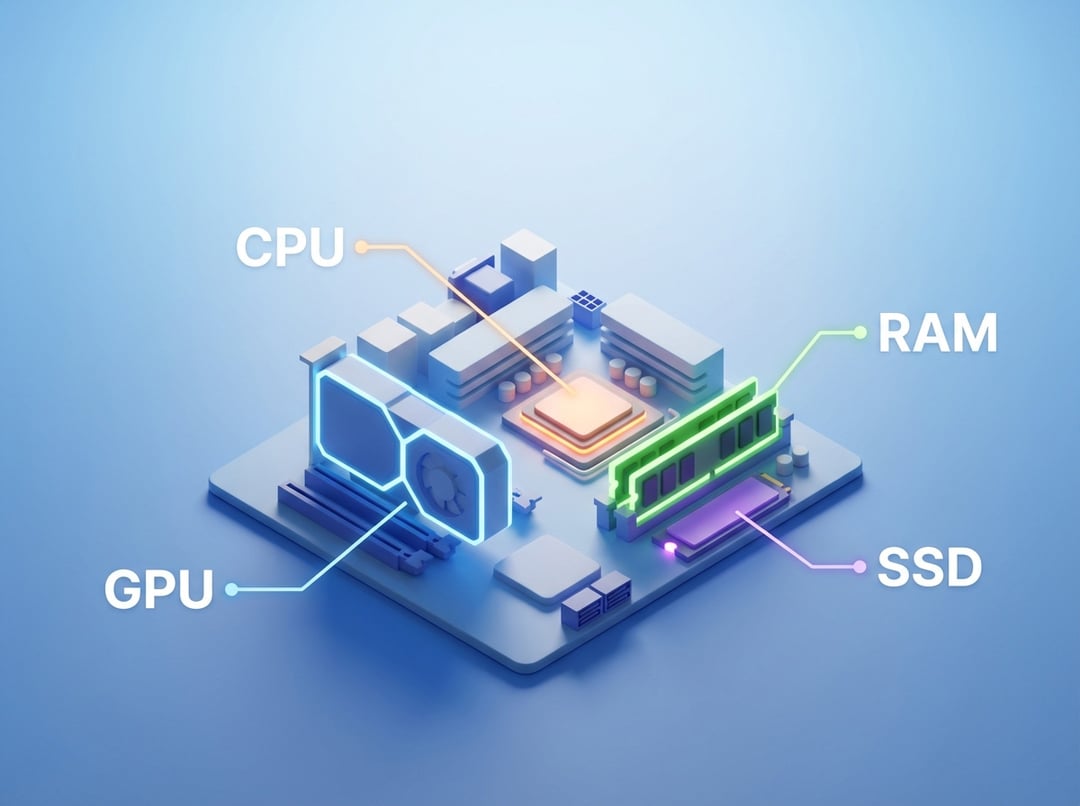
- CPU decides and calculates.
- GPU draws and accelerates visuals.
- RAM holds what you’re actively working on.
- SSD stores everything and feeds it back quickly.
Once you lock that in, “CPU vs GPU vs RAM vs SSD explained” stops being a quiz. It becomes a checklist.
PC specs explained in plain English: the four parts you actually feel
CPU explained: the general-purpose brain of your PC
The CPU runs the logic behind almost everything. It handles the instructions that make apps behave. It also manages background work like syncing files, scanning for malware, and keeping a dozen browser tabs from freezing.
When home users ask for PC specs explained, they usually mean this feeling: Will it stay smooth while I multitask?
A few CPU terms matter.
- Cores and threads: Think of cores as workers. More workers helps when you run many tasks at once.
- Clock speed (GHz): This suggests how fast a core can work. It helps. It doesn’t tell the whole story.
- Generation: Newer CPUs often do more work per clock. Consequently, a newer midrange chip can beat an older “high end” one.
Real-world signs your CPU limits you include sluggish spreadsheet recalculations, choppy video calls with lots of background apps, or games stuttering even at low graphics settings.
GPU explained: the visual engine and parallel-work specialist
The GPU renders what you see. It also excels at parallel processing. That means it can run many similar operations at the same time. This matters for games, 3D work, and some creative apps.
Two GPU categories show up in most “PC specs explained” guides.
- Integrated graphics: Built into the CPU. Great for browsing, streaming, schoolwork, and light games.
- Dedicated graphics: A separate chip or card. It has its own power budget and memory. It’s the right tool for modern gaming and heavier creative workloads.
If you buy a dedicated GPU, one term matters a lot.
- VRAM: This stores textures, frame buffers, and visual assets. Higher resolutions and higher settings use more VRAM.
A quick sanity check helps. If you never game and you never edit video beyond basic trimming, you usually don’t need a dedicated GPU. Spend that money on RAM and SSD instead.
RAM explained: the workspace for active tasks
RAM holds the stuff you’re using right now. Your open browser tabs live there. Your running apps live there. The files your PC actively manipulates sit there too.
When you don’t have enough RAM, the system starts shuffling data to storage. Even with an SSD, that shuffling slows everything down. You’ll notice tabs reloading. Apps taking longer to switch. Small pauses that feel like your PC “forgot” what you were doing.
For home users, capacity beats speed most of the time.
- 8 GB: Works for light use. It can feel tight with many tabs and modern apps.
- 16 GB: The comfort zone for most households today.
- 32 GB: Makes sense for heavier photo work, lots of multitasking, or keeping a machine for many years.
If you want how to read PC specs without getting lost, start with RAM capacity. It predicts smooth multitasking better than most flashy CPU labels.
SSD explained: storage that changes how fast a PC feels
Storage holds your operating system, apps, and files. And yes, this is where “fast PC” lives or dies for many people.
An SSD makes a computer feel snappy because it can fetch data quickly. An older HDD can still store files cheaply. It just takes longer to find them. Consequently, boot times drag and app launches feel heavy.
You’ll see two common SSD types.
- SATA SSD: Much faster than an HDD. Great for everyday speed.
- NVMe SSD: Even faster on paper. You may notice it more during large file transfers and heavy workloads.
For most home users, the big win is simply having an SSD at all. Then pick a capacity you won’t outgrow.
- 512 GB: A solid baseline for typical use.
- 1 TB: Feels relaxed if you keep lots of photos, videos, or games.
CPU vs GPU vs RAM vs SSD: how bottlenecks actually happen
A PC feels fast when parts stay balanced. A mismatch creates a traffic jam.
- A strong CPU won’t save you if RAM fills up and the system swaps constantly.
- A powerful GPU won’t fix low frame rates if the CPU can’t feed it data fast enough.
- A massive SSD won’t help multitasking if RAM stays too small.
Here’s what that looks like at home.
- You open many tabs and join a video call. The system starts stuttering. That often points to RAM.
- You try a game and it looks choppy at higher settings. That often points to the GPU.
- The whole PC feels slow after you click anything. That often points to storage. An HDD causes this a lot.
That’s why the most important PC specs depend on how you use your computer. However, upgrading to an SSD and adding more RAM usually make the biggest difference for everyday tasks.
What specs you should buy for your use case
Everyday home use (web, email, streaming, schoolwork)
- CPU: Modern midrange from the current or recent generation.
- GPU: Integrated graphics.
- RAM: 16 GB.
- SSD: 512 GB or 1 TB if you store lots locally.
Family PC (multiple users, lots of multitasking, light photo work)
- CPU: Midrange with strong single-core performance.
- GPU: Integrated. Add dedicated only for gaming.
- RAM: 16 GB. Consider 32 GB for heavy multitasking habits.
- SSD: 1 TB plus a backup plan.
Casual gaming (popular online titles, lighter AAA gaming)
- CPU: Balanced midrange.
- GPU: Dedicated entry-to-midrange for higher settings and smoother frames.
- RAM: 16 GB.
- SSD: 1 TB helps with game libraries.
Light creation (basic video edits, photo organizing, Canva)
- CPU: Mid-to-upper midrange.
- GPU: Helpful for acceleration. Not mandatory for simple edits.
- RAM: 16–32 GB depending on project size.
- SSD: 1 TB. Add external storage for media libraries.
Laptop vs desktop specs explained: why identical numbers perform differently
Laptop parts often run under tighter power and cooling limits. Consequently, the same CPU “model” can perform very differently across two laptops. Thin designs also throttle sooner during long tasks like exporting video.
Upgrades differ too.
- Many laptops can’t upgrade RAM. Some can’t upgrade storage either.
- Desktops usually allow easy RAM and SSD upgrades. This extends the machine’s life.
If you buy a laptop, prioritize enough RAM and SSD up front. If you buy a desktop, you can plan upgrades later.
How to read a spec sheet without getting played
Use this translation checklist.
- CPU: Look for a recent generation and a sensible tier.
- GPU: Identify integrated versus dedicated. Check VRAM for dedicated models.
- RAM: Check capacity first. Confirm upgradeability if possible.
- Storage: Confirm it’s an SSD. Check capacity. Avoid vague “1 TB storage” claims.
Red flags show up fast.
- A big storage number that hides an HDD.
- 8 GB RAM marketed as “great for multitasking.”
- Older CPU generations priced like new.
PC specs explained in 60 seconds (recap)
CPU runs the thinking. GPU handles visuals and parallel horsepower. RAM holds active work. SSD stores everything fast.
If you want the simplest buying order, do this. Get an SSD. Get enough RAM. Then pick CPU and GPU to match your hobbies.
FAQ: PC specs explained for home users
Is 8 GB RAM enough for home use today
It can be enough for light browsing and streaming. It feels cramped with many tabs and modern apps. 16 GB removes most everyday friction.
Do I need a dedicated GPU if I don’t game
Usually no. Integrated graphics handles typical home tasks well. Dedicated GPUs help with gaming and some creator workflows.
NVMe vs SATA SSD: will you notice
You’ll notice any SSD compared to an HDD. NVMe feels most different during large transfers, installs, and heavier creative work.
What matters more for speed: CPU or SSD
For everyday feel, SSD often wins. For heavy tasks like encoding and complex work, CPU matters more.
How much SSD storage do I need
256 GB fills quickly. 512 GB works for many people. 1 TB feels comfortable for photos, games, and longevity.