
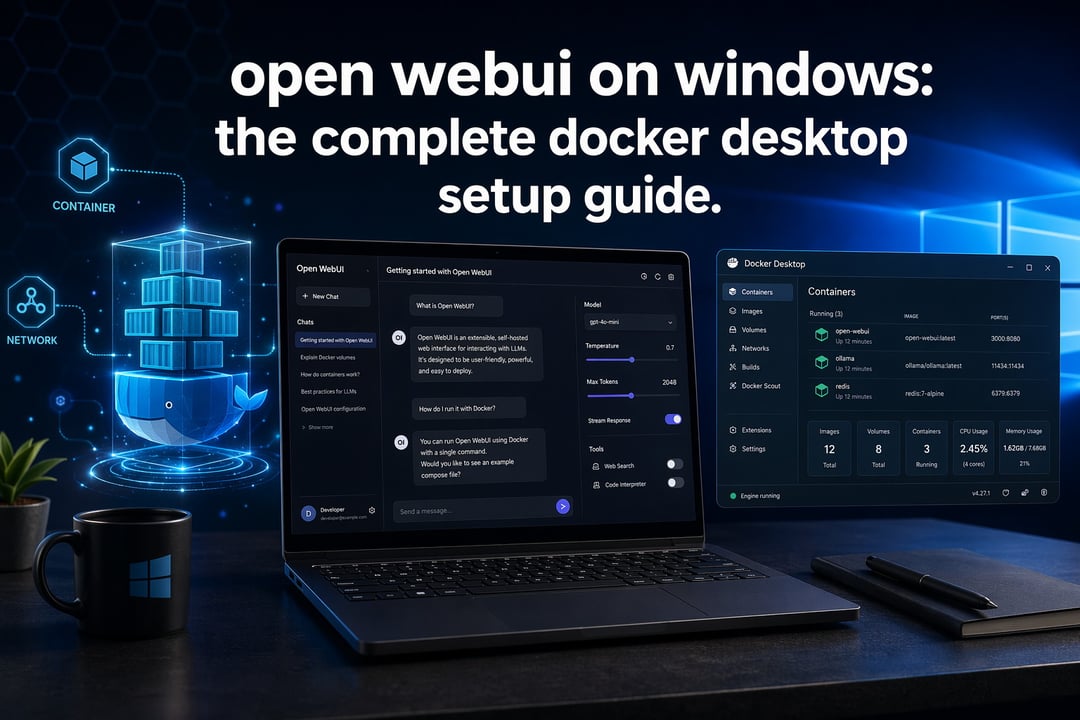
Running your own AI chat interface locally has real appeal. No subscription fees, no data leaving your machine, and full control over which models you use. Open WebUI gives you that experience, and Docker Desktop makes it possible to get running on Windows without wrestling with dependencies. This guide walks through the full setup, from prerequisites to your first working chat.
By the end, you'll have Open WebUI running in a container, connected to a local model through Ollama, and accessible from your browser.
Prerequisites
Before starting, make sure you have:
- Windows 10 or 11 with WSL2 enabled — this is what lets Docker Desktop run Linux containers efficiently on Windows
- Docker Desktop installed and running, with the WSL2 backend selected in settings
- Basic comfort with Command Prompt or PowerShell, since setup happens through a few terminal commands
- Ollama installed locally (optional but recommended), so you have a model backend to connect Open WebUI to
If you haven't installed Docker Desktop yet, download it from the official Docker site and follow the installer prompts, making sure WSL2 integration is enabled during setup.
Step 1: Confirm Docker Desktop Is Ready
Open Docker Desktop and check that it's running — you'll see the whale icon active in your system tray. Then open a terminal and confirm everything is working:
docker --version
docker ps
The first command confirms Docker is installed correctly. The second lists running containers and should return an empty table if this is a fresh install. If you get a connection error here, Docker Desktop likely isn't fully started yet, or WSL2 integration needs to be turned on under Settings > Resources > WSL Integration.
Step 2: Pull and Run the Open WebUI Container
With Docker confirmed working, you can launch Open WebUI with a single command. The most common setup, connecting to Ollama running on your Windows host, looks like this:
docker run -d -p 3000:8080 --add-host=host.docker.internal:host-gateway -v open-webui:/app/backend/data --name open-webui --restart always ghcr.io/open-webui/open-webui:main
Here's what each part does. The -v open-webui:/app/backend/data flag mounts a persistent volume, which is essential for making sure your database and settings survive container restarts. The -p 3000:8080 flag maps the container's internal port to port 3000 on your machine, so the interface is reachable at localhost:3000. The --add-host flag lets the container reach services running on your Windows host, which matters for the next step.
If you'd rather run Open WebUI and Ollama together in a single container, an all-in-one image is available. Running this bundled setup pulls Open WebUI paired with Ollama in one container, using a similar volume-mounting pattern to preserve both the chat data and downloaded models. This is a good shortcut if you don't already have Ollama installed separately.
Step 3: Connect Open WebUI to a Local Model
If you're running Ollama natively on Windows (outside Docker), the --add-host=host.docker.internal:host-gateway flag from Step 2 already handles the connection — Open WebUI will detect Ollama automatically on first load.
If Ollama is running elsewhere, such as another machine on your network, point Open WebUI at it directly with an environment variable:
docker run -d -p 3000:8080 -e OLLAMA_BASE_URL=https://your-server-address -v open-webui:/app/backend/data --name open-webui --restart always ghcr.io/open-webui/open-webui:main
Before moving on, make sure you've pulled at least one model through Ollama (ollama pull llama3.1, for example) so there's something for Open WebUI to talk to.
Step 4: Access and Configure Open WebUI
Open your browser and go to localhost:3000. On first load, you'll be prompted to create an admin account — this is local to your installation, not tied to any external service. Once logged in, use the model selector in the top left to choose a model from your Ollama library, and send a test message to confirm the connection works end to end.
Troubleshooting Common Issues
A few problems come up often enough to mention directly:
- Port already in use: change the host-side port in the
-pflag, for example-p 3001:8080 - Docker Desktop won't start: confirm WSL2 is enabled via
wsl --statusin PowerShell - Page won't load despite a running container: double-check you're using the port you mapped, not the container's internal port
Keeping It Updated
New versions of Open WebUI ship regularly. To update, pull the latest image and recreate the container:
docker pull ghcr.io/open-webui/open-webui:main
docker stop open-webui
docker rm open-webui
Then re-run the original docker run command — your data persists in the mounted volume, so nothing is lost in the process.
With that, you have a fully local AI interface running on your own hardware, ready to connect to whichever models you want to experiment with next.