
A phone that reaches 15% before the afternoon is frustrating. And it’s often fixable without turning off every useful feature. To make your smartphone battery last longer, focus on the settings and habits that use the most power: the screen, apps running in the background, weak signals, heat, and charging behavior.
There are really two jobs here. First, make a single charge last through the day. Second, protect battery health so the phone holds more charge over the months ahead.
Understand What Drains a Smartphone Battery Most
The biggest drains are usually obvious once you look for them. Bright screens, video streaming, navigation, camera use, gaming, and mobile data all demand steady power. A phone working hard for two hours will drain faster than one checking messages occasionally for ten.
Weak signal is another quiet culprit. When cellular coverage is poor, the phone keeps working to find or maintain a connection. That can drain power even while it’s sitting in a pocket.
Background activity matters too. Some apps need it. Music players, maps, messaging apps, and work tools may need to refresh or track location. The goal isn’t to shut down everything. It’s to spot the apps that use battery without giving much back.
How to Make Your Smartphone Battery Last Longer Today
Reduce Screen Power Without Making the Phone Miserable
The display is often the simplest place to save power. Lower brightness manually or switch on adaptive brightness, which adjusts the screen based on surrounding light. Apple specifically recommends Auto-Brightness as a way to improve battery life on iPhone and iPad. Apple’s battery guidance also helps identify whether screen activity is a major drain.
Shortening the screen timeout helps too. A screen that stays awake for five minutes after every notification can waste a surprising amount of power across a day.
If your phone supports an always-on display, high refresh rate, or animated wallpaper, treat those as optional extras. They’re nice. But on a long travel day, fewer pixels changing every second means less battery use.
Use Battery Saver or Low Power Mode Strategically
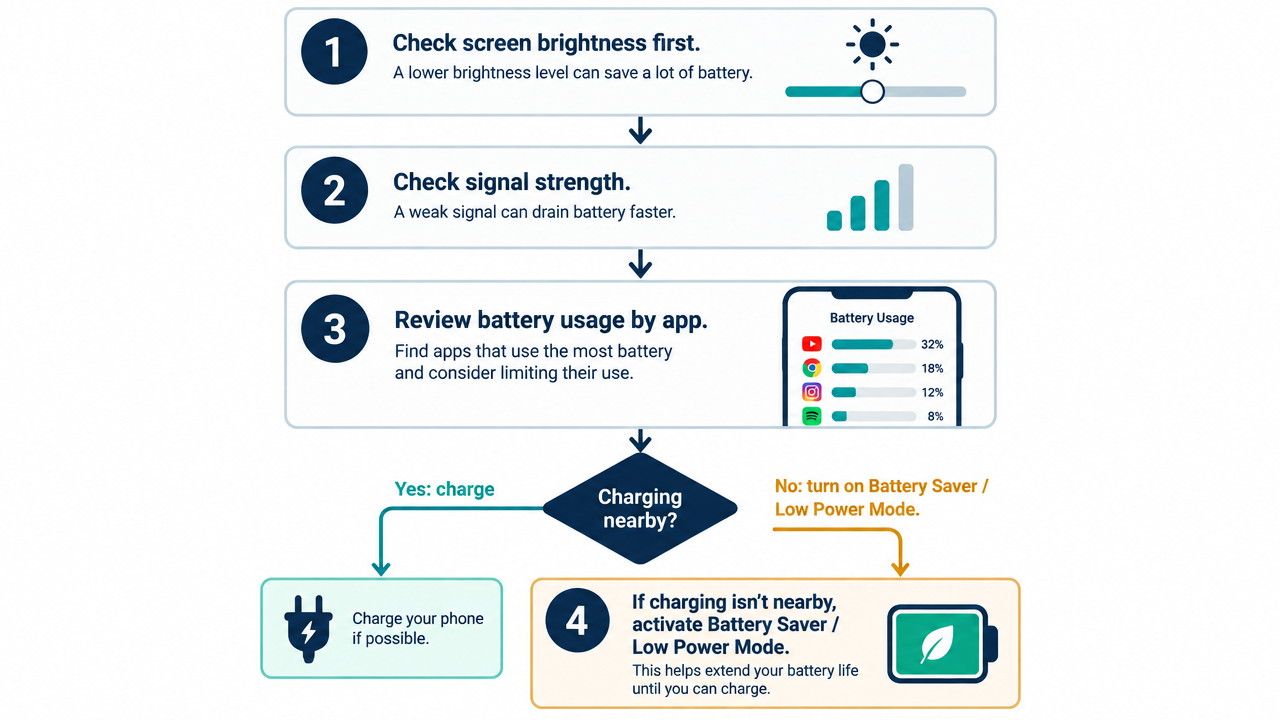
Battery Saver, Power Saving Mode, and Low Power Mode exist for a reason. Turn one on when the battery is low or when you know charging won’t be convenient.
These modes commonly reduce background refresh, visual effects, syncing, and some network activity. The trade-off is simple: apps may update less often and a few features may feel less immediate. That’s usually better than watching the battery percentage fall all afternoon.
Google recommends Battery Saver for extending a low charge on Android devices, while Samsung offers Power Saving mode for Galaxy phones. See Google’s Android guidance and Samsung’s battery optimization support.
Find the App or System Activity Causing Drain
Guessing wastes time. Check the battery-usage screen first.
On iPhone, open Settings > Battery to see which apps and system activities used the most power. Apple can show background activity, screen activity, notifications, and even signs of low cellular signal. On Android, open Settings > Battery > Battery usage. Pixel and many other Android phones also offer app-level controls for background use.
Look for patterns, not one-off spikes. A navigation app using power during a road trip is normal. A shopping app draining battery in the background every day is worth investigating.
Restrict Background Activity Carefully
Restrict apps that don’t need instant updates. Games, retailers, photo editors, and apps you rarely open are good candidates. Remove apps you no longer use and disable permissions that no longer make sense.
But don’t overdo it. Aggressive restrictions can delay messages, calendar alerts, two-factor authentication codes, and health tracking. Think of background limits like closing unused taps in a house. Shut off the waste, not the water you still need.
Google’s Pixel battery recommendations describe Adaptive Battery, which learns which apps you use most and prioritizes power accordingly.
Improve Connectivity and Location Settings
Connectivity can quietly chew through battery when coverage is unreliable. Use Wi‑Fi when it’s available and reliable. If you’re somewhere with no usable service, Airplane Mode can stop the phone from repeatedly searching for a signal.
You don’t need to keep Bluetooth and location services disabled all day. That kind of advice sounds efficient but becomes annoying fast. Instead, switch them off when they serve no purpose: after a workout, while traveling without accessories, or when a location-heavy app is finished.
Review location permissions as well. Give “While Using the App” access where it works. Reserve always-on location access for apps that genuinely need it, such as safety, navigation, or activity-tracking tools.
Protect Battery Health With Smarter Charging and Less Heat
Daily battery life is one problem. Battery health is another.
Lithium-ion batteries wear down chemically over time. Apple says that temperature history and charging patterns both affect a battery’s chemical age. Its charging guidance explains why iPhone features such as Optimized Battery Charging and Charge Limit exist.
Heat is especially rough on a battery. Avoid leaving a phone in a hot car, charging it under a pillow or blanket, or running a demanding game while fast charging. Samsung advises using Galaxy devices between 32°F and 95°F (0°C and 35°C). See its battery care guidance.
You also don’t need to drain a modern phone to zero before charging. That’s leftover advice from older battery technologies. Google states that Android batteries do not need “training” through repeated full discharge and recharge cycles.
If your phone supports optimized or adaptive charging, turn it on. Some models learn your routine and delay the final part of charging. Others can cap charging around 80%. An 80% limit may help reduce time spent at a full charge, though it also leaves you with less runtime that day. Use it when the trade-off makes sense.
When Battery Drain May Signal a Problem
A new software update can temporarily increase battery use while the phone indexes files, updates apps, and completes background tasks. Give it a little time, then check for further system and app updates.
Persistent overheating, unexpected shutdowns, obvious swelling, or severe capacity loss are different. Check the device’s battery-health tools and seek professional service if the symptoms continue. Settings can manage normal drain. They can’t repair a failing battery.
A Realistic Smartphone Battery Routine
Keep it simple:
- Use adaptive brightness and a shorter screen timeout.
- Check battery usage once a week for unusual apps.
- Turn on Battery Saver or Low Power Mode when you need it.
- Avoid prolonged heat, especially while charging.
- Enable optimized or adaptive charging if your phone offers it.
FAQ
Does dark mode save battery life?
It can, particularly on phones with OLED displays, where dark pixels can use less power. But it won’t offset heavy gaming, bright outdoor use, or poor signal on its own.
Is it bad to charge a smartphone overnight?
Modern phones manage charging automatically. Features such as Optimized Battery Charging and Adaptive Charging can reduce the time a battery stays fully charged. Leaving a phone on a hot surface is the bigger concern.
Should I always stop charging at 80%?
Not always. An 80% limit can make sense when you spend most days near a charger and want to prioritize long-term battery health. Charge fully when you need the extra runtime.
Why does my phone battery drain faster in weak signal areas?
The phone uses more energy trying to find and maintain a cellular connection. Switching to Wi‑Fi or enabling Airplane Mode when there’s no service can help.
Conclusion
To make your smartphone battery last longer, don’t chase every battery-saving trick online. Check what’s actually draining power, reduce screen demand, manage background activity, and use low-power modes when they fit the day.
Then protect the battery itself. Keep the phone cool, avoid outdated charging myths, and use the charging tools built into your device. Small adjustments add up — and unlike a desperate 2% charge, they’re sustainable.