
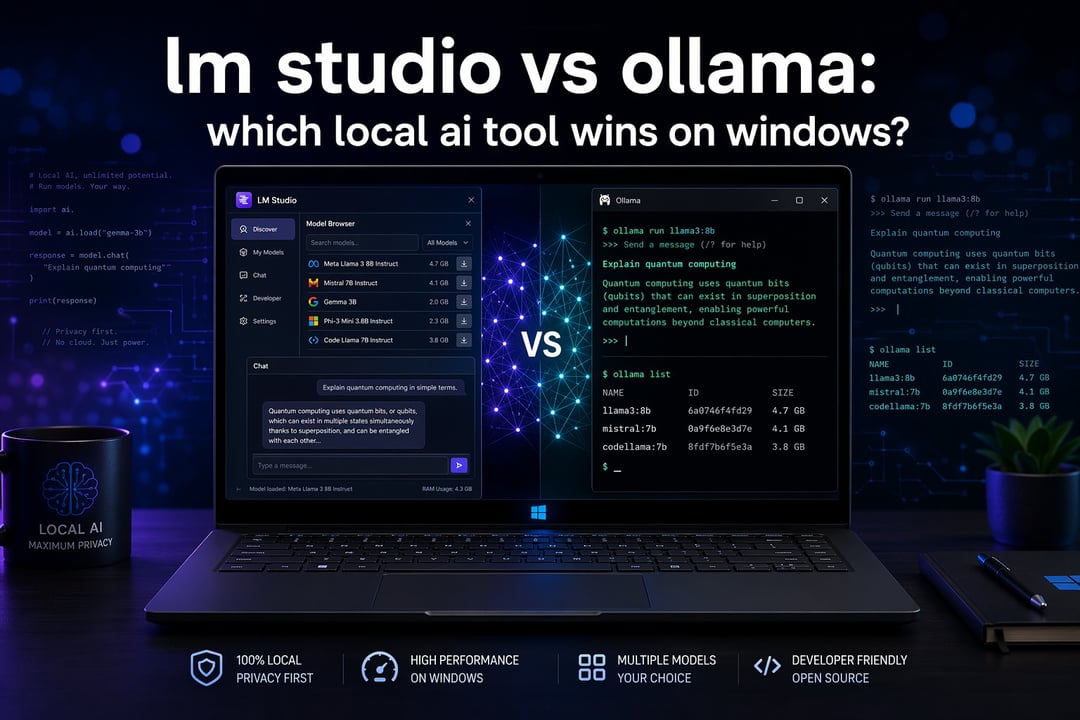
Running a large language model on your own PC no longer requires a data center or a cloud subscription. Two tools have emerged as the default entry points for Windows users who want private, offline AI: LM Studio and Ollama. Both are free. Both run the same open-weight models. Yet they were built around completely different instincts, and that difference decides which one actually wins on your machine.
What Is LM Studio?
LM Studio is a full desktop application built around a graphical chat window, a model browser, and a settings panel you can click through without ever opening a terminal. It connects directly to Hugging Face, so discovering, downloading, and testing a new model feels closer to browsing an app store than managing infrastructure. This makes LM Studio the natural fit for researchers, product people, or anyone who wants local AI to feel approachable from the first launch.
What Is Ollama?
Ollama takes the opposite approach. It installs as a lightweight background service, and you talk to it through the command line or through its REST API rather than a chat window. It ships with a curated model registry at ollama.com and a Modelfile system for defining how a model should behave. Developers favor Ollama because it behaves like invisible infrastructure: install it once, then let your scripts and applications call it whenever they need a response.
Installing Both Tools on Windows
LM Studio's installer is straightforward but larger, and the entire setup happens through the graphical interface from the very first screen. Ollama's installer is smaller and places a background service that starts automatically, but every interaction afterward runs through commands rather than clicks. If you are comfortable in a terminal, Ollama gets you to a working model faster. If you would rather never see a command prompt, LM Studio removes that barrier entirely.
Everyday Usability on Windows
This is where the two tools diverge most sharply for a general audience. LM Studio gives you adjustable temperature, context length, and system prompt controls through visible menus, so you can fine-tune a conversation without memorizing syntax. Ollama has no comparable built-in chat interface, so even though it recently added a system tray icon, it remains fundamentally CLI-driven under the hood. For most everyday Windows users who simply want to chat with a model, LM Studio delivers the smoother experience.
Model Management and Library Access
Ollama's registry favors curation. Pulling a model is a single command such as ollama pull llama3.3, and the tool handles quantization and format conversion automatically. LM Studio instead opens the door to Hugging Face's full catalog, giving you access to niche and fine-tuned models that Ollama's library may not include. Both ultimately run GGUF-format models through the same llama.cpp engine, so a model performs identically once loaded, regardless of which tool loaded it.
Performance on Windows Hardware
Because both tools share the same inference engine, raw output quality is essentially indistinguishable for a shared model. The measurable differences come from overhead rather than architecture. Ollama typically edges ahead by a few tokens per second on NVIDIA GPUs thanks to lower memory overhead, while LM Studio's resource use runs slightly heavier due to its full graphical interface. For casual chat or writing assistance, this gap rarely matters. For anyone running multiple models simultaneously or squeezing performance from modest hardware, Ollama's lighter footprint gives it a practical edge.
API Access and Automation
Ollama exposes an OpenAI-compatible REST API by default the moment the service starts, so it slots directly into scripts, coding assistants, and automated pipelines with no extra configuration. LM Studio also offers a local server mode, but you must switch it on manually, and it remains better suited to occasional programmatic use than to production automation. Anyone planning to build tools on top of a local model will find Ollama's API-first design far easier to integrate.
Privacy on Windows
Both tools keep your prompts and models entirely offline, so no data leaves your PC during normal use. Ollama collects no telemetry by default. LM Studio collects anonymous usage analytics out of the box, though you can disable this in a few clicks under its privacy settings. Neither difference is dramatic, but it is worth knowing before your first session.
Verdict: Which Wins on Windows?
For the average Windows user who wants private AI without touching a terminal, LM Studio wins on approachability. Its visual model browser and click-to-chat design make it the clearest path from curiosity to a working local assistant. For developers or anyone automating tasks with local AI, Ollama wins on integration, lighter overhead, and default API access. Many experienced users end up running both: LM Studio for discovering and testing new models, and Ollama for the automation and scripting work that follows.
If you are new to local AI on Windows, start with LM Studio. Once you know which model you trust, add Ollama to the mix when you are ready to build something with it.