
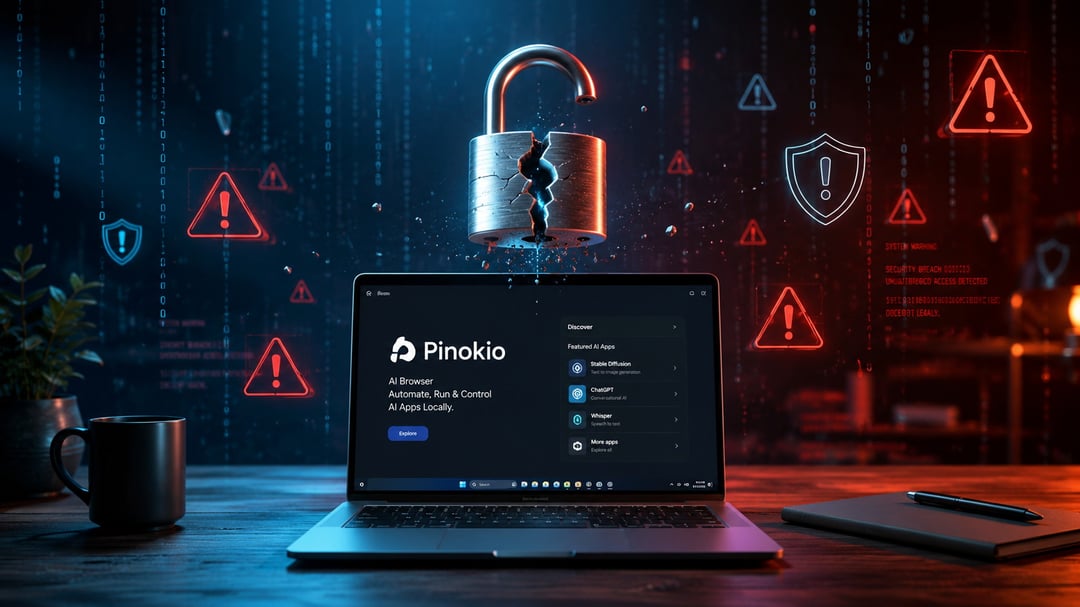
If you've been exploring local AI tools, you've probably run into Pinokio. It promises to take the headache out of installing AI apps on your own computer — no Python setup, no command line, no wrestling with dependencies. That convenience is exactly why the safety question matters. Before you let any tool install and run software on your machine, it's fair to ask what you're actually getting into.
The short version: Pinokio is generally safe to use on Windows when you download it from the official source and pay attention to what you install through it. The bigger question isn't really about Pinokio itself — it's about the apps you choose to run with it. Here's what you need to know before you dive in.
What Is Pinokio, Exactly?
Pinokio isn't a web browser in the traditional sense, even though it's sometimes described as an "AI browser." It's a launcher — a graphical interface that lets you install, run, and manage AI applications without touching a terminal. Think of it as a translator between complex, developer-oriented setup instructions and a simple point-and-click experience.
Under the hood, Pinokio handles the technical grunt work: creating virtual environments, installing dependencies, running shell commands, and launching local servers. All of this happens through its own scripting system, so instead of manually cloning a GitHub repository and troubleshooting Python errors, you click a button and Pinokio does the rest.
Everything runs locally on your machine by default. There's no cloud processing involved unless the specific app you're running requires it, which means your data and models generally stay under your control.
Is Pinokio Itself Safe on Windows?
Where you download Pinokio from matters. Getting it from the official site is the safest route, since third-party download mirrors can bundle extra software or serve outdated versions. Several reputable software directories have run Pinokio through standard security scans and found it clean, which is a reasonable baseline signal, though it's not a substitute for good judgment on your part.
Pinokio also builds in some structural protection. By default, it installs everything into an isolated folder rather than scattering files across your system. Python-based tools run inside virtual environments, which keeps their dependencies contained instead of mixing with your system-wide Python setup. This isolation doesn't make every app you install automatically trustworthy, but it does limit how much a poorly built or badly behaved script can affect the rest of your PC.
Where the Real Risk Comes From
This is the most important part, and it's easy to overlook: Pinokio the launcher and the apps you use with it are separate. Pinokio just makes installing apps simple. It doesn't check every app with the same level of scrutiny.
Pinokio's "Discover" section includes community-contributed scripts, and some of these go through a review process to confirm they behave properly within the isolated environment. Others are more experimental, built and shared by individual developers without the same level of scrutiny. Neither category is inherently dangerous, but they carry different levels of risk.
The apps that deserve more caution are the ones that ask for broad file access, come with vague or missing documentation, download unusually large files without explanation, or require setup steps that don't match what the app is supposed to do. None of that is unique to Pinokio — it's the same due diligence you'd apply before installing any unfamiliar software or browser extension.
Windows-Specific Considerations
A few practical things to expect on Windows specifically. Windows Defender or your antivirus software might flag Pinokio or certain scripts on first run, particularly if they're less mainstream. That's a common reaction to newer or less widely distributed installers, not necessarily a sign of a real threat, but it's worth pausing to check rather than clicking past it automatically.
Local AI tools, especially image and video generation apps, can also demand serious hardware: gigabytes of storage per model, a capable GPU, and patience during first-time setup. Before installing anything heavy, it's worth checking the app's stated requirements so you're not caught off guard by a multi-gigabyte download or a tool that simply won't run well on your setup.
How to Use Pinokio Safely
A few habits go a long way here:
- Download Pinokio only from its official site, not a third-party mirror
- Start with apps that have clear descriptions and documentation before trying experimental ones
- Install one app at a time, so you know exactly what changed if something breaks
- Be skeptical of apps requesting unclear or unusually broad system access
- Slow down when installing anything tied to sensitive, client, or business-critical work
None of this is complicated. It's the same baseline caution you'd use with any software that installs and runs code on your computer.
Should You Use Pinokio?
For most people curious about running AI tools locally, Pinokio is a reasonable and useful entry point. It's not inherently risky software, and it's not a security shortcut either — it sits somewhere in between, much like installing projects from GitHub or adding a new browser extension. The tool itself has reasonable safeguards built in. The responsibility for what you install through it still lands on you.
Used thoughtfully, Pinokio does what it sets out to do: it turns a genuinely complicated process into something approachable, without asking you to hand over blind trust to get there.