
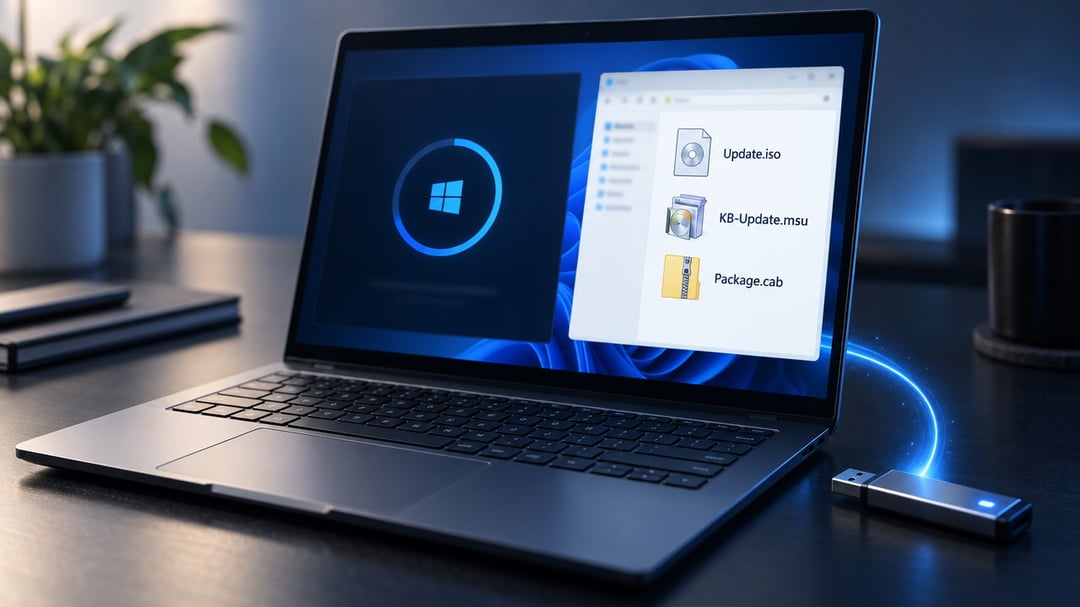
Windows Update is easy until the PC cannot reach Microsoft. A locked-down network, a metered link, or a machine with no internet leaves patches sitting uninstalled. Offline files give you another route. Download the update on a connected computer, copy it to a USB drive, and install it locally with ISO, MSU, or CAB files.
Unpatched systems stay open to problems Microsoft has already fixed. Offline installation works on Windows 10 and Windows 11. You choose the file, the timing, and the machine.
Understanding ISO, MSU, and CAB Files
Each format does a different job.
MSU files are Microsoft Update Standalone packages. They are the simplest option for most people. Double-click the file and the Windows Update Standalone Installer (wusa.exe) runs the install. An MSU usually contains one or more CAB archives plus XML that tells Windows whether the update applies.
CAB files are compressed cabinet archives. This is the format Windows Update uses under the hood. You install them with DISM instead of by double-clicking. Drivers, servicing stack updates, and some component packages often arrive as CAB files.
ISO files are disk images. A Windows ISO can hold feature-update media or a bundle of packages. You mount it as a virtual drive, then run Setup or install the enclosed files.
Download updates only from the Microsoft Update Catalog. Search by KB number, Windows version, and architecture (x64 or ARM64). The wrong package often fails with “not applicable to your computer.”
Installing Updates With MSU Files
MSU files are the most direct path for a single PC.
Confirm the edition and build first. Press Win + R, type winver, and note the version. Download the matching MSU from the catalog. Right-click the file, choose Run as administrator, and follow the prompts. Restart when Windows asks.
For a silent install, open Command Prompt as administrator:
wusa.exe C:\Updates\windows10.0-kbXXXXXXX-x64.msu /quiet /norestart
/quiet hides the wizard. /norestart delays the reboot. After you restart, check Settings > Windows Update > Update history, or run Get-HotFix in PowerShell.
wusa.exe checks applicability before it installs. That check is why MSU files are safer for everyday use than raw CAB packages. Microsoft describes the tool in its Windows Update Standalone Installer documentation.
Installing CAB Files With DISM
CAB files need a command line. Open Command Prompt as administrator:
DISM /Online /Add-Package /PackagePath:C:\Updates\update.cab
/Online applies the package to the running system. DISM is often faster than wusa.exe, but it does not always verify prerequisites the same way. If the catalog lists a Servicing Stack Update (SSU) next to the cumulative update, install the SSU first.
If you only have an MSU and need the CAB, extract it:
expand -F:* C:\Updates\package.msu C:\Updates\extracted
Then point DISM at the CAB in that folder. You can also pass a folder to /PackagePath so DISM processes every package it finds. Command options are in Microsoft’s DISM package servicing guide.
Mounting an ISO to Install Updates Offline
An ISO keeps a large set of files in one image. Copy it to the target PC, right-click, and choose Mount. Windows assigns a drive letter.
For a Windows feature-update or installation ISO, open the mounted drive and run setup.exe. Choose to keep personal files if you are upgrading in place. When you finish, right-click the virtual drive and choose Eject.
Some teams use an ISO as a container for MSU and CAB files. Mount it, copy the packages to a local folder, then install them with wusa or DISM. That is a practical way to carry a month’s patches across an air gap without burning a disc.
Injecting updates into install.wim inside an ISO is a separate task meant for deployment images. For one PC, mounting the ISO and running Setup or installing the enclosed packages is enough.
Troubleshooting Offline Update Failures
Most errors come from the wrong file or a missing prerequisite.
Match architecture and version. An x64 package will not install on ARM64. A Windows 11 24H2 update will not apply to 23H2. Install the SSU before the latest cumulative update when both are listed. Starting with Windows 11 24H2, some cumulative updates need a checkpoint update first, so download every MSU listed on that catalog page.
If Windows Update is stuck, stop the service, clear C:\Windows\SoftwareDistribution\Download, and retry the offline package. Check Event Viewer > Windows Logs > Setup for DISM and package errors.
“The update is not applicable to your computer” almost always means a mismatch or a missing SSU, not a corrupt download. Recheck the KB, edition, and build before you download again.
Keeping Offline Updates Manageable
Store the KBs you use often in a labeled folder, with version and architecture in the filename. Test a new cumulative update on one machine before you copy it elsewhere. Keep a short list of installed KB numbers for later checks. When a month includes both an SSU and a latest cumulative update (LCU), install them in that order.
Offline installation with ISO, MSU, and CAB files will not replace Windows Update on every PC. It does give you a reliable way to patch systems that cannot reach Microsoft. Download from the catalog, match the file to the machine, use the right installer, and restart. That sequence keeps restricted and poorly connected PCs current without waiting on a live connection.