
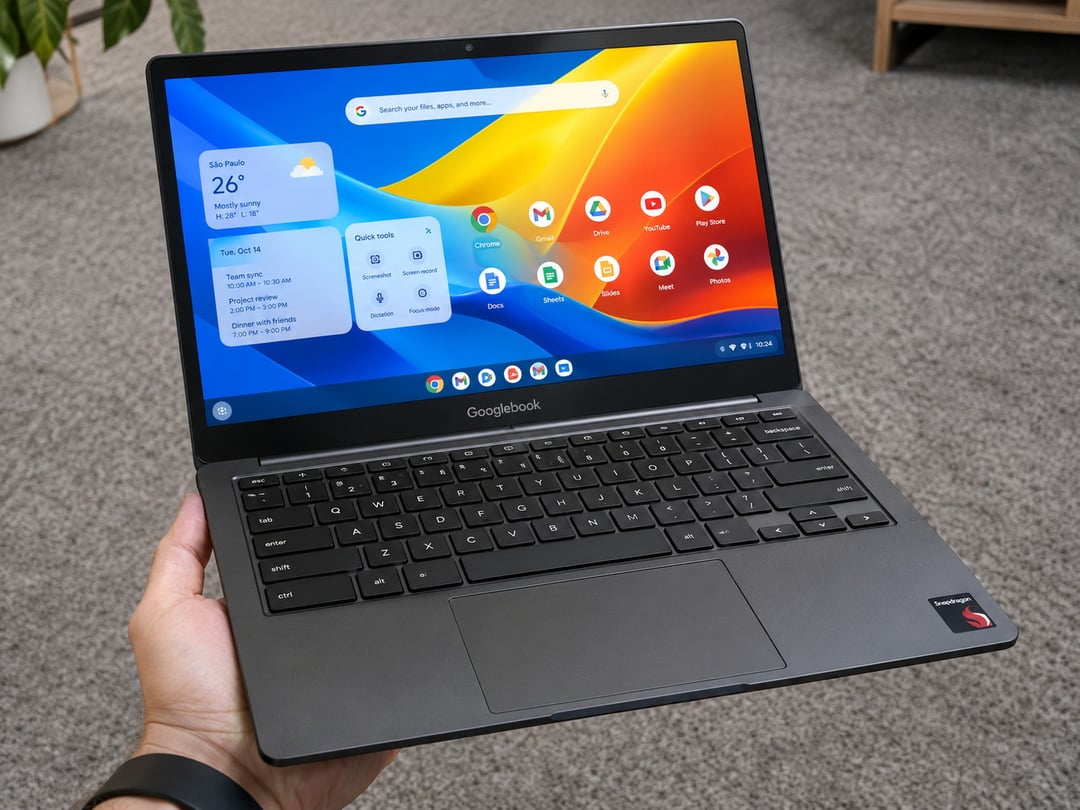
Chrome M155 lets Googlebook users install any website as a web app. Instead of creating a shortcut that opens a regular browser tab, the installed site launches in its own window, more like a standard app.
Previously, Chrome only showed the Install option for websites whose developers had configured them as web apps. Other sites could be saved as shortcuts, but those shortcuts simply opened Chrome tabs. Google initially made that choice deliberately, but user feedback led to the change in Chrome M155.
What Changes With Chrome M155 on Googlebook
With the update, you can choose a website and install it directly from Google Chrome. The resulting web app opens in a separate window rather than inside a typical browser tab.
Installed websites are available through the app launcher. You can also keep frequently used web apps on the taskbar or home screen.
Because these apps run through Chrome, they use the same browser-based setup already associated with Chrome. That includes:
- Your Google Account sign-in
- Cookies
- Site permissions
- Browser extensions
Chrome M155 also gives Chrome settings their own tab. This makes it possible to leave a webpage open beside the settings page while you change options.
How to Install a Website as an App on Googlebook
The Chrome M155 update is scheduled to arrive automatically. If you want to check for it manually, open the Google Play Store, find Chrome, and select Update.
Once Chrome has been updated, follow these steps to install a website as an app:
- Open Google Chrome.
- Visit the website you want to use as an app.
- Select the menu button in the upper-right corner.
- Choose Save and share.
- Select Install and create shortcut.
- Tap Install to confirm.
- Complete any remaining setup prompts.
Some websites may also show an Install icon in Chrome’s address bar. When that icon appears, you can use it to begin the installation process.
Where Installed Website Apps Appear
After setup, installed websites can be found in the Googlebook app launcher. You can also place preferred apps on the taskbar or home screen for quicker access.
Each installed site opens in a dedicated window. The website remains powered by Chrome, so browser elements such as account access, cookies, permissions, and extensions continue to apply.
Chrome Website Apps vs. Browser Shortcuts
Before Chrome M155, a site that was not configured by its developer as a web app could be added only as a shortcut. Opening that shortcut launched the site in a Chrome browser tab.
Chrome M155 changes that behavior by allowing any website to be installed as an app. The installed version launches in its own window, while still relying on Chrome in the background.