
If you've ever stared at a .sql file and wondered how to get it into a database without clicking through a dashboard for twenty minutes, this is the clean way to do it. The command line looks intimidating at first. But for database imports, it's usually the fastest and safest option because you can see exactly what command runs and where it points.
When people search for how to import an SQL file into an existing database using CLI, they usually need one of three things. They want to restore a backup. They want to move data from one environment to another. Or they need to load a schema and sample data into a database that already exists. The good news is the process is simple once you understand the pattern.
What it means to import an SQL file into an existing database using CLI
An SQL file is just a plain text file full of database instructions. It might contain statements that create tables, insert rows, update records, add indexes, or remove existing structures. When you import that file through the command line, your database client reads those instructions and sends them to the database engine in sequence.
The phrase existing database matters here. It means the target database is already present. You're not creating the database container itself. You're loading content into one that already exists. That sounds minor, but it changes the command you use and the risks involved. If the file contains DROP TABLE or CREATE TABLE statements, it can alter what is already there.
In other words, a command-line SQL import is powerful because it is direct. And that directness is exactly why you should check the file before running anything.
Before you import an SQL file into an existing database
Start by identifying the database engine. This step saves people from a lot of pointless errors. A MySQL dump often will not run cleanly in PostgreSQL. A PostgreSQL export may include syntax SQLite doesn't support. The file might look like generic SQL, but database systems speak different dialects in the same way regional accents shape the same language.
Next, open the SQL file in a text editor and skim it. You're looking for statements like CREATE DATABASE, USE database_name, DROP TABLE, DROP DATABASE, or anything that looks destructive. This is not overcautious. This is basic hygiene. A file meant for a blank environment can wreck an active one if you run it blindly.
Then back up the target database. Really. This is the step people skip because they think the import is small or harmless. But even a short SQL file can change structure, wipe rows, or create conflicts that take longer to untangle than the backup would have taken.
Finally, confirm your access details. You need the correct username, password, host, port, and permission level. A surprising number of failed imports have nothing to do with SQL. They fail because the user account cannot write to the target database.
How to import an SQL file into an existing database using CLI in MySQL or MariaDB
For MySQL or MariaDB, the standard command is:
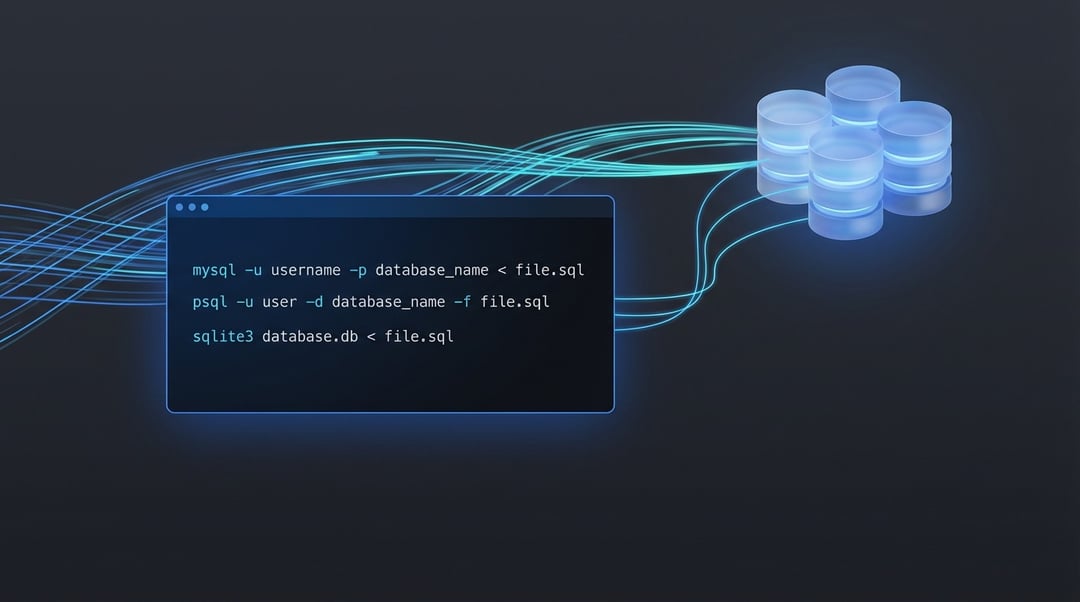
mysql -u username -p database_name < file.sql
This command does something very straightforward. The mysql client connects using the user you specify. The -p flag prompts for your password. The database name tells MySQL where to apply the SQL statements. The < file.sql part redirects the contents of the file into the client.
If the database lives on another server, add the host and port:
mysql -h hostname -P 3306 -u username -p database_name < file.sql
This version is common in hosting environments, cloud platforms, and staging servers.
A few problems show up often during a MySQL import SQL file CLI workflow. Existing tables may clash with incoming CREATE TABLE statements. Character set mismatches can turn readable text into a mess of broken symbols. Large imports may also hit packet size or timeout limits. And if the dump came from a different MySQL version, some syntax may not behave the way you expect.
How to import an SQL file into an existing database using CLI in PostgreSQL
In PostgreSQL, the equivalent command uses psql:
psql -U username -d database_name -f file.sql
Here, -U defines the user, -d selects the target database, and -f points to the SQL file. Compared with shell redirection, this format is a little more explicit. That's often helpful when you're troubleshooting.
For remote databases, use:
psql -h hostname -p 5432 -U username -d database_name -f file.sql
This is the version you'll see in container-based setups, cloud databases, and remote development environments.
The most common issues in a PostgreSQL import SQL file CLI process involve permissions, ownership, or missing extensions. A dump may assume a certain role exists. It may also reference an extension like uuid-ossp that is not enabled in the target database. One bad statement can also interrupt part of the import, so checking the output matters.
How SQLite handles SQL file imports from the command line
SQLite works differently because it writes to a database file instead of talking to a separate database server. The basic command is:
sqlite3 database_name.db < file.sql
That simplicity is one reason SQLite is popular for lightweight apps and local testing. But simple does not mean foolproof. File permissions, active file locks, and incompatible SQL syntax can still derail the import.
This is especially common when someone tries to use a dump built for MySQL or PostgreSQL. The commands may look similar on the surface, but SQLite has its own expectations.
A safe workflow for restoring an SQL file to an existing database
A reliable process looks like this:
- Identify the database engine.
- Confirm the target database already exists.
- Back it up.
- Review the SQL file.
- Run the correct CLI command.
- Watch the output for errors.
- Validate the result after the import finishes.
That final step matters more than people think. A command can finish without obvious drama and still leave you with partial data, missing indexes, or broken relationships. Check the tables. Run a few row counts. Test the application if the database supports one. Trust, but verify.
Common mistakes when importing an SQL file via command line
The biggest mistake is importing into the wrong database. It sounds obvious until someone runs a production command in a staging shell or the other way around. Another common failure is assuming the SQL file is harmless because it came from a teammate or an old backup folder. Files drift. Environments change. Assumptions get expensive fast.
People also skip version checks. Or they use the wrong client entirely. Or they see no error on screen and assume the import worked perfectly. That's not always true. Database imports deserve the same care you would give to any live system change.
Final takeaway
To import an SQL file into an existing database using CLI, you don't need a complicated workflow. You need the right client, the correct target database, and a few minutes of caution before execution. Check the file. Back up the database. Run the import command that matches your database engine. Then verify the result.
That's the whole game. Simple on the surface. Important in the details. And once you've done it a couple of times, command-line database restore work feels less like a risky operation and more like routine maintenance.