
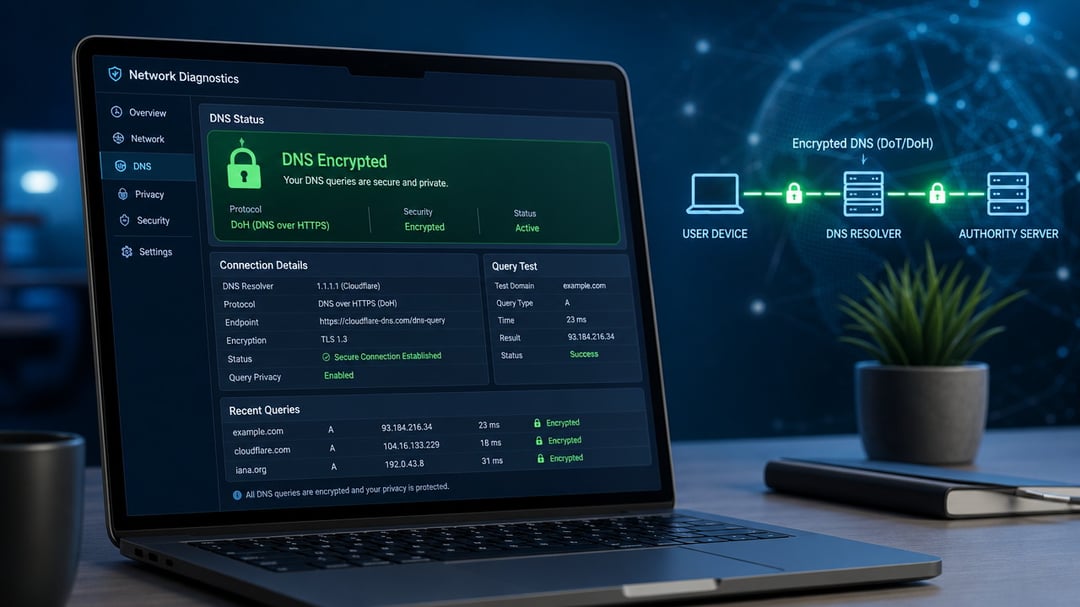
Most people turn on a “secure DNS” or “private DNS” setting and assume the job is done. That assumption is often wrong. Your device can still send plain-text queries even when the option looks enabled. The only reliable way to know is to check.
This guide walks through practical methods that work for everyday users. You don’t need advanced networking skills, though a couple of the deeper checks do use simple terminal commands.
Why plain DNS is still a problem
Every time you visit a website, your device asks a DNS resolver for the matching IP address. In the classic setup those questions travel unencrypted. Your ISP, the café Wi-Fi operator, or anyone else on the path can read the list of domains you request. Encryption hides the content of those queries so only the resolver itself can see them.
Two main protocols handle the encryption today:
- DNS over HTTPS (DoH) wraps the query inside normal HTTPS traffic on port 443. It blends in with regular web browsing.
- DNS over TLS (DoT) uses a dedicated encrypted connection on port 853.
Both protect the lookup itself. Neither hides the fact that you later connect to the website, nor does it hide the IP of the resolver you’re using.
Quick web-based checks
Start with the easiest tests. They take seconds and require no installation.
Cloudflare’s diagnostic page at 1.1.1.1/help reports whether you are reaching their service over DoH and which resolver answered. If you configured Cloudflare and the page shows “Using DNS over HTTPS: Yes,” that part of the path is working.
Quad9 offers two useful checks. Visit on.quad9.net to confirm you are using their resolvers. For the actual protocol, open a terminal and run:
dig +short txt proto.on.quad9.net
The reply includes the protocol in use (DoH, DoT, or plain DNS). Other providers sometimes offer similar status pages; check their documentation.
Keep in mind these tools mainly confirm the resolver and, in some cases, the protocol for that particular test. They do not prove every application on your device is using the encrypted path.
Checking inside the browser
Many browsers now include their own DoH setting. This only covers traffic from that browser.
In Chrome or Edge go to Settings → Privacy and security → Security and look for “Use secure DNS.” Make sure it is turned on and that the provider matches what you expect. Firefox places the same option under Settings → Privacy & Security → DNS over HTTPS.
A browser-level setting is convenient, but other apps (email clients, system services, command-line tools) often ignore it and fall back to the operating system’s resolver. Treat browser DoH as partial coverage.
Operating-system checks
The system-wide setting is more important for complete protection.
Windows 11
Open Settings → Network & internet → your connection → DNS. Choose “Encrypted only (DNS over HTTPS)” if that option is available. For a quick command-line confirmation, open PowerShell and run:
Get-DnsClientDohServerAddress
It lists any configured encrypted servers. To look specifically for DoT connections, try:
netstat -an | findstr :853
Established connections to your resolver on that port indicate DoT is active.
Android
Open Settings → Network & internet → Private DNS. Select “Private DNS provider hostname” and enter a known hostname such as one.one.one.one (Cloudflare) or dns.quad9.net. Once set, the system uses DoT for most traffic.
Linux with systemd-resolved
Run resolvectl status. Look for a line that says DNSOverTLS is set to yes and that your chosen servers appear. A successful encrypted lookup often shows the protocol in the query output as well.
macOS and iOS usually rely on configuration profiles supplied by the DNS provider. After installing one, the provider’s own status page or a packet capture is the most reliable verification method.
Command-line and packet capture for higher certainty
Basic tools such as nslookup and plain dig speak unencrypted DNS by default. A successful lookup with them does not prove encryption is in use.
For DoH you can test an endpoint directly with curl. Many providers accept a JSON request; a successful reply confirms the encrypted path works for that query.
For DoT, tools that support TLS (such as kdig on systems where it is available) can force an encrypted connection and report success or failure.
The strongest evidence comes from a short packet capture. Use Wireshark or tcpdump and filter for port 53. While you browse, you should see little or no clear-text DNS traffic. At the same time you should see TLS sessions to your resolver’s IP on port 443 (DoH) or 853 (DoT). On Windows the built-in packetmon tool can do a lightweight version of the same check without installing extra software.
Common ways verification fails
Several situations create false confidence:
- A DNS-leak-test website shows the correct resolver but says nothing about whether the transport was encrypted.
- The browser is using DoH while the rest of the system still sends plain queries.
- The operating system falls back to unencrypted DNS when the encrypted connection fails.
- A VPN overrides local DNS settings, sometimes in ways that reintroduce clear-text lookups.
After any OS update, network change, or VPN connection, re-run the checks. Settings can reset without warning.
A practical sequence that works for most people
- Visit your provider’s status page (Cloudflare, Quad9, or equivalent).
- Confirm the browser and operating-system settings match what you intended.
- Run the relevant PowerShell, resolvectl, or dig command.
- If you want maximum certainty, capture a few seconds of traffic and confirm port 53 is quiet.
Encrypted DNS protects only the lookup. Pair it with a resolver you trust, and remember that broader privacy still requires a full tunnel when the threat model demands it. Re-check periodically; the setting you enabled last month may no longer be the one your device is actually using.