
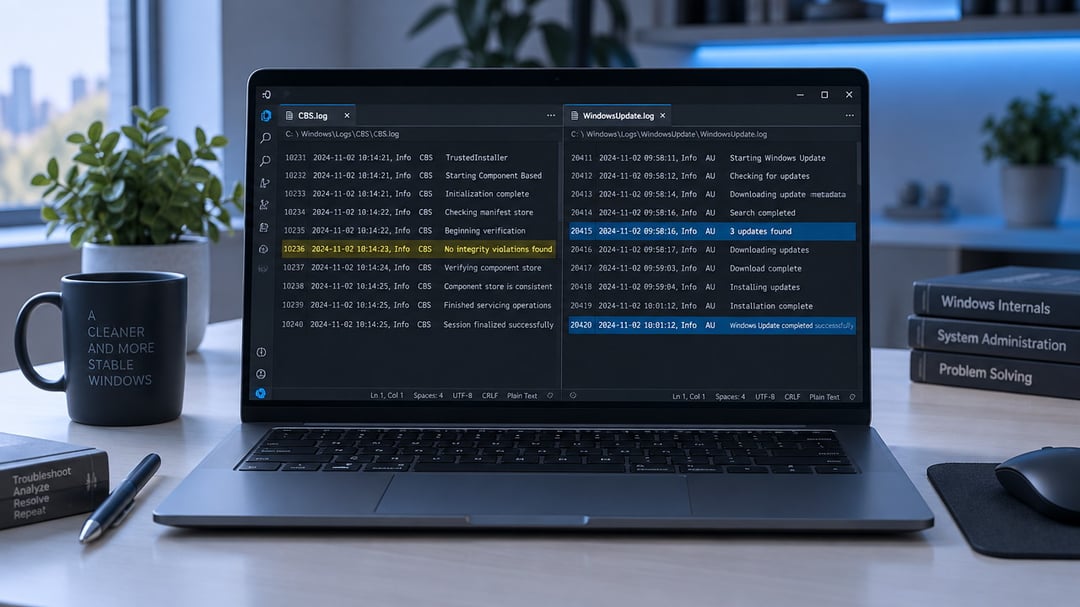
A Windows Update error rarely explains itself on the first screen. The message you see hides the real cause of the failure. Two diagnostic files hold the missing detail for most cases. Learning how to read Windows Update logs CBS.log and WindowsUpdate.log turns a vague failure into a clear next step.
Why CBS.log and WindowsUpdate.log Matter During Troubleshooting
Windows Update reports a short code after a failed install. That code is only a summary of a longer process. CBS.log records Component Based Servicing work at the package level. WindowsUpdate.log records search, download, and install activity in order. Together they show which package failed during the session.
A timestamped error in CBS.log can name a missing driver. A matching line in WindowsUpdate.log can show a network timeout. Consequently, that pairing is the fastest path to a targeted repair.
Where to Find CBS.log and WindowsUpdate.log on Your PC
CBS.log lives in C:\Windows\Logs\CBS\ on a typical install. Use %windir%\Logs\CBS if Windows is not on drive C. The folder may also hold CBS.persist.log archives from earlier sessions.
WindowsUpdate.log is less straightforward on modern Windows systems. Windows 10 and Windows 11 no longer write a live text log. The client stores Event Tracing for Windows files instead. Those .etl files sit in C:\Windows\Logs\WindowsUpdate\ on the system drive. Notepad cannot read them without a conversion step.
Copy CBS.log to your desktop before you open the file. This avoids permission locks while TrustedInstaller still writes new lines.
How to Read the Structure of CBS.log
Each CBS.log line starts with a date and a time. Next comes a severity tag such as Info or Error. Then a source tag such as CBS or CSI appears.
Search the file for Error, Failed, and HRESULT values. Codes like 0x800f081f mean Windows cannot find required source files. Codes like 0x80070002 mean Windows cannot find a required file. Codes like 0x80073712 point to component store corruption in the image.
System File Checker also writes results into this same log. SFC marks its lines with the [SR] tag for easy filtering. Filter those entries with this command in an elevated Command Prompt:
findstr /c:"[SR]" %windir%\Logs\CBS\CBS.log >"%userprofile%\Desktop\sfclogs.txt"
The output file on your desktop is far easier to scan. Failed sessions name the package and the missing manifest file.
How to Read WindowsUpdate.log on Windows 10 and 11
Open PowerShell as administrator on the affected computer. Run the Get-WindowsUpdateLog cmdlet and wait for conversion. It places WindowsUpdate.log on your desktop by default. Microsoft documents this process in the Get-WindowsUpdateLog reference.
The converted log shows Windows Update agent startup and service state. It also shows search results and download progress for each cycle. Look for WU and AU component names near the failure time. Failed installs list the KB number and the HRESULT together.
Furthermore, Microsoft explains the component names in its Windows Update log files guide. Focus on the minutes around the failure rather than the full file.
Common Problems Visible in CBS.log and WindowsUpdate.log
Repeated Failed to install lines in CBS.log often mean a damaged component. Source not found points to a missing package payload on disk. Timeout entries in WindowsUpdate.log point to a network or WSUS issue.
Compare timestamps across both Windows Update log files during analysis. The WindowsUpdate.log entry usually comes first in the sequence. CBS.log then records the servicing attempt against the component store. That sequence tells you whether the download failed or the install failed.
A blue screen after an update is a related troubleshooting case. Logs still help you identify the KB that landed before the crash. See how to fix a blue screen after a Windows Update for the repair path after you have that KB number.
Tools That Simplify Reading Windows Update Logs
Notepad works for a short scan of a copied CBS.log file. It does not highlight Error or Warning lines on its own. CMTrace from the Microsoft Configuration Manager toolkit color-codes those lines. PowerShell Select-String can extract every Error line from a copied CBS.log.
Run DISM and SFC only after you record the current log state. Those tools append new CBS.log entries during their repair passes. A saved copy preserves the original failure for later comparison.
A Practical Process for Reading Windows Update Logs
Reproduce the update failure first and note the exact time. Convert WindowsUpdate.log with Get-WindowsUpdateLog before you open it. Search both files backward from the recorded failure time.
Write down the first HRESULT you find in that window. Search that code in Microsoft Learn and related support articles. Note the package or driver name beside the HRESULT. This order prevents you from chasing later errors that are only side effects.
When CBS.log and WindowsUpdate.log Point Beyond a Simple Fix
Some entries survive DISM RestoreHealth and a full SFC scan. Persistent source-missing errors may need a mounted ISO as a repair source. Repeated driver failures may mean hardware incompatibility rather than a bad KB. They help you decide between further repair and a clean install.
Keep a copy of recent logs before major feature updates. That history makes the next failure much faster to diagnose.