
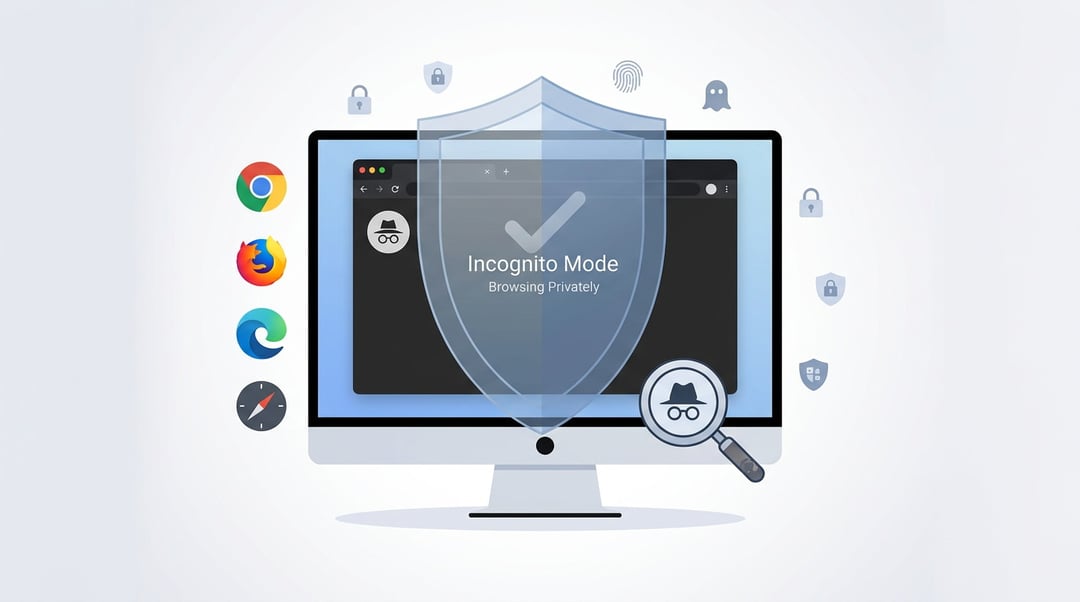
We’ve all had that moment.
You open your browser because you need to check something quickly. Maybe it’s a surprise gift. Maybe it’s a second email account. Maybe you just don’t want your search history staring back at you later.
So you think, I’ll just go incognito.
But here’s what most people don’t realize: incognito mode gives you privacy on your device. It does not make you invisible online.
Let’s walk through how to go incognito in Chrome, Edge, Firefox, and Safari. And more importantly, let’s talk about what that actually means.
What “Incognito” Really Does
Private browsing sounds dramatic. It isn’t.
When you open an incognito window or private window, your browser creates a temporary session. That session does not save:
- Browsing history
- Cookies after you close the window
- Form entries
- Search bar history
Think of it like writing on a whiteboard instead of a notebook. Once you erase it, nothing remains on that device.
However, incognito mode does not hide:
- Your IP address
- Your activity from your internet provider
- Tracking by websites
- Monitoring on work or school networks
If you log into Google while in incognito mode, Google still knows it’s you. The difference is your browser won’t remember the session after you close it.
That distinction matters.
If you want more detail on online privacy, the Electronic Frontier Foundation explains it clearly at
Now let’s get practical.
How to Go Incognito in Google Chrome
Chrome uses the term Incognito Mode. It’s the most widely recognized version of private browsing.
On Desktop (Windows, Mac, Linux)
- Click the three dots in the top-right corner.
- Select New Incognito Window.
Shortcut:
- Windows:
Ctrl + Shift + N - Mac:
Command + Shift + N
You’ll see a dark window with a small hat-and-glasses icon. That’s your visual confirmation.
On Mobile (Android or iPhone)
- Tap the three dots.
- Choose New Incognito Tab.
Chrome separates regular tabs and incognito tabs. You can switch between them easily.
Important detail: extensions are disabled by default in incognito mode. You can enable specific ones manually in settings if needed.
Official support:
https://support.google.com/chrome/answer/95464
How to Use InPrivate Browsing in Microsoft Edge
Microsoft Edge calls it InPrivate Browsing. Same concept. Slightly different branding.
On Desktop
- Click the three dots.
- Choose New InPrivate Window.
Shortcut:
Ctrl + Shift + N
You’ll notice a blue “InPrivate” label at the top of the window.
On Mobile
- Tap the menu.
- Select New InPrivate Tab.
One important note: if you’re using a work computer, your IT department may still see browsing activity. InPrivate prevents local storage. It does not override network monitoring.
More details here:
https://support.microsoft.com/microsoft-edge
How to Open a Private Window in Firefox
Firefox uses the term Private Browsing Mode. It goes a step further with built-in tracking protection.
On Desktop
- Click the three horizontal lines.
- Select New Private Window.
Shortcut:
- Windows:
Ctrl + Shift + P - Mac:
Command + Shift + P
You’ll see a purple mask icon. That tells you you’re in private mode.
On Mobile
- Tap the tab icon.
- Switch to Private mode.
- Open a new private tab.
Firefox automatically blocks many third-party trackers even outside private mode. That gives it a privacy edge.
Documentation:
How to Go Private in Safari
Safari keeps things simple.
On Mac
- Click File in the menu bar.
- Choose New Private Window.
Shortcut:
Command + Shift + N
The address bar turns darker. That’s your signal.
On iPhone or iPad
- Tap the tabs button.
- Select Private.
- Tap the plus sign to open a private tab.
Safari also uses Intelligent Tracking Prevention. That system limits cross-site tracking automatically.
Apple explains more here:
https://support.apple.com/guide/safari
When Incognito Mode Is Not Enough
Here’s the honest truth.
Incognito mode protects you from someone using your device later. It does not protect you from the broader internet.
Picture it like this:
You → Your Device → Router → Internet Provider → Website
Incognito only clears data from the first step. Everything after that still sees traffic normally.
If you’re using public Wi-Fi or researching sensitive topics, you may want additional tools such as:
- A VPN
- The Tor Browser
- Encrypted DNS
Tor information:
Those tools address network-level privacy. Incognito mode does not.
Common Myths About Going Incognito
Let’s clear up a few misconceptions.
“Incognito hides me from Google.”
Not if you log into your Google account.
“My downloads disappear.”
No. Files you download remain on your device.
“It makes me anonymous.”
It doesn’t. Your IP address remains visible.
Incognito mode is a convenience feature. It is not a cloak of invisibility.
Final Thoughts on How to Go Incognito in Chrome, Edge, Firefox, and Safari
Learning how to go incognito in Chrome, Edge, Firefox, and Safari is simple. Understanding what it does takes a little more nuance.
Use private browsing when:
- You share a device
- You log into multiple accounts
- You want a clean session
Don’t rely on it for complete online anonymity.
Think of it as digital housekeeping. It keeps your local space tidy. It doesn’t make you disappear.
And honestly, once you understand that difference, you’ll use it the right way.