
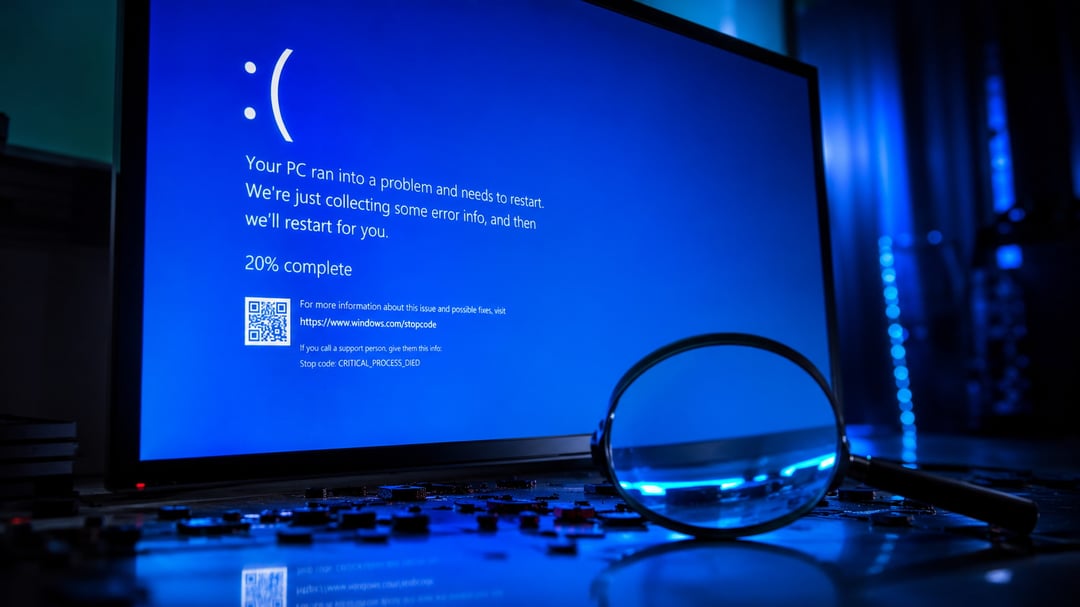
You're in the middle of something — maybe finishing a work file, maybe mid-game — and then it happens. Your screen flashes blue, a cryptic error message appears for about two seconds and then your PC restarts like nothing happened. No explanation. No apology. Just gone.
Here's the thing most people don't know: Windows didn't just crash randomly. It recorded exactly what went wrong. The information is sitting on your computer right now, waiting for you to look at it. You don't need to be a tech expert to find it or understand it. You just need to know where to look.
The Blue Screen Is a Warning, Not a Mystery
When Windows shows you that blue screen — officially called a Blue Screen of Death, or BSoD — it's not malfunctioning. It's actually protecting you. Windows detected something dangerous: a driver behaving badly, a hardware failure, corrupted memory — and it deliberately stopped everything to prevent deeper damage.
At the same moment it crashes, Windows does two things automatically. It displays a stop code (that all-caps phrase like MEMORY_MANAGEMENT or SYSTEM_SERVICE_EXCEPTION) and it writes a crash report file to your hard drive. Both of those are clues. And both are recoverable.
Step 1: Read the Stop Code Before It Disappears
The stop code is the fastest first clue. It tells you the category of failure — think of it like a doctor saying "this looks cardiac" before running more tests.
If the screen vanished too fast to read, Windows may have automatically restarted before you got a chance to see it. You can turn that off so you have time to read it next time it happens:
- Right-click This PC → Properties
- Click Advanced system settings
- Under Startup and Recovery, click Settings
- Uncheck Automatically restart
Now if it crashes again, the blue screen will stay visible until you manually restart.
Once you have the stop code, search it directly on Microsoft's support site. Most stop codes have a dedicated page that explains common causes and recommended fixes.
Step 2: Check Event Viewer for the Crash Log
Event Viewer is a built-in Windows tool that logs system events — including crashes. It's not the prettiest interface but it gets straight to the point.
Here's how to find the relevant entry:
- Press Windows + S and search for Event Viewer
- In the left panel, go to Windows Logs → System
- Look for entries marked Critical or Error with a timestamp that matches when your crash happened
- Click the entry to see details, including the Event ID and Source
The Event ID is particularly useful. A quick search for something like "Event ID 41 Windows crash" will usually surface specific guidance from Microsoft or community forums.
That said, Event Viewer has its limits. It gives you context but it rarely names the exact file or driver responsible. For that, you need the next step.
Step 3: Analyze the Minidump File
Every time Windows crashes, it saves a small file called a minidump to C:\Windows\Minidump. This file contains a detailed snapshot of what was happening in memory at the exact moment of the crash — and it almost always names the specific driver or process that caused it.
Before you check that folder, make sure minidump logging is actually enabled:
- Right-click This PC → Properties → Advanced system settings
- Under Startup and Recovery, click Settings
- Under Write debugging information, select Small memory dump (256 KB)
Now, reading a raw .dmp file isn't exactly user-friendly. That's where WhoCrashed comes in. It's a free tool from Resplendence that reads your minidump files and translates them into plain English.
After scanning, it gives you output like this:
"Driver nvlddmkm.sys caused a Blue Screen crash. This driver is associated with NVIDIA graphics hardware."
That one line tells you exactly where to start. In this case: update or reinstall the NVIDIA driver.
The Most Common Culprits
Once you have your driver name or stop code, here's what it usually points to:
- Outdated GPU or network drivers — the most frequent offender by far
- Faulty RAM — usually flagged by
MEMORY_MANAGEMENTorPAGE_FAULT_IN_NONPAGED_AREA - Failing storage drive — look for
CRITICAL_PROCESS_DIED - Overheating — no single stop code, but thermal warnings show up in Event Viewer
- Conflicting software — antivirus tools and system utilities cause more crashes than most people expect
Step 4: Act on What You Found
If a driver is named, update it through the manufacturer's website rather than Windows Update. For GPU drivers especially, go directly to NVIDIA, AMD, or Intel.
If RAM is suspected, run the built-in Windows Memory Diagnostic: press Windows + S, search for "Windows Memory Diagnostic," and follow the prompts. It'll test your RAM on the next restart.
If your drive might be failing, download CrystalDiskInfo (free). It reads the health data your drive logs internally and flags anything abnormal.
If the minidump points to a Windows system file — like ntoskrnl.exe or win32k.sys — rather than a third-party driver, the problem may be OS corruption or deeper hardware failure. That's when a professional diagnosis is worth considering.
Conclusion
A blue screen isn't random and it's not a death sentence for your PC. Windows tells you exactly what went wrong — you just have to know where to look.
Start with the stop code. Then check Event Viewer. Then run WhoCrashed on your minidump file. In most cases, those three steps will give you a name: a specific driver, a specific piece of hardware, a specific fix. And that's the difference between panicking and actually solving the problem.