
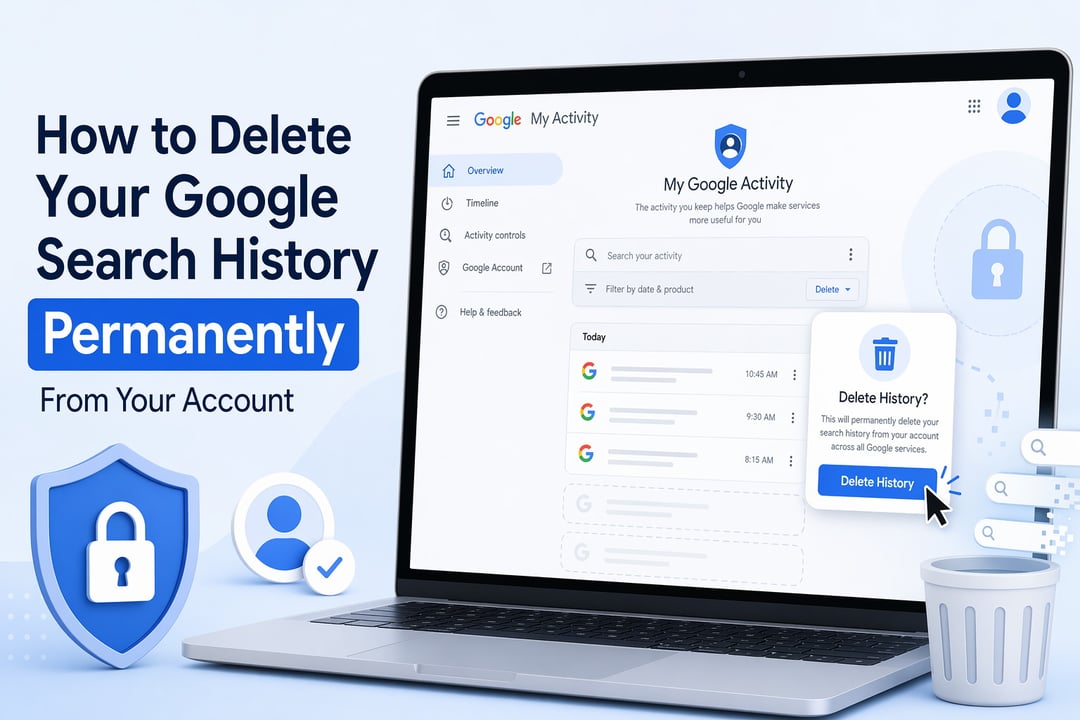
Deleting your Google Search history seems easy, but there are actually two separate histories. One is stored in your browser, and the other is saved in your Google Account.
The one in your Google Account is more important.
If you want to permanently delete your Google Search history from your account, you need to manage what Google saves in your account settings. Just clearing your Chrome history isn’t enough—it only erases the browsing records from that specific browser or device.
What Happens When You Delete Google Search History From Your Account
Your Google Search history connects to a setting called Web & App Activity. Google uses this setting to save searches, app interactions, voice activity, Chrome activity, and related usage signals when the feature is turned on.
You can review this directly through Google My Activity. That page acts like the control room for account-level activity. If you’ve searched while signed into Google, this is where those records may appear.
Deleting this history can affect:
- Personalized search suggestions
- Google Discover recommendations
- Ad personalization
- Recently searched topics
- Cross-device search continuity
That trade-off is worth understanding. You gain more privacy and a cleaner account footprint. You may lose some convenience.
The 6 Google Products and Settings Involved
Before you start, it helps to know the main places that may store or reflect your activity:
- Google Search — the searches you perform while signed in.
- Google Account — the identity layer that connects activity across devices.
- Google My Activity — the dashboard where saved activity appears.
- Web & App Activity — the setting that controls future saving.
- Google Chrome — the browser that may store local history.
- Google Ad Center — the area where personalization settings may reflect activity signals.
Think of it this way: Google My Activity controls the account record. Chrome controls the local device record. You often need to clean both.
How to Delete Your Google Search History Permanently From Your Account
Step 1: Open Google My Activity
Go to Google My Activity and sign in with the correct Google Account. This step sounds obvious. Still, it’s where many people make mistakes.
If you use multiple Gmail addresses, check the profile icon in the top-right corner before deleting anything. You don’t want to clean the wrong account while the real search history stays untouched.
Step 2: Filter Activity by Google Search
Inside My Activity, choose the filtering option. Google usually lets you filter by date and product. Select Search if the product filter appears.
This step gives you precision. Instead of deleting every saved Google interaction, you can focus on search activity only. That matters if you want to keep Maps history, YouTube activity, or other account data intact.
Step 3: Delete Individual Searches or Date Ranges
If you only want to remove sensitive searches, delete them one by one or by date range. This works well when you don’t need a full reset.
For example, maybe you researched medical symptoms, legal questions, financial issues, or personal plans. You can remove those entries without erasing your entire activity history.
Step 4: Delete All Google Search History
For a full cleanup, select the Delete option in My Activity and choose All time. If available, filter the deletion to Search before confirming.
This action removes saved Google Search activity from your account history across the full available period. Google may ask you to confirm because the deletion can’t easily be reversed from your side.
Use this option when your goal is clear: you want to permanently delete Google Search history from your Google Account, not just hide it from your browser.
Step 5: Confirm the History Is Gone
After deleting, refresh My Activity and search the activity list again. If nothing appears under Search for the selected time range, you’ve completed the main account-level cleanup.
Give it a short time to reflect across devices. If you use several phones, tablets, or browsers, check each one later. Sync can make things feel confusing even when the account deletion worked.
How to Stop Google From Saving Future Searches
Deleting old history solves the past. It doesn’t automatically fix the future.
To stop new search activity from being saved, visit Google Activity Controls. Open Web & App Activity and choose whether to turn it off.
Google may also offer a Turn off and delete activity option in some flows. This can help you disable saving and remove existing activity in one process. Follow the on-screen prompts carefully because Google separates deletion from future collection.
Use Auto-Delete for Ongoing Privacy
If you still want personalization without keeping years of data, enable auto-delete. Google commonly offers retention periods such as 3 months, 18 months, or 36 months depending on your account settings.
Auto-delete is a sensible middle ground. It keeps Google useful without letting your search history become a long-term diary.
Clear Chrome History Separately
Now handle the local side.
Chrome can store browsing history on the device even after you delete Google Account activity. To remove it, open Chrome and go to History. Then choose Clear browsing data and select the time range.
Google’s official Chrome guidance is available here: Delete browsing data in Chrome.
If you use Safari, Firefox, Edge, Brave, or another browser, clear history inside each browser as well. Account deletion does not automatically erase every local browser record.
Common Mistakes to Avoid
Deleting Only Browser History
This is the big one. Clearing Chrome history can remove local records. It does not necessarily delete activity saved in your Google Account.
Using the Wrong Google Account
Shared computers and multiple Gmail logins create confusion fast. Always confirm the signed-in account before deleting history.
Forgetting Web & App Activity
If Web & App Activity stays on, Google may continue saving future searches. Delete history first. Then adjust activity controls.
Assuming Incognito Fixes Everything
Incognito mode prevents Chrome from saving local history during that session. It does not erase existing Google Account history. If you sign into Google services during a private session, account-related activity may still connect to your settings.
Extra Privacy Steps After Deleting Google Search History
After you delete your Google Search history permanently from your account, review related privacy areas.
Start with Google Ad Center to manage ad personalization. Then run Google Security Checkup to review signed-in devices, third-party app access, and account protections.
For stronger privacy, search while signed out when appropriate. You can also use separate browser profiles for work, personal research, and sensitive browsing. It’s not glamorous. But it works.