
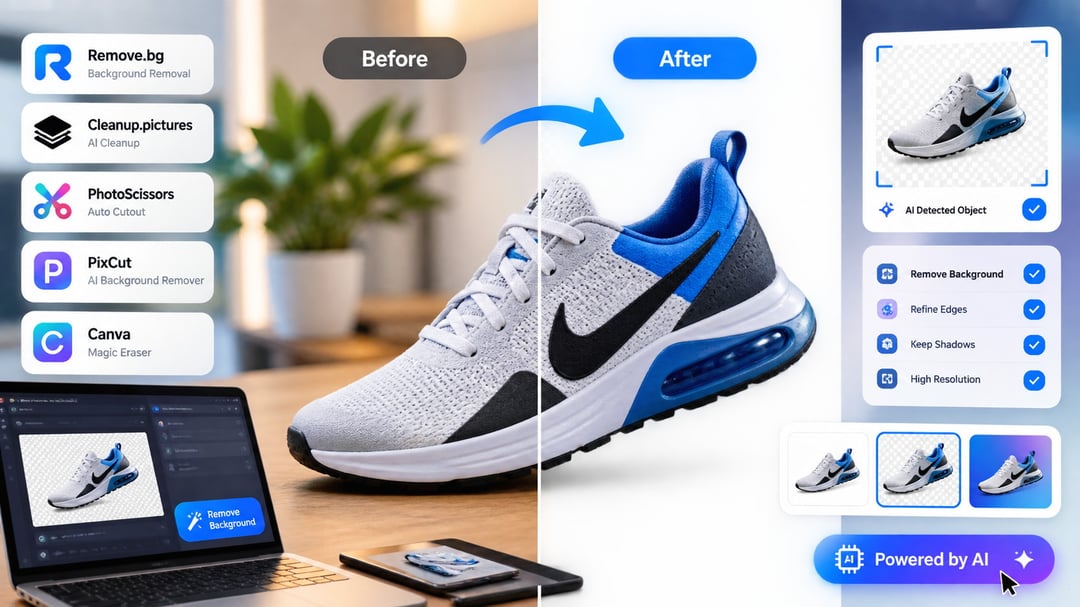
You upload a product shot, click remove background, and get back a cutout with chewed edges around the hair, a grey halo where the shadow used to be, and a 600-pixel preview that costs money to download at full size. Most of the best free AI background removers are free in the sense that the preview is free, and the quality gap between them is wider than the marketing suggests.
Some handle fine detail and semi-transparent areas well. Others flatten everything into a hard mask that only works on solid-colored subjects. Resolution caps, watermarks, daily quotas and missing alpha channels all decide whether a tool fits real work or just a demo.
By the end you will know which six tools hold up, where each one breaks, and how to get cleaner cutouts from any of them.
What separates a good free background remover from a bad one
Four things decide whether a cutout is usable. The first is edge handling on hair and fur, where weak models produce a hard silhouette with stray pixels of the old background baked into the strands. The second is semi-transparent material: wine glasses, tulle, smoke, and motion blur on a moving limb. Cheap segmentation treats these as either fully opaque or fully gone. The third is contrast between subject and background, since a dark jacket against a dark studio wall is where most tools start guessing. The fourth is behavior with multiple subjects, because some models lock onto one person and quietly erase the rest of the group.
Export resolution is the trap. A tool can segment at full quality, show you a crisp preview, then hand back a downscaled file. That mismatch is the most common reason a free cutout falls apart in print or on a product page.
Before committing, check four things:
- transparent PNG output, not just a white background
- batch processing for more than one image
- watermarking on the free tier
- whether free use is credit-based or unlimited
Privacy matters too. Most browser tools upload your image to a server; a few run the model locally in the browser instead.
Internal link suggestion: point to an existing photo editing or image tool roundup on informertech.com.
Six free AI background removers worth using
remove.bg
The reference point for one-click cutouts, with a documented API for scripted batches. Hair and fur edges hold up well. Free web downloads are size-limited; full resolution needs paid credits. Confirm the current cap before you build a workflow on it.
Adobe Express
Removal is one step inside a broader design editor. Best when the cutout feeds a thumbnail or ad layout rather than being the deliverable. Some assets and export options sit behind a paid plan.
Canva
Same logic, stronger layout and templating. Check whether background removal is included on your account tier, since availability and watermarking vary by plan.
Photoroom
Built around product photography, with batch handling for catalog work. Clean subjects on plain backgrounds come out reliably. Free exports may carry resolution limits or branding, so verify before bulk processing.
Pixlr
A full browser editor where removal sits next to layers, masks and retouching. Useful when the cutout needs colour work afterwards. AI features
How the tools compare on quality, limits and output
The split is consistent once you test the same difficult image, something with hair, mesh fabric or a chair back, across all six. Dedicated removers hold the mask tighter at those edges because segmentation is the whole product. Design suites give up a little accuracy on fine detail and hand you type, resizing, shadows and export presets in the same window, which is often the better trade if the cutout is one step in a larger composition.
Treat the table as a snapshot. Free tiers get restructured quietly: an export ceiling drops, a watermark appears on a format that was clean last quarter, batch moves behind a paid plan. Verify the limits that matter to you on the vendor's own pricing page before you build a repeatable workflow on top of any of them.
Choosing the right tool for your workflow
One image for a social post? Any browser tool will do, and the free resolution cap is irrelevant because the platform will compress it anyway. Dozens of product cutouts for a catalog is a different problem: you want batch upload or an API, consistent edge behavior across shots, and ideally a local install so you are not feeding a queue one file at a time. Print assets are where free tiers usually break down. If you need the cutout at full resolution for a poster or packaging, either buy a credit or run the model locally, because upscaling a downsampled mask reintroduces the halo you just spent time removing.
Portraits with flyaway hair deserve a test before you commit. Run the same headshot through two or three tools and compare at 200 percent zoom around the temples.
Client work, ID photos and unreleased hardware shots should not go to a service whose terms you have not read. Local processing removes the question entirely.
Mixing tools is normal practice, not a failure. Rough removal in a fast web tool, then manual mask cleanup in an editor with a proper brush, often beats hunting for one tool that does both well.
Getting better results from any AI background remover
Most bad cutouts start at capture. Even, diffuse lighting keeps the subject's outline from dissolving into shadow, and a backdrop that contrasts with the subject gives the model something to segment against. A brown jacket against a brown wall will lose an arm; a white product on a white sweep will lose its edges. Shoot slightly wider than you need, too, since cropping tight leaves no margin for cleanup when the mask nicks a shoulder.
When the mask does fail, the fixes are predictable. Halos, that pale fringe of old background clinging to the edge, usually clear with a one or two pixel contract or defringe. Chewed hair needs a refine or brush step rather than a different tool: most people cycle through three removers and get three variations of the same mistake. Dropped limbs and props, where the model decided a held item was not part of you, are faster to paint back manually than to re-prompt.
Save one transparent PNG as your master and export sized, compressed copies from it. Re-running removal per size gives you slightly different masks each time. Our guide to image compression and export formats covers the tradeoffs.
Buying considerations
Free tiers differ most in what they hand back, so check the output before you check the interface. Some tools cut well but only release a downscaled or watermarked file unless you pay, which makes them fine for mockups and useless for print or product photography. Confirm the free export resolution and whether you get a real alpha channel PNG rather than a white background baked in.
The second decision is privacy and volume. Browser-based tools that process locally suit sensitive client work, while server-side tools tend to handle hair and semi-transparent edges better. Pick based on which constraint you can't bend.
Start by taking your hardest image, something with flyaway hair or a glass edge, and running it through two or three of the tools above. Compare the cutouts at full zoom against a dark background. That test settles it faster than any feature list.