
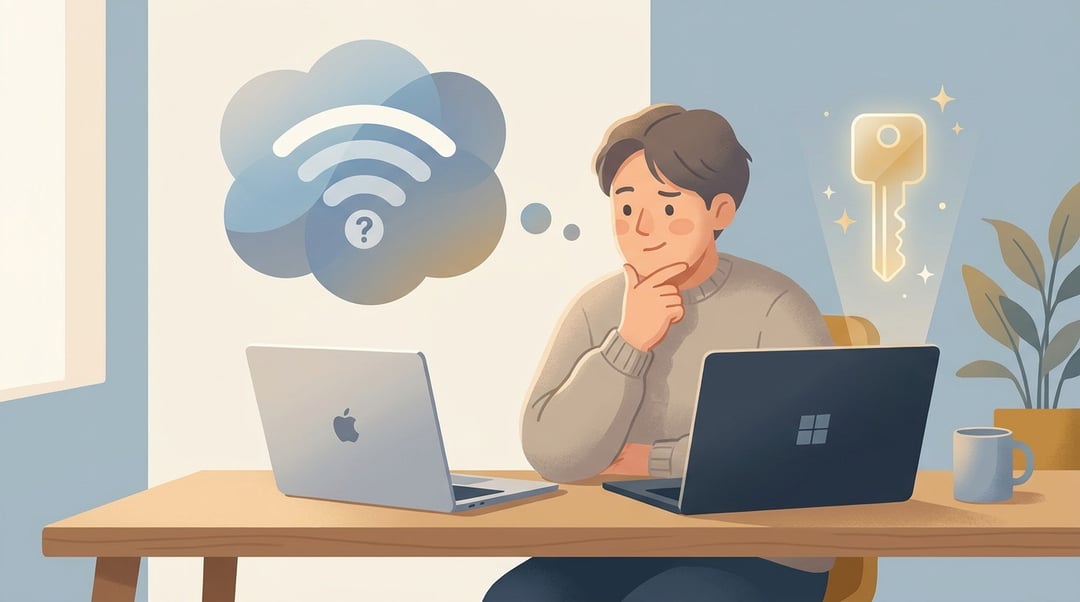
You know that small panic when a guest asks for the Wi-Fi password and everyone looks at the router like it’s an ancient artifact? It happens all the time. The sticker is faded. The password was changed two years ago. Someone saved it in a note called “internet thing” and that note has vanished into the digital swamp.
The good news is simple: if your Mac or Windows computer has connected to that Wi-Fi network before, the password may still be saved on the device. You just need to know where to look.
This guide walks you through how to find a forgotten Wi-Fi password on Mac and Windows safely, quickly, and without resetting your router unless you truly have to.
Before You Try to Find Your Wi-Fi Password
Before digging through settings, check one important thing: the computer must have connected to that network before. Your Mac or Windows PC can’t magically reveal the password for a nearby network it never joined.
You may also need administrator access. macOS often asks for your Mac login password, Touch ID, or admin approval before showing saved passwords. Windows may require similar permission, especially on shared, work, or school-managed devices.
And yes, the obvious but necessary note: only recover Wi-Fi passwords for networks you’re allowed to use. This is password recovery, not a shortcut into someone else’s internet.
How to Find Your Wi-Fi Password on Mac
Macs store saved Wi-Fi credentials securely, usually through macOS Wi-Fi settings or Keychain Access. The best method depends on your macOS version.
Find a Saved Wi-Fi Password in macOS System Settings
On newer versions of macOS, Apple makes saved Wi-Fi passwords easier to access through System Settings.
Follow these steps:
- Click the Apple menu in the top-left corner.
- Open System Settings.
- Select Wi-Fi.
- Find your current network or open the list of known networks.
- Click the Details button or information icon next to the network.
- Look for an option to show, copy, or manage the password.
- Authenticate with your Mac password, Touch ID, or administrator credentials.
- Copy the password and use it where needed.
This method works well if your Mac is already connected to the Wi-Fi network. It’s also the least intimidating route because you don’t have to browse through system keychains or security entries.
Apple’s macOS documentation is a useful reference if your settings layout looks different: https://support.apple.com/guide/mac-help/welcome/mac
Find Your Wi-Fi Password Using Keychain Access on Mac
If System Settings doesn’t show the password, Keychain Access is the classic fallback. Think of Keychain Access as your Mac’s locked cabinet for saved credentials.
Here’s how to use it:
- Open Finder.
- Go to Applications.
- Open Utilities.
- Launch Keychain Access.
- Search for your Wi-Fi network name.
- Double-click the matching network entry.
- Check the box beside Show password.
- Enter your Mac login password or administrator credentials.
- Copy the revealed Wi-Fi password.
On older Macs, Wi-Fi passwords may appear as AirPort network password entries. If you see several similar results, choose the one that exactly matches your network name.
Apple provides more detail on Keychain Access here: https://support.apple.com/guide/keychain-access/welcome/mac
If the Wi-Fi Password Does Not Appear on Mac
If nothing shows up, don’t assume the password is gone forever. The Mac may never have saved that network, or the profile may have been removed. Also, if someone changed the Wi-Fi password recently, your Mac may have an outdated version.
Try another Apple device signed into the same Apple ID. iCloud Keychain may have synced the saved password across devices. If that fails, check the router label or ask the person who manages the network.
How to Find Your Wi-Fi Password on Windows
Windows gives you two useful paths. One works best for the Wi-Fi network you’re using right now. The other helps find passwords for networks saved in the past.
Find the Current Wi-Fi Password in Windows Settings
If your Windows PC is currently connected to the network, this is the friendliest method.
On Windows 11:
- Open Settings.
- Select Network & internet.
- Choose Advanced network settings.
- Open More network adapter options if needed.
- Right-click your active Wi-Fi adapter.
- Select Status.
- Click Wireless Properties.
- Open the Security tab.
- Check Show characters.
- Read the password in the Network security key field.
On Windows 10, the path often starts in Control Panel. Go to Network and Sharing Center, select your active Wi-Fi network, choose Wireless Properties, then open the Security tab and check Show characters.
Microsoft’s Windows support hub can help if your interface looks different: https://support.microsoft.com/windows
Find Saved Wi-Fi Passwords on Windows Using Command Prompt
This method looks more technical, but it’s surprisingly direct. It’s especially useful when you need the password for a network your PC joined before.
Follow these steps:
- Open the Start menu.
- Search for Command Prompt.
- Choose Run as administrator if available.
- Type this command:
netsh wlan show profiles
- Find the Wi-Fi network name in the list.
- Type this command, replacing the sample name:
netsh wlan show profile name="Wi-Fi Network Name" key=clear
- Look under Security settings.
- Find the password beside Key Content.
Quotation marks matter if the network name contains spaces. So if your network is called Smith Family WiFi, keep the name inside quotes.
Microsoft documents the netsh command-line tool here: https://learn.microsoft.com/windows-server/administration/windows-commands/netsh
If Windows Does Not Show the Wi-Fi Password
If Key Content does not appear, Windows may not have permission to show it. The device may also be managed by a workplace or school policy. Try running Command Prompt as administrator and check that you typed the network name exactly.
If that still fails, use the router method below.
How to Find the Wi-Fi Password from Your Router
Sometimes the simplest answer is sitting on the router itself. Many routers have a printed label with the default Wi-Fi name and password. Look for phrases like Wi-Fi Password, Wireless Key, WPA Key, or Network Key.
That label only helps if nobody changed the password. If the password was changed, log in to your router admin page instead.
Common router addresses include:
192.168.0.1192.168.1.110.0.0.1
Open one in a browser while connected to the router. Then sign in with the router admin credentials and look for wireless settings. Be careful here. The router admin password is not always the same as the Wi-Fi password.
If you change the Wi-Fi password, connected devices will disconnect. You’ll need to reconnect phones, laptops, TVs, cameras, printers, and smart home gadgets with the new password.
For home network security guidance, CISA offers a helpful resource: https://www.cisa.gov/resources-tools/resources/securing-wireless-networks
How to Keep Your Wi-Fi Password Safe Next Time
Once you recover the password, don’t leave future-you to suffer through the same little drama.
Store the Wi-Fi name and password in a reputable password manager. If your household shares access, use the manager’s secure sharing feature instead of texting the password around forever.
You may also want to create a guest network. It keeps visitors off your main network and makes password changes less painful. If the guest password gets shared too widely, you can update it without reconnecting every personal device in your home.
For security, use a long passphrase instead of something short and guessable. A password like BlueRiverCoffeeMug72! is easier to remember than random mush and much stronger than password123.
Quick Recap: Finding a Forgotten Wi-Fi Password
If you forgot your Wi-Fi password, start with the device already connected to the network.
- On Mac, check System Settings > Wi-Fi first.
- On older Macs, use Keychain Access.
- On Windows, use Wireless Properties for the current network.
- For older saved Windows networks, use Command Prompt with
netsh. - If computer methods fail, check the router label or router admin page.
- After you find it, save it somewhere secure.
Forgotten Wi-Fi passwords feel annoying in the moment. But usually, they’re not gone. They’re just tucked away behind a few clicks.