
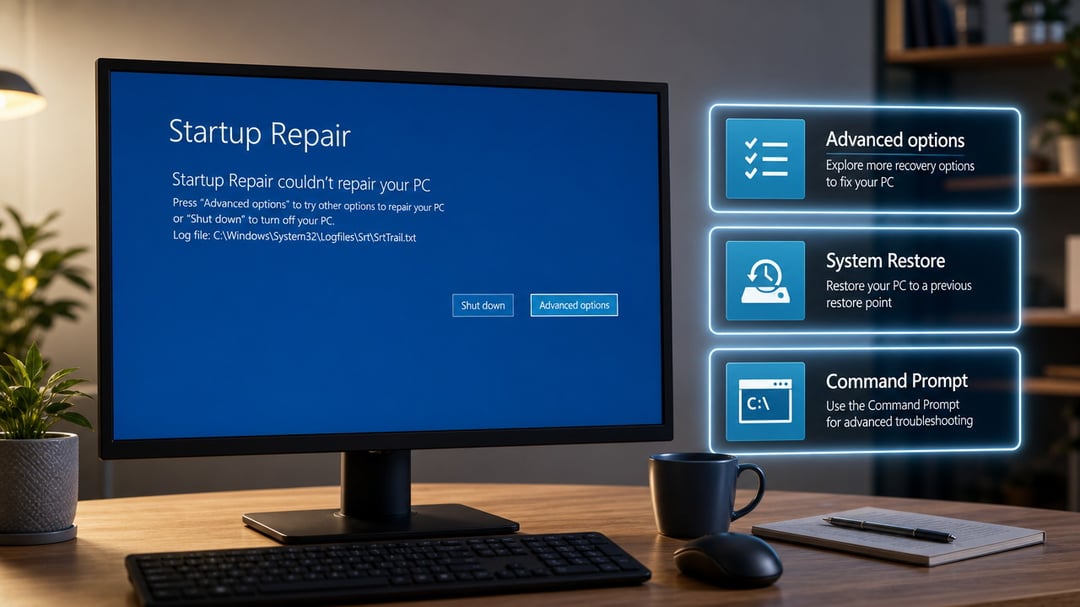
You turn on your computer and Windows tries to fix itself. Then the screen stops on a message that says Startup Repair could not repair your PC. Sometimes it also points to a log file called SrtTrail.txt. The automatic tool has done what it can and failed. That does not mean the computer is finished. Most people can get it running again with a few manual steps.
This guide walks through the practical next moves for Windows 10 and Windows 11. The steps stay in the recovery environment so you do not need a working desktop to begin.
Why the Repair Tool Stops Short
Startup Repair looks for missing system files, a damaged boot configuration, or a broken master boot record. When those problems run deeper—or when a recent update, a bad driver, or disk errors sit behind them—the tool simply reports it cannot finish the job. Hardware trouble such as a failing drive can also trigger the same message. Knowing the common causes helps you choose the right fix instead of repeating the same automatic scan.
Quick Checks Before You Dig Deeper
Unplug every USB drive, external hard disk, printer, and docking station. Restart the PC. A single incompatible device sometimes blocks the boot process and the repair tool cannot see past it.
If the computer keeps looping into the same error screen, force it into the recovery environment. Hold the power button until the machine shuts off. Turn it back on and interrupt the boot two or three times by holding the power button again as soon as the logo appears. After a few failed starts Windows should load the blue recovery menu on its own.
From that menu choose Advanced options. Everything you need lives under Troubleshoot and Advanced options.
Boot into Safe Mode and Undo Recent Changes
Safe Mode starts Windows with only the basic drivers. Many startup problems disappear once extra software is out of the way.
On the recovery screen go to Troubleshoot → Advanced options → Startup Settings → Restart. After the reboot press 4 for ordinary Safe Mode or 5 for Safe Mode with Networking. Once you reach the desktop, open Settings and uninstall the most recent quality or feature update if the trouble began right after an update. You can also open System Restore and return the computer to a point before the error appeared. Restart normally and test.
Repair the Boot Files from Command Prompt
Still stuck? Open Command Prompt from the same Advanced options menu. You may need to sign in with a local account or enter a BitLocker recovery key.
Type these commands one at a time and press Enter after each:
bootrec /fixmbr
bootrec /fixboot
bootrec /rebuildbcd
The first two rewrite the master boot record and the boot sector. The third rebuilds the Boot Configuration Data store that tells Windows where to find itself. On most systems that sequence restores a normal start. If your drive uses the newer GPT layout and the commands report “Access is denied,” identify the correct EFI partition letter with diskpart and then run the bcdboot command that points Windows back to the right location.
Next check the disk itself:
chkdsk C: /f /r
Replace C: with the actual Windows drive letter if it is different in the recovery environment. The scan can take a while. Let it finish.
Fix Corrupted System Files
When the boot records look healthy but Windows still will not load, the system files themselves may be damaged. From the same Command Prompt run:
sfc /scannow /offbootdir=C:\ /offwindir=C:\Windows
Adjust the drive letters if needed. If you have Windows installation media plugged in, you can also run DISM with a source path to repair the component store before SFC runs. Restart and try a normal boot after both tools complete.
Extra Steps When the Usual Fixes Fail
From Startup Settings you can temporarily disable Early Launch Anti-Malware protection (option 8). Some security software interferes with the boot process and this switch lets Windows start so you can remove the conflicting program.
You can also turn off the automatic repair loop itself. In Command Prompt type:
bcdedit /set {default} recoveryenabled No
That stops the computer from dropping into the failed repair screen on every restart.
If those moves still leave the machine unbootable, use Reset This PC and choose the option that keeps your personal files. The process reinstalls Windows while leaving documents, photos, and most user data in place.
When Software Fixes Are Not Enough
Listen for clicking or grinding from the hard drive. Those sounds often mean the disk is failing. In that case stop trying software repairs. Remove the drive, connect it to another computer with an adapter, and copy the important files before the drive dies completely. A clean install on a new drive is then the practical path.
For most people the sequence above—Safe Mode, bootrec commands, disk check, and system-file repair—gets the computer working again without data loss. Start with the simplest checks and move down the list only as needed. Keep a recent System Restore point or a full backup once the machine is healthy so the next problem is easier to reverse.