
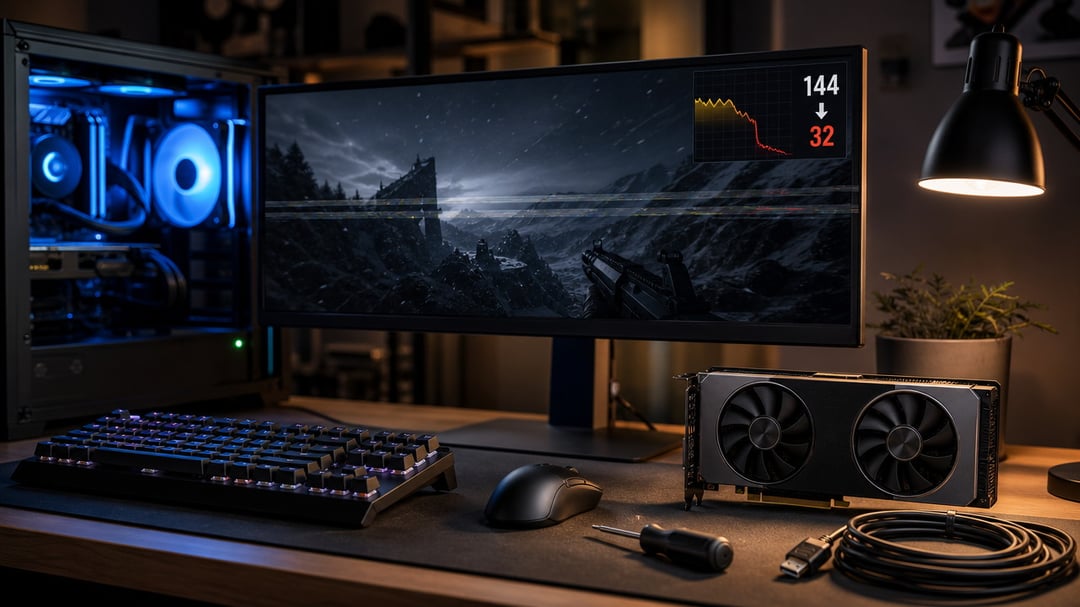
Game stuttering turns smooth gameplay into a slideshow. One moment you're tracking a target, the next you're watching frozen frames catch up while the action moves on without you. If you know how to fix game stuttering on PC, you can get back to playing instead of troubleshooting.
Most stuttering comes from a few common causes: outdated drivers, shader compilation during gameplay, thermal throttling, resource conflicts, or storage bottlenecks. The fixes below target each of these directly. Work through them in order and you'll identify what's causing the interruptions, then eliminate them without reinstalling Windows or replacing hardware.
Update your graphics driver
Outdated or corrupted GPU drivers are the most common cause of game stuttering. Graphics drivers translate game instructions into commands your GPU understands, and when that translation layer is broken or inefficient, frame pacing suffers.
Update through your GPU manufacturer's software: GeForce Experience for Nvidia cards, AMD Software for Radeon GPUs, or Intel Arc Control for Intel discrete graphics. These tools detect your hardware and install the correct driver automatically.
If standard updates don't resolve the stuttering, use Display Driver Uninstaller (DDU) to remove all traces of the old driver before installing a fresh one. Boot into Safe Mode, run DDU, then install the latest driver from a clean state.
Keep in mind that brand-new drivers occasionally introduce instability. If stuttering starts immediately after an update, roll back to the previous version through Device Manager or your GPU control panel.
Let shaders compile before playing
DirectX 12 and Vulkan games compile shaders at runtime instead of precompiling them during installation. When you launch the game for the first time, it builds these shaders on demand, causing stutters whenever the game encounters a new effect, material, or lighting scenario.
Let the game sit at the main menu for a few minutes or walk slowly through the opening area on your first session. This forces the engine to compile and cache shaders before you reach demanding sequences.
Steam, EA App, and some other launchers now offer background shader pre-compilation. Enable this in launcher settings if available.
This is a one-time issue per install or graphics driver update. Once shaders are cached, they load instantly on subsequent sessions.
Check GPU and CPU temperatures
Thermal throttling causes sudden frame drops that feel like stuttering. When your GPU or CPU gets too hot, it reduces clock speeds to protect itself, cutting performance instantly.
Use HWInfo64 or MSI Afterburner to monitor temperatures while you play. Run them on a second screen or check the logs after a session. GPUs should stay under 85°C under load, and CPUs under 90°C. If you're hitting those limits, your hardware is throttling.
Clean dust from intake fans and heatsinks with compressed air. If temperatures stay high, reapply thermal paste to the CPU and GPU. Improving case airflow with additional fans or better fan placement drops temps by 5–10°C in most builds.
Disable in-game and third-party overlays
Overlays from Discord, GeForce Experience, Xbox Game Bar, and Steam inject code into your game process, which can cause frame time spikes when they render notifications or capture frames. Discord's overlay sometimes conflicts with DirectX 12 games. GeForce Experience's performance monitoring adds CPU overhead during intensive scenes.
Disable Discord's overlay in User Settings > Activity Settings > Disable in-game overlay. Turn off GeForce Experience overlays in Settings > General > In-Game Overlay toggle. Disable Xbox Game Bar in Windows Settings > Gaming > Xbox Game Bar. For Steam, open Settings > In-Game and uncheck "Enable the Steam Overlay."
Recording or streaming software like OBS and Medal can produce the same effect, especially when capturing at high resolutions. Disable all overlays first to isolate whether one is causing stuttering.
Close background applications and browser tabs
Chrome with twenty tabs open can consume 2-4 GB of RAM and trigger background CPU spikes when tabs auto-refresh or run scripts. Discord's overlay, Spotify, and cloud sync clients like OneDrive all compete for processor time during gameplay, causing brief frame drops when they pull resources.
Open Task Manager before launching your game and sort by CPU and Memory to identify which processes consume the most. Close browsers entirely, quit chat apps you're not using, and pause cloud backup services. Windows Update and antivirus scans frequently start mid-session and cause sudden stutters. Delay Windows Update during your active hours in Settings, and schedule antivirus scans for times when you're not gaming.
Windows Game Mode prioritizes your game's CPU and GPU access. Enable it in Settings > Gaming > Game Mode, though results vary depending on your hardware.
Increase virtual memory (page file)
When your system runs out of RAM, Windows uses disk storage as overflow, a process called paging. Because even fast SSDs are slower than RAM, excessive paging causes stutters as the game waits for data to load from disk.
You can manually configure the page file to handle high memory loads more predictably. Open System Properties, click the Advanced tab, then Performance Settings. Under the Advanced tab in that window, click Change under Virtual Memory. Uncheck "Automatically manage paging file size," select your primary drive, choose Custom size, and set the initial size to 1.5 times your installed RAM (in MB) and the maximum to 3 times your RAM. For 16 GB of RAM, that's 24,576 MB initial and 49,152 MB maximum.
This reduces stutter when RAM usage spikes, but adding physical RAM is the real fix if you consistently hit capacity.
Move the game to an SSD
Open-world games like Red Dead Redemption 2 and Elden Ring stream textures, models, and terrain data from disk as you move through the world. Hard drives have mechanical read heads that must physically seek to different locations on the platter, causing delays measured in milliseconds. Those delays appear as stutters when the game needs an asset that hasn't loaded yet.
An SSD eliminates mechanical seek time, reading data from flash memory instead. The result is smoother asset streaming and fewer hitches during gameplay.
NVMe drives are faster than SATA SSDs, but SATA is usually enough to fix stuttering caused by disk access. You don't need to move your entire Steam library—just the games where you notice the problem.
Conclusion
Start with your graphics driver and thermals. An outdated driver causes frame pacing issues that feel like stuttering even when your frame rate looks fine, and thermal throttling produces identical symptoms. Update the driver first, then monitor your temperatures during gameplay. If either GPU or CPU exceeds 85°C, improve airflow or reapply thermal paste.
After that, target shader compilation and overlays. Let shaders finish compiling before you start playing, especially in new games or after driver updates. Disable Discord, GeForce Experience, and Steam overlays one by one to isolate which one is causing the stutter.
The remaining fixes—background apps, virtual memory, SSD migration—solve specific bottlenecks. If stuttering persists after you address drivers, thermals, and overlays, work through those in order. Most stuttering comes down to the first three.