
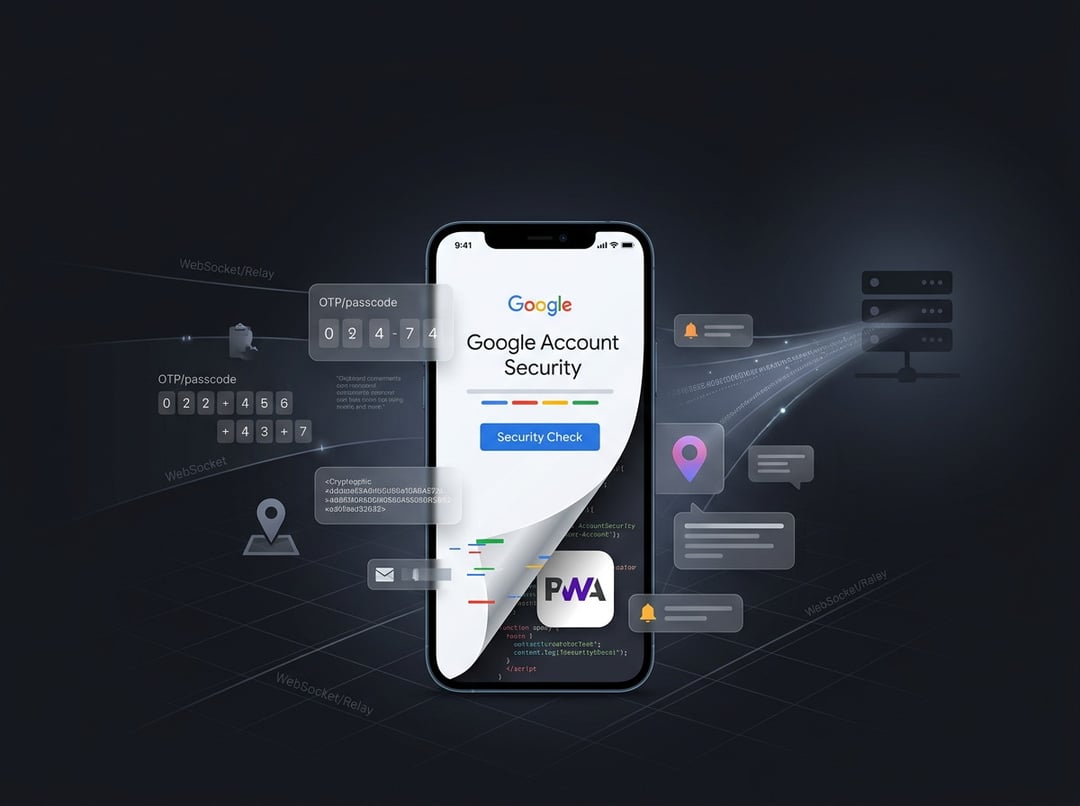
What this phishing campaign is doing (in plain terms)
Threat actors are using a fake Google Account security flow to push Android users into installing a malicious Progressive Web App (PWA). The lure starts with a phishing message that sends victims to a fraudulent domain: google-prism[dot]com.
From there, the page frames everything as a “security” upgrade. The victim is guided through a four-step “security check” that ends with installing the PWA—because, in the attacker’s story, that’s the “enhanced security” step.
And that’s the trick. It’s not a traditional Android app install at first. It’s a website that behaves like an app.
Why attackers are using Progressive Web Apps (PWAs) instead of regular apps
How PWAs work on Android (and why they’re easy to trust)
PWAs are websites that can be installed and run like apps, but they still operate through the web browser. That “app-like” look and feel can lower suspicion—especially when the page is dressed up like a Google security experience.
The permissions the malicious PWA asks for
Once installed, the PWA requests access to common browser/device capabilities, including:
- Notification permissions
- Clipboard access
- Other browser features used for background behavior and data handling
Service workers: the behind-the-scenes engine
The PWA sets up a service worker, which enables:
- Push notifications
- Background tasks
- Data staging (collecting and holding data for exfiltration)
That service-worker piece matters because it helps the attacker keep the victim engaged (and the app active) long enough to collect valuable data.
What data the malicious PWA can steal while it’s open
The specific information being collected
When the PWA is open, it collects a wide range of data, including:
- Clipboard contents
- Cryptocurrency wallet addresses
- One-time passwords (OTPs) via the WebOTP API
- Contacts
- GPS data
- Device fingerprinting details
There’s a key limitation: the campaign can only gather this information while the PWA is open.
Why push notifications are part of the attack
Because the harvesting works only when the PWA is active, the attackers use push notifications to nudge victims back into opening the PWA—basically keeping the “collection window” alive.
The network-level capabilities: relays, proxies, and internal scanning
Beyond data theft, the PWA may set up a WebSocket-based relay and HTTP proxy capability. According to the described behavior, this could allow attackers to:
- Route web requests through the victim’s device
- Scan internal networks
- Access local resources
That’s a big escalation from “just” credential theft—it turns the victim’s device into a potential bridge into other systems and networks.
The “companion app” escalation: deeper Android compromise
How the campaign pushes victims beyond the PWA
In some cases, victims are encouraged to download a separate “companion app” described as a “critical security update.” This is presented as part of the same security narrative.
What the companion app can do (and why it’s worse)
This companion app requests extensive permissions and registers as a device administrator, enabling deeper compromise such as:
- SMS interception
- Keystroke capture via a custom keyboard
- Notification monitoring
- Credential theft
- Long-term persistence
In other words: the PWA can harvest a lot, but the companion app is where the attacker goes for more durable control.
How to remove the malicious “Security Check” PWA and related companion app indicators
If you installed something tied to this “security check” flow, the cleanup steps described include:
Step 1: Check installed apps for “Security Check”
Look for a “Security Check” entry in your installed apps list and remove it.
Step 2: Look for “System Service” with a specific package name
If you see an app called “System Service” with package name com.device.sync and it has admin access, remove that admin permission first.
Step 3: Revoke device admin access, then uninstall
Go to:
- Settings → Security → Device admin apps
- Remove admin access for the suspicious app
- Then uninstall it
This order is important because device administrator privileges can prevent you from removing it normally.