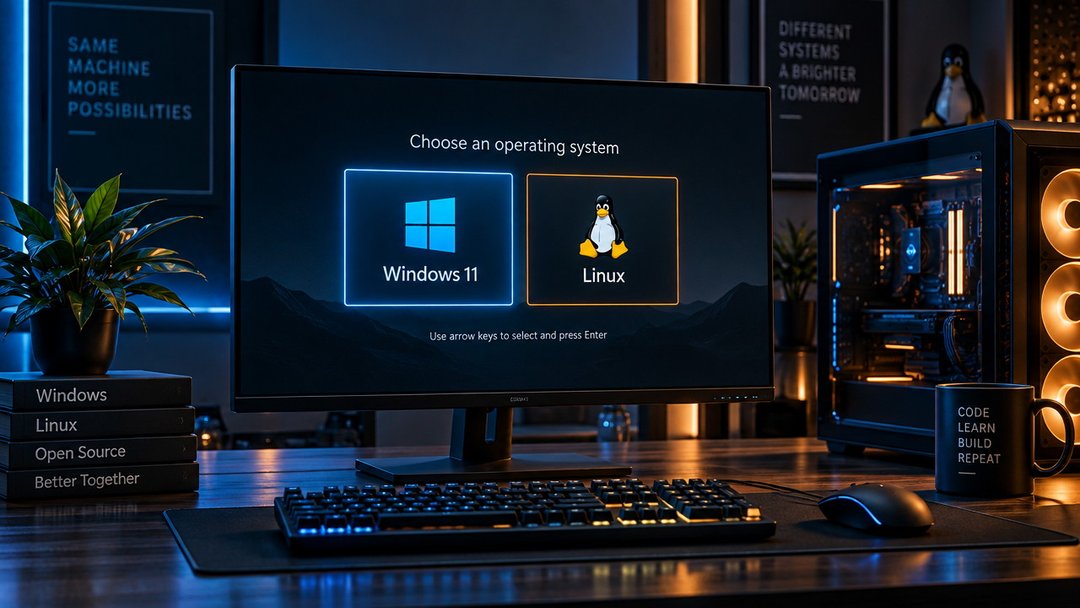
Running out of space on Windows for your development environment? Tired of virtual machines eating half your RAM? Learning to dual boot Windows 11 and Linux gives you both operating systems on one machine, each running at full speed on bare metal.
Dual booting means you choose which OS to load at startup. Windows stays exactly as it is. Linux gets its own partition. You can boot into either one, and both systems keep their files, settings, and software completely separate.
This guide walks you through the full process: resizing your Windows partition without breaking anything, picking a Linux distribution that fits your workflow, handling Secure Boot and BitLocker, installing GRUB as your bootloader, and setting up a dual boot configuration you can undo cleanly if you change your mind later.
What dual booting is and why you'd want it
Dual booting means installing two operating systems on the same computer and choosing which one to load each time you power on. The bootloader, a small program that runs before your OS starts, shows you a menu where you pick Windows or Linux.
The setup appeals to developers who need to test code on both platforms without switching machines or dealing with virtual machine overhead. It also lets you try Linux while keeping Windows intact for software that won't run anywhere else—Adobe Creative Suite, certain games with anti-cheat systems, or work applications locked to Windows.
You're splitting your drive capacity between two systems, though, and each OS can only use its own partition. Updates occasionally break the bootloader, which means you'll need to repair it from a live USB. Windows updates are the usual culprit. Both problems are fixable, but they require more attention than running a single OS.
Check your hardware and backup before you start
You need at least 256GB of total storage to run both operating systems comfortably—128GB per OS is the practical minimum, though Windows alone uses close to 30GB after installation and Linux distributions range from 10GB to 25GB depending on the desktop environment. 8GB of RAM will work, but 16GB makes switching between systems smoother. Your PC must use UEFI firmware rather than legacy BIOS; any machine sold after 2012 likely does, but verify in your firmware settings before starting.
Back up your entire Windows installation before you touch the partition table. A failed resize or an accidental format during Linux installation can destroy everything. Use Windows Backup, Macrium Reflect, or copy essential files to an external drive.
Check whether BitLocker is encrypting your Windows drive. Open PowerShell and run manage-bde -status. If it's on, either decrypt the drive completely or save your 48-digit recovery key—you'll need it if the bootloader change triggers a recovery prompt. Finally, note whether Secure Boot is enabled in your UEFI settings. Most Linux distributions now support it, but you may need to disable it temporarily during installation.
Shrink your Windows partition to make room
Open Disk Management by pressing Win + X and selecting it from the menu. Right-click your C: drive and choose "Shrink Volume." Windows will scan for available space, then let you enter how much to shrink in megabytes.
For casual Linux use—web browsing, document editing, light scripting—50GB to 100GB is enough. If you're planning to install development tools, Docker, or multiple desktop environments, start at 150GB or more.
If the shrink operation fails or offers far less space than you expected, fragmented files or system files positioned near the end of the partition are blocking it. Run the built-in defragmenter (search "Defragment and Optimize Drives"), restart, and try again. Disabling hibernation (powercfg /h off in an admin command prompt) and clearing the page file temporarily can also free up locked space.
Leave the freed space unallocated. The Linux installer will detect it and handle partitioning during installation.
Choose your Linux distribution and create a bootable USB
Ubuntu 24.04 LTS is the safest choice for your first dual boot. It has the largest support community, works reliably with Windows 11's UEFI and Secure Boot, and gets five years of updates. Linux Mint offers a more Windows-like interface if you want less adjustment, and Fedora stays closer to bleeding-edge software while remaining stable enough for daily use. All three handle dual boot without manual bootloader configuration.
Download the ISO from the distribution's official site. Ubuntu and Mint publish SHA256 checksums on their download pages; verify the file matches before writing it to USB. A corrupted ISO will fail midway through installation or produce a system that crashes unpredictably.
Use Rufus on Windows or balenaEtcher on either platform to write the ISO to an 8GB or larger USB drive. In Rufus, set the partition scheme to GPT and the target system to UEFI. Leave the other options at their defaults. The write process erases everything on the drive.
Configure BIOS settings for dual boot
Restart your PC and press the manufacturer-specific key during the boot screen to enter BIOS—usually Del, F2, F10, or F12. Dell and HP typically use F2, Lenovo uses F1 or F2, and ASUS uses Del. If you miss the window, restart and try again.
Before entering BIOS, disable Fast Startup in Windows. Go to Control Panel > Power Options > Choose what the power buttons do, click "Change settings that are currently unavailable," and uncheck "Turn on fast startup." This prevents Windows from locking the boot process.
In BIOS, locate Fast Boot (often under Boot settings) and disable it. This allows the boot menu to appear long enough to select your OS.
For Secure Boot, you have two options. Disable it entirely for universal compatibility with all distros. Or leave it enabled if you're installing Ubuntu 22.04+, Fedora, or another distro with signed bootloaders. Most beginners should disable it.
Set your USB drive as the first boot device under Boot Priority, save changes, and exit.
Install Linux alongside Windows 11
Partitioning during installation
Boot from the USB and select "Install alongside Windows" if your installer offers it. This option automatically splits your free space. For full control, choose manual partitioning instead.
Create a root partition (ext4, minimum 40GB) for the system and a swap partition equal to your RAM or 8GB, whichever is larger. If you store large files or want to preserve your home directory across reinstalls, add a separate /home partition using the remaining space. Leave the existing EFI partition untouched.
Install the bootloader
When prompted for bootloader location, select the EFI system partition Windows already uses, typically /dev/sda1 or /dev/nvme0n1p1. Installing GRUB to the Linux root partition instead will break the boot process. The installer places GRUB in /boot/efi, where it detects both operating systems and builds a boot menu. Complete the installation and remove the USB when prompted to reboot.
Set up and customize the GRUB bootloader
On first boot after installing Linux, the GRUB bootloader menu should appear with entries for both operating systems. If Windows boots directly and you never see GRUB, restart and select your Linux distribution from the BIOS boot menu. Once in Linux, open a terminal and run sudo update-grub to detect Windows, then sudo grub-install /dev/sda (replace /dev/sda with your actual drive) to reinstall the bootloader.
To change which OS boots by default, edit /etc/default/grub with sudo nano /etc/default/grub. The GRUB_DEFAULT line controls the default selection. GRUB_DEFAULT=0 boots the first menu entry (usually Linux), while GRUB_DEFAULT=2 typically boots Windows. Count from zero and check your menu to confirm the position. GRUB_TIMEOUT=5 sets how many seconds GRUB waits before booting the default. After changes, save the file and run sudo update-grub to apply them.
How to safely remove the dual boot setup later
You can reverse the setup if you decide to run only one OS.
To remove Linux and go Windows-only, boot into Windows, open Disk Management, and delete the Linux partitions (usually ext4 and swap). Right-click your Windows partition and choose "Extend Volume" to reclaim the space. Then create Windows recovery media, boot from it, open Command Prompt, and run bootrec /fixmbr followed by bootrec /fixboot to replace GRUB with the Windows bootloader. If you used BitLocker before dual booting, re-enable it in Windows Security settings after the Linux partitions are gone.
To remove Windows and go Linux-only, boot into Linux, delete the Windows partitions using GParted, and expand your Linux partition into the freed space. Run sudo update-grub to rebuild the boot menu without Windows entries. The system will boot directly into Linux.
Getting your dual boot setup right the first time
Dual booting Windows 11 and Linux gives you two systems without the overhead of virtualization, but it depends on clean partitioning and a working bootloader. Start by backing up Windows completely and checking whether BitLocker is enabled. Allocate at least 50GB of unallocated space, disable Fast Startup in Windows, and choose a beginner-friendly distribution like Ubuntu or Linux Mint. Install GRUB to the existing EFI partition, not to the Linux root partition, or Windows won't appear in the boot menu. If something goes wrong, you can remove either OS and reclaim the space without reinstalling from scratch. Most dual boot problems trace back to the bootloader or Secure Boot settings, both of which you can fix from a live USB.
Frequently asked questions
Will dual booting slow down Windows 11 or Linux?
No. Each operating system runs independently and uses its own partition. Performance is identical to running that OS alone. The only shared resource is the bootloader, which adds about 2-3 seconds at startup while you choose which OS to load.
Can I access Windows files from Linux in a dual boot setup?
Yes. Linux can read and write to NTFS partitions (Windows drives) by default. You can mount your Windows partition from Linux and access documents, downloads, and other files. Windows cannot natively read most Linux filesystems (ext4), though third-party tools exist.
How much space should I allocate for the Linux partition?
Minimum 25-30 GB for a basic setup, but 50-100 GB is better if you plan to install applications or store files. Ubuntu and Fedora need about 15 GB for the base system. Add swap space equal to your RAM if you plan to use hibernation.
What happens if Windows updates break the bootloader?
Major Windows updates occasionally overwrite the bootloader, making Linux temporarily inaccessible. Windows itself still works. Fix it by booting from your Linux USB, mounting your Linux partition, and reinstalling GRUB. The process takes 5-10 minutes and your files remain intact.
Can I dual boot with Windows 11 Home or do I need Pro?
Windows 11 Home works fine for dual booting. The partitioning and bootloader process is identical across all Windows 11 editions. BitLocker (Pro/Enterprise feature) adds one extra step during setup, but dual booting itself does not require Pro.