
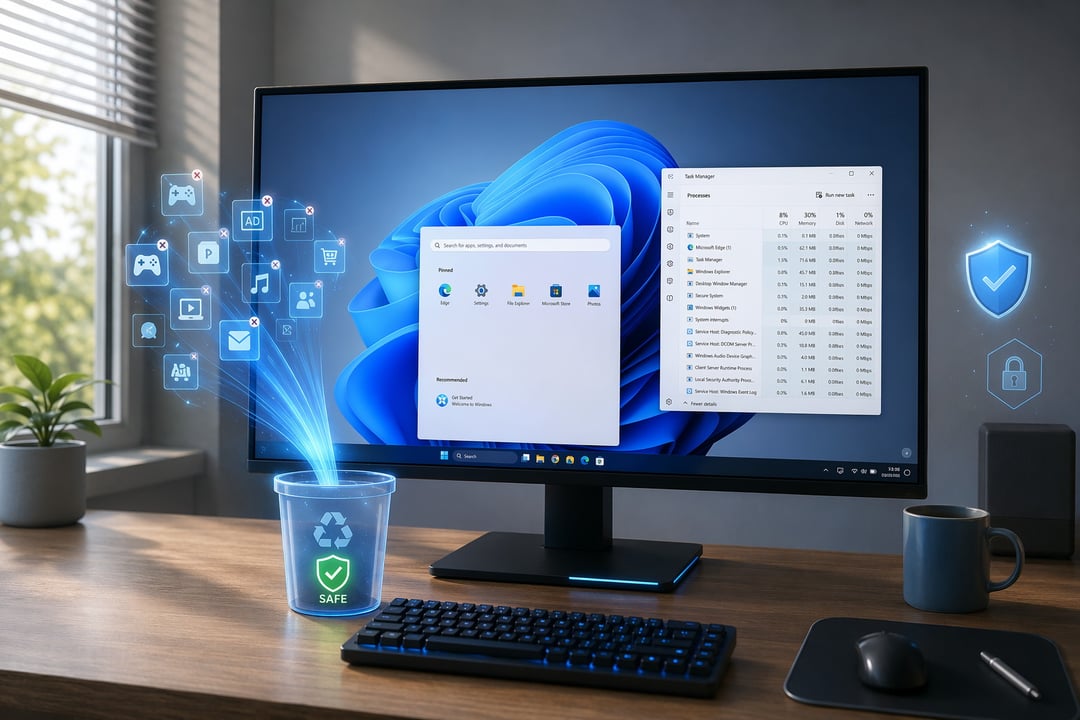
Unbox a new Windows 11 laptop and you inherit somebody else's decisions. Two dozen apps you never chose. A Start menu that recommends things. A startup list already in the triple digits before you install anything of your own. Learning how to debloat Windows 11 is the easy part. Knowing when to stop is what separates a cleaner machine from a broken one. This guide works in layers, moving from the safest changes to the riskiest. It also names the components you should leave alone.
What Counts as Bloatware on Windows 11 (and What Doesn't)
Windows 11 bloatware arrives from three directions. Microsoft ships inbox apps such as Copilot, Xbox services, Clipchamp and Teams. Your PC manufacturer layers on its own utilities and trial software. The shell itself carries promotional surfaces: widgets, Start menu recommendations, notification suggestions and lock screen tips.
A fully updated Windows 11 25H2 installation occupies roughly 29GB of storage and 3.2GB of RAM on its own. Removing preinstalled apps reclaims a few gigabytes and shortens your startup list. It will not turn a slow machine into a fast one. What it reliably improves is attention — fewer interruptions, fewer things asking to become your default and a Start menu that shows what you actually use.
Set Up Your Safety Net First
Install every pending update from Settings > Windows Update and restart before you remove anything. Servicing and stripping at the same time is how small cleanups go wrong.
Then create a restore point. Type "Create a restore point" into Start, open the System Protection tab, click Create and give it a dated name like "Pre-debloat July 2026." The snapshot captures system files, registry entries and installed drivers. It leaves your personal files untouched. Treat it as a complement to a real backup, not a replacement.
Finally, confirm your backup service has finished syncing and sign in with an administrator account.
Start With the Safest Method: Settings
Most of what bothers you can go without a single command. Open Settings > Apps > Installed apps, find the program, open its three-dot menu and choose Uninstall. This path covers ordinary desktop software, Store apps, manufacturer utilities, Copilot, OneDrive and most preinstalled software. The Start menu offers a shortcut: Start > All apps, right-click, Uninstall.
Work in passes rather than sweeps. Remove five or six apps, restart and use the computer for a day. If something misbehaves you will know which change caused it.
Quiet the Clutter You Can't Uninstall
Some clutter is not software to delete. It is behavior to switch off. Every change here reverses in seconds.
Open Task Manager, sort the Startup apps tab by impact and disable anything that need not run at login. Under Settings > Personalization > Start, turn off recommendations and recently added items. The taskbar settings page hides widgets. Settings > System > Notifications controls suggestions and tips. Settings > Privacy & security holds the diagnostic data and tailored experiences toggles.
This layer carries no risk. It also produces most of the improvement people actually feel.
The Components You Should Never Remove
Here is where debloating goes wrong. Leave Microsoft Edge, the Microsoft Store, Windows Security, device drivers and system runtimes in place. Windows Update components and the Windows Recovery Environment belong on the same list, along with the .NET, Visual C++ and WebView2 runtimes that other applications depend on silently.
Manufacturer utilities deserve particular care. Before removing anything from Dell, Lenovo, HP, ASUS or Framework, check what it controls. Battery charge limits, fan curves, function key behavior, firmware updates and audio profiles frequently live inside apps that look disposable. Deleting one is the most common self-inflicted injury on a laptop.
Remember that "removable" and "safe to remove" are different claims. A package manager will cheerfully run an app's uninstaller. It has no opinion about whether Windows needs the result.
Debloat Tools, Used Carefully
Once the manual passes are finished, scripted tools can go further.
WinUtil from Chris Titus Tech offers a graphical interface with Standard and Minimal presets and the ability to revert changes. It creates a restore point automatically before applying tweaks and separates recommended-safe optimizations from higher-risk advanced ones. Stay inside the recommended set. It dropped Windows 10 support after that version's end of support on October 14, 2025.
Win11Debloat is lighter and focused on apps. It runs from an elevated Terminal and presents three choices: Default mode, Custom mode and App removal. Choose Custom. Default mode decides for you, which is fine on a test machine and unwise on the computer you depend on.
Download either one from its official repository and nowhere else.
If Something Breaks, and Why the Bloat Returns
Roll back through System Restore first. If Windows boots normally but behaves strangely, run sfc /scannow from an elevated terminal, then a DISM restore-health pass. Removed Store apps reinstall in under a minute. Reset This PC is a last resort and rarely necessary if you worked in passes.
Expect some bloat to come back. Feature updates re-provision packages and occasionally reset the toggles you turned off. Treat this as maintenance rather than a cure, and revisit your startup list after each major update.
The goal was never the smallest possible Windows install. It is a machine that feels like yours and still behaves like Windows. When you cannot name what a component does, leave it installed.