
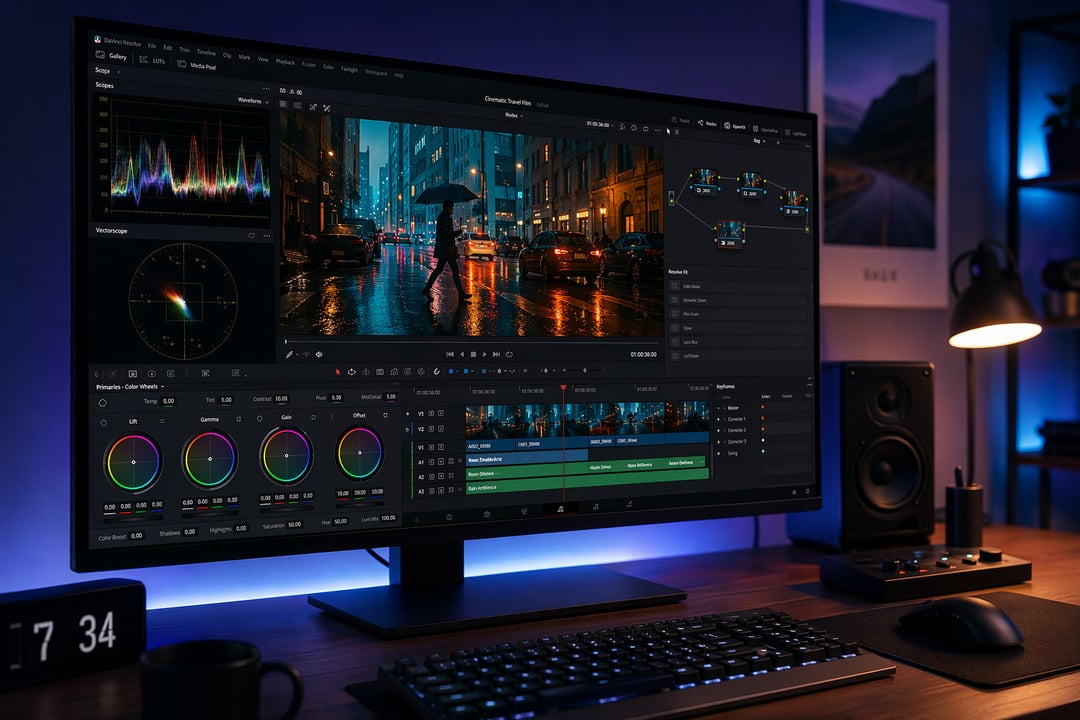
There's a moment most new editors hit around their third hour with professional software. The footage is on the timeline, the cuts are roughly where they should be, and then the realization lands: this thing can do a thousand more things, and you have no idea where any of them live. That overwhelm is exactly why so many people quit before they finish their first real project.
This DaVinci Resolve tutorial exists to get you past that moment. Not with a feature dump, but with a clear path through the one application that has quietly become the default answer for serious video editing in 2026. And here's the part that still surprises people: the version most creators need is completely free.
Why DaVinci Resolve Owns the Conversation in 2026
For years, editing meant a monthly subscription and a tangle of separate apps — one for cutting, another for color, a third for audio, maybe a fourth for graphics. DaVinci Resolve collapsed all of that into a single program. It handles editing, professional color grading, audio mixing, visual effects, and now even photo editing, all under one roof.
The software earned its reputation in Hollywood color suites long before hobbyists touched it. That pedigree matters because it means the free video editing software you download today is built on the same engine that grades feature films. You're not getting a stripped-down trial. You're getting the real tool.
In 2026, the case for switching is stronger than ever. The latest release shipped with one of the largest update lists in the software's history, and it pushes Resolve from "a great editor" toward "the only post-production app you need."
What's New in DaVinci Resolve 21
DaVinci Resolve 21 reached its final, stable release in early June 2026 after a long public beta. It added hundreds of features, but a few of them genuinely change how a normal person works.
The headline is the brand-new Photo page. For the first time, you can pull still images into Resolve and grade them using the same node-based color tools the software uses for video. It's a direct shot at Lightroom, and for anyone who shoots both photos and video, it removes an entire app from the workflow.
Then there are the DaVinci Resolve AI tools, and these are the rare kind that save real time instead of just sounding impressive. IntelliSearch lets you search your own footage by what's actually in it — type "red car" or a line of dialogue and Resolve finds the clip. CineFocus adjusts the focal point of a shot after the fact. The Studio edition layers on facial refinement and a sharpening plugin called UltraSharpen that can rescue footage you'd otherwise throw away.
Underneath the flashy stuff sit the quiet upgrades. Fairlight gained folder tracks for organizing messy audio projects, and Fusion absorbed the Krokodove toolset, a huge library of compositing and graphics tools. None of that trends on social media. All of it makes long projects less painful.
DaVinci Resolve vs Studio: Which One Do You Actually Need?
This is the question everyone asks, so let's answer it honestly. The DaVinci Resolve vs Studio decision is simpler than the marketing makes it sound.
The free edition covers the overwhelming majority of real work. You can edit, grade, mix, and export finished videos without paying a cent. DaVinci Resolve Studio costs a one-time $295 — no subscription, ever. That fee unlocks most of the advanced AI features, higher-resolution exports, and stronger noise reduction.
My advice for almost everyone reading this: start free. Push the software until a specific feature blocks you, and only then pay for Studio. Most people never hit that wall.
Getting Set Up: Hardware and First Launch
Resolve leans hard on your graphics card rather than your processor, so the GPU is where your money matters. You don't need a workstation. A reasonably modern laptop or desktop from the last few years will handle standard projects fine, and the software runs natively across macOS, Windows, Linux, and iPadOS.
When you first open it, resist the urge to import anything. Create a project in the Project Manager, then set your timeline resolution and frame rate before you touch a clip. This sounds tedious. It saves hours of frustration later, because mismatched frame rates are the single most common beginner headache.
The Page-Based Workflow: Resolve's Core Idea
Here's the mental model that unlocks everything. Resolve isn't one cluttered screen. It's a set of dedicated rooms, each tuned for one job, and you move between them as your project progresses.
Think of a professional kitchen with separate stations rather than one chaotic counter. You prep in one place, cook in another, plate in a third. Resolve works the same way, with pages named Media, Cut, Edit, Fusion, Color, Fairlight, Deliver, and now Photo. The buttons sit along the bottom of the screen. Learning to navigate between them confidently is genuinely your first real skill, so spend a few minutes just clicking around.
The Media Page: Organize Before You Edit
The Media page is where you import and sort your footage. Boring? A little. But disciplined organization here is the difference between a smooth edit and a desperate hunt for that one perfect shot at 2 a.m.
This is also where IntelliSearch earns its keep. Instead of manually labeling every clip, you can let Resolve analyze your footage and surface specific objects or spoken words on command. For a DaVinci Resolve for beginners workflow, that's a small miracle.
Cut Page vs. Edit Page: Two Ways to Build
Resolve gives you two editing environments, and understanding the difference shortcuts a lot of confusion.
The Cut page is built for speed. It's stripped down and fast, perfect for quick turnarounds and rough assemblies. The Edit page is the traditional, precise timeline most editors picture when they think about video editing. The smart move is to rough-assemble on Cut, then refine on Edit, where you control trims, transitions, and motion keyframes with real precision.
Color Grading in DaVinci Resolve: Where Nothing Else Comes Close
If Resolve has a crown jewel, this is it. The software started life as a color tool, and that DNA still makes color grading in DaVinci Resolve better than anything else on the market.
The concept that scares newcomers is "nodes." Don't let it. Picture each node as a single adjustment layer, stacked in sequence, with the image flowing through them left to right. One node fixes exposure. The next pushes the mood. Simple as that.
There's a useful distinction worth holding onto: correction versus grading. Correction fixes problems — balancing exposure, neutralizing weird color casts. Grading is the creative part, where you build a look. Start by learning to read the scopes (the waveform and vectorscope graphs), because they turn grading from guesswork into something you can actually measure.
Fairlight and Fusion: Audio and Effects Without Leaving the App
Two things separate amateur videos from polished ones, and one of them is sound. Fairlight is Resolve's full audio suite, and clean audio carries a video further than clean picture ever will. The new folder tracks make even sprawling, multi-layer mixes manageable.
Fusion handles motion graphics and visual effects. I'll be straight with you: it's deep, it's node-based, and it has a steep curve. You don't need it for your first ten projects. But it's worth a curious afternoon, especially now that the Krokodove library ships built in, giving you templates and tools that used to require add-ons.
The Photo Page: A 2026 Reason to Rethink Everything
For hybrid shooters who carry one camera for both stills and video, the Photo page might be the most quietly important feature in years. Resolve 21 brings full photo editing inside the app, complete with an image library, tagging, ratings, albums, and native RAW support for the major camera brands.
The strategic point is bigger than convenience. This is the feature that turns Resolve from a video editor into a single, unified post-production hub. One library. One color science. Every frame you shoot, still or moving, in the same place.
Exporting: The Deliver Page
The Deliver page renders your finished work, and it intimidates people far more than it should. Only three decisions really matter: the format (most people want MP4), the resolution (match your timeline), and the destination preset. Resolve includes one-click presets for YouTube, social platforms, and archival masters.
Avoid the classic beginner traps — exporting at the wrong frame rate, producing files four times larger than they need to be, or choosing a codec your platform chokes on. Pick a preset, check it matches your project, and render.
Your 30-Day Path from Beginner to Confident Editor
Forget "just keep practicing." Here's a realistic plan.
Week one: learn the pages and finish one short cut, start to end, however rough. Week two: focus entirely on color basics — correction first, then a simple look. Week three: clean up your audio in Fairlight and master a clean export. Week four: take on one ambitious personal project that forces you to use everything at once.
When you want structured depth, Blackmagic offers free official training and certification at their training hub.
That's the whole promise of this DaVinci Resolve tutorial, restated plainly: one free application, one timeline, and every skill that used to demand four separate programs and a monthly bill. The barrier to mastering video editing in 2026 isn't money anymore. It's just the decision to start.