
Google Chrome adds vertical tabs for easier tab management
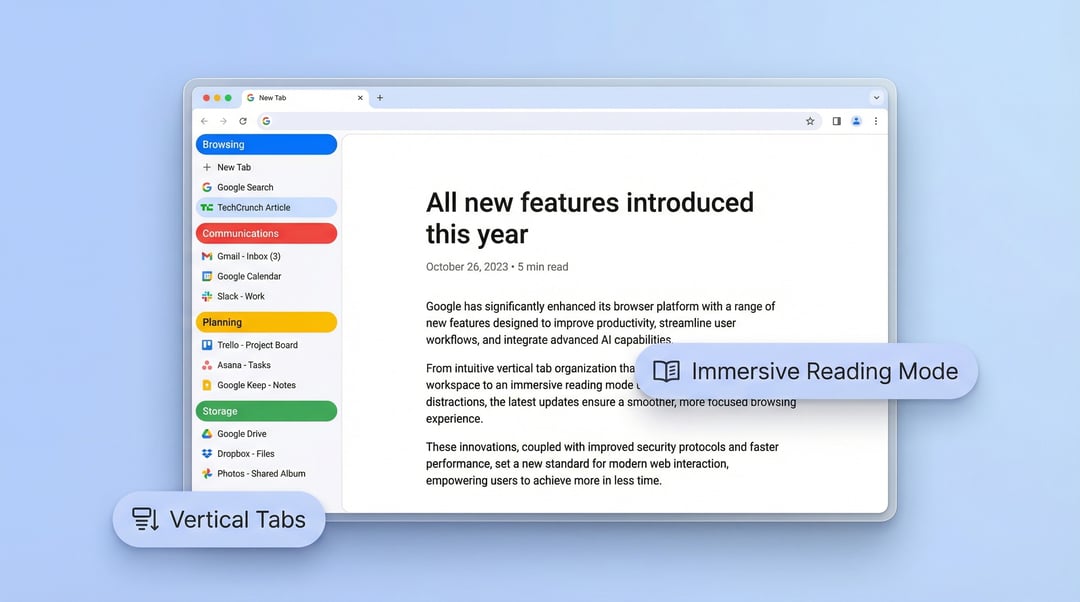
Google is rolling out two desktop changes in Chrome: vertical tabs and a new fullscreen reading mode. Both are designed to make browsing easier to manage, especially if you tend to keep a lot of tabs open or run into webpages that feel visually crowded.
How Chrome vertical tabs work
Vertical tabs stack open tabs in a list along the left side of the window instead of placing them across the top in the usual horizontal strip. That change makes full page titles easier to read, particularly when the number of open tabs starts to grow.
This setup also makes Tab Groups easier to organize. Rather than squeezing more and more tabs into a narrow row, Chrome presents them in a cleaner left-side panel that can be easier to scan at a glance.
Why vertical tabs could make tab chaos easier to handle
When tabs pile up, the traditional top bar can get cramped fast. Vertical tabs address that by giving each tab more room, which helps page titles stay readable instead of being cut down to tiny fragments.
That makes the feature especially useful for tab-heavy browsing. If you regularly work with multiple pages open at once, the vertical layout offers a simpler way to keep track of what is open and where everything is.
How to enable vertical tabs in Chrome
To turn on vertical tabs, right-click the top of any Chrome window and choose “Show Tabs Vertically.” Chrome also lets you switch back whenever you want, so the feature is easy to try without committing to a permanent layout change.
Chrome lets you collapse the tab panel for a cleaner look
The left-hand vertical tabs panel can also be collapsed into a slimmer row of favicons. That gives you a more minimal appearance while still keeping the feature available.
Saving screen space with collapsed vertical tabs
This smaller favicon view is useful if you want the cleaner feel of vertical tabs without giving up too much screen space. It keeps the interface more compact while preserving access to your open tabs.
Chrome fullscreen reading mode creates a cleaner page view
The second desktop addition is an updated immersive reading mode. Instead of opening in a side panel, it now takes over the full page and creates a more text-focused view.
Google describes it as a way to strip away distractions from busy websites and turn cluttered pages into a cleaner reading experience.
What changed in Chrome reading mode
The main change is where the reading mode appears. Rather than being confined to a side panel, it now uses the full page. That makes the reading experience feel more immersive and more focused on text.
For pages that feel visually crowded, this mode offers a simpler presentation that reduces distractions.
How to open reading mode in Chrome
You can access the feature in two ways:
- Right-click a page and select “Open in reading mode”
- Tap the “Reading Mode” button in the address bar
This feature is already live now, though availability may vary a bit at first.
Chrome desktop updates focus on convenience and cleaner browsing
These two additions are meant to improve different parts of the desktop browsing experience. Vertical tabs aim to make tab-heavy browsing easier to manage, while fullscreen reading mode offers a cleaner way to read cluttered webpages.
One helps with organization. The other helps with focus. And together, they make Chrome on desktop feel more practical for people who want less visual mess while browsing.