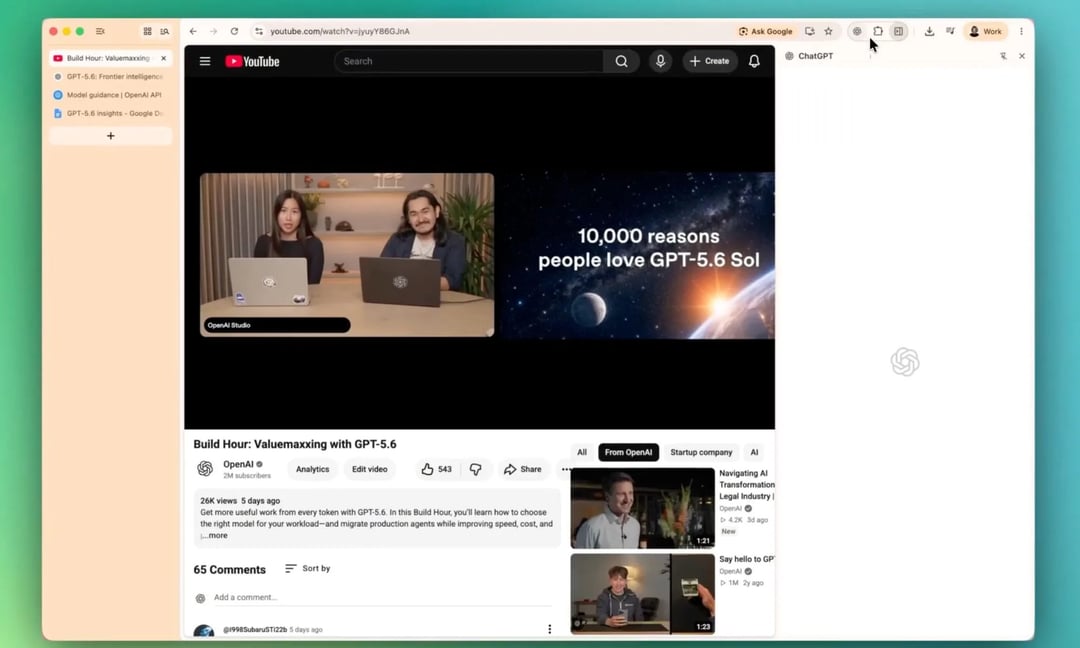
OpenAI has pushed a set of updates to the ChatGPT Chrome extension and the ChatGPT desktop app that close a gap users have complained about for a long time: the assistant finally has a sense of what you're looking at. Instead of copying a paragraph into a chat window or explaining what a video covers before you can ask a question about it, you point ChatGPT at what's already on screen and go.
What the Chrome Extension Update Changes
The bulk of the new functionality lives in Side Chat, the panel that sits alongside whatever page you're on. Three capabilities land there, plus one shortcut that makes the whole thing faster to reach.
Pulling Context From Your Open Tabs
You can now point Side Chat at the tabs you already have open and reference them directly in a conversation. The practical effect is that you stop describing things. If you've got a spec sheet in one tab, a review in another, and a pricing page in a third, ChatGPT can work from what's loaded rather than waiting for you to summarize each one in the prompt. For anyone who researches by opening fifteen tabs and sorting it out later, that's the difference between a usable assistant and one that constantly needs to be briefed.
Asking Questions About Highlighted Text
Highlighting works the way you'd hope. Select a chunk of text on a page, then ask about that exact selection. No copying, no pasting, no "the third paragraph under the second heading" gymnastics. The selection itself becomes the reference point, which matters most on dense pages — legal language, documentation, research writeups — where the part you care about is buried in a lot of text you don't.
YouTube Videos Without a Manual Summary Request
Ask about a YouTube video and ChatGPT reads it directly. You don't have to prompt it to summarize first and then follow up with your actual question. This removes a two-step dance that a lot of people had built into their habits: request a summary, wait, then ask the thing you wanted to know. Now the question is the first step.
The Right-Click Shortcut
There's also a faster way in. Right-click anywhere on a page, choose Ask ChatGPT, and the sidebar opens on its own. Small thing, but it removes the friction of hunting for the extension icon every time a question comes up mid-read.
What's New in the ChatGPT Desktop App
The desktop app picked up changes that push it further toward behaving like a browser rather than a chat window that happens to fetch links.
URL suggestions as you type. The app now suggests addresses while you're typing, functioning much like a standard browser address bar. If you've been treating the desktop app as a place where browsing sort of happens on the side, this makes it feel less like a workaround.
Browsing history you can dig through. History is accessible from Settings, so you can go back and find a page you landed on earlier. More usefully, ChatGPT can search that history itself when a task requires a page you've already visited. You describe what you're looking for instead of scrolling through a timestamped list hoping to recognize a title.
Smaller Updates Shipping in the Same Release
A handful of quieter changes came along with the release, and a couple of them will matter more to specific groups of users than the headline features.
|
Update
|
What it does
|
|
Activity view
|
A sidebar panel showing which chats you've engaged with recently and which ones still need your attention
|
|
Multi-repository code review
|
Reviewing code across several repositories inside a single project is now simpler
|
|
Expanded image viewer
|
Generated images open in a larger viewer where you can leave comments before asking for edits
|
The Activity view addresses a problem that grows quietly with usage. If you keep dozens of conversations going, threads drift out of sight and stay unfinished. Surfacing what's recent and what's still open turns the chat list into something closer to a queue.
The image viewer change is aimed at iteration. Rather than describing an edit from memory after closing the image, you open it larger and leave comments on it before requesting the change — a workflow closer to how design feedback actually happens.
Why This Arrived Now: The Atlas Browser Retreat
The timing isn't incidental. These updates came shortly after OpenAI shelved its standalone Atlas browser, redirecting attention toward the tools people are already using. That's a meaningful strategic shift. Building a browser means convincing people to abandon one they've configured over years — bookmarks, extensions, saved logins, muscle memory. Building a strong extension for Chrome means meeting them where they already work.
Read the feature list through that lens and it makes sense. Tab awareness, highlighted-text queries, native video understanding, a right-click entry point, address-bar suggestions, history search — these are the pieces you'd want in a browser. Delivered as an extension and a desktop app, they get the same functionality in front of users without asking anyone to switch.
Who Actually Benefits From This
The clearest winner is anyone who does research with a browser open. If your workflow already involves running ChatGPT alongside pages you're reading, this update mostly removes steps you were performing manually: explaining context, pasting excerpts, requesting summaries before asking real questions. The work doesn't change. The overhead around it shrinks.
Developers get something more specific in the multi-repo review improvement, and anyone generating images gets a tighter feedback loop. But the through-line across every item in this release is the same idea — the assistant should already know what you're looking at.